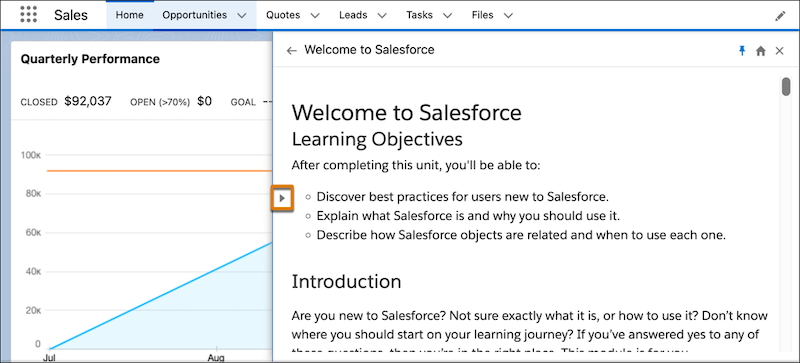
Personalize the in-app content experience with options for pinning and unpinning the
Guidance Center panel. The Guidance Center panel also automatically expands for videos and
Trailhead modules, offering more room on the screen for your content.
Required Editions
| Available in: Lightning Experience |
| Available in: Starter, Professional, Enterprise,
Performance, Unlimited, and Developer
Editions
|
Pinning and Unpinning the Guidance Center
The Guidance Center panel can overlap some elements of the page in Lightning
Experience. To split the screen between the Guidance Center and the Lightning
Experience page, side by side with no overlap, click the pin icon  in
the Guidance Center header.
in
the Guidance Center header.
Salesforce remembers a user’s pin selection for the browser and device they’re
on.
To exit the split view and have the Guidance Center overlap the Lightning Experience
page again, click the unpin icon  in the Guidance Center header.
To turn off pinning and unpinning, contact Salesforce Customer Support.
Expanded View for Videos and Trailhead Content
Some content types in the Guidance Center, such as videos or Trailhead units, are
easier to experience when you have more room on the screen. For these content types,
the Guidance Center automatically expands to a larger width.
To resize the Guidance Center after it expands, toggle the arrow icon.