Make a field stand out by adding special formatting based on rules and criteria you provide, so that end users can quickly identify the most relevant information on a record page. You can apply conditional formatting to almost any field on a Dynamic Forms-enabled page, including the fields in the Dynamic Highlights Panel component.
Required Editions
| Lightning App Builder available in: Salesforce Classic (not available in all orgs) and Lightning Experience |
| Lightning pages and Dynamic Forms available in: Lightning Experience and the Salesforce mobile app |
|
Available in: Group Essentials, Professional, Enterprise, Performance, Unlimited, and Developer Editions |
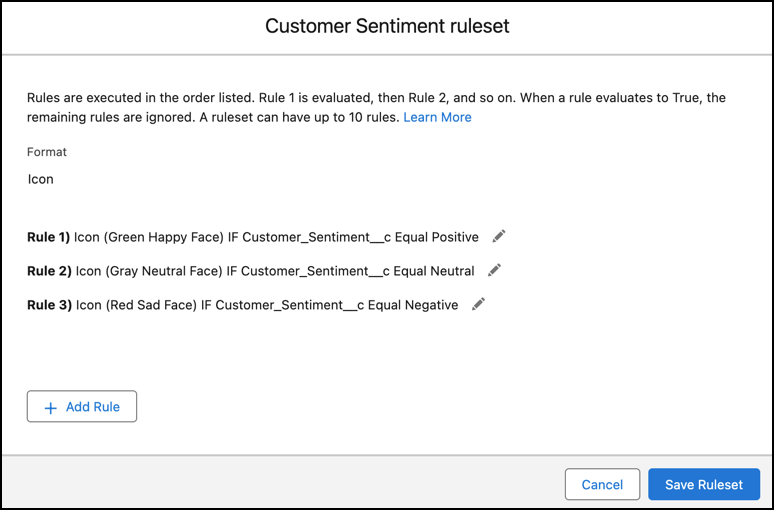
Conditional formatting uses rulesets, which are collections of rules. Each rule is made up of conditions that determine how and when formatting appears on a field. The conditions can be based on the field's value or on the values of other fields on the page.
In the Lightning App Builder, items that have conditional formatting applied are indicated
with an icon ( ).
).
To see, edit, or delete any rulesets that have been created for an object, use the Conditional Field Formatting node when viewing the object in Object Manager.
Conditional formatting is designed to amplify the information on the field that is already
there. For best results and to ensure that the configuration is accessible, make sure the
icon, icon color, and field value convey the same information, such as a green happy face on a
field with a value of Positive.
To make conditional formatting accessible for all of your users, fields that use conditional formatting should always have a field value visible.
Because it relies on Dynamic Forms, conditional field formatting can appear on mobile only when Dynamic Forms is enabled for mobile. To make sure that your mobile users can see the conditional formatting you've applied to record fields, turn on Dynamic Forms and Dynamic Highlights Panel on Mobile from Setup | Salesforce Mobile App.
Supported Fields, Field Types, and Operators
On record pages, conditional formatting rules rely on the data captured in fields associated with the page’s object. Not all fields, field types, and operators are supported.
These field types are supported:
- String type fields: Autonumber, Currency, Email, Number, Percent, Phone, Text, Text Area, URL
- ID
- Checkbox (boolean)
- Geolocation
- Picklist
- Formula fields that resolve to one of these preceding types
- Roll-up summary fields that resolve to one of these preceding types
These operators are supported.
- CONTAINS
- = and == (Equal)
- <> or != (Not Equal)
- > (Greater Than)
- >= (Greater Than or Equal)
- < (Less Than)
- <= (Less Than or Equal)

Positive,
a grey neutral face when the value is Neutral, and a red sad-face icon when
the value is Negative. That way, viewers can instantly see the sentiment
based on the style and color of the icon.