
The Change Management tab offers a unified view of all the modifications across your current org. From this tab, you can view, manage, and commit metadata and data changes to your source control repository. You can also move metadata and data together for direct deployment to a target org.
Required Editions
| Available in: Lightning Experience |
| Available in: Professional, Enterprise, Performance, Unlimited, and Developer Editions |
Access the Change Management tab by clicking the  icon in the DX Inspector panel.
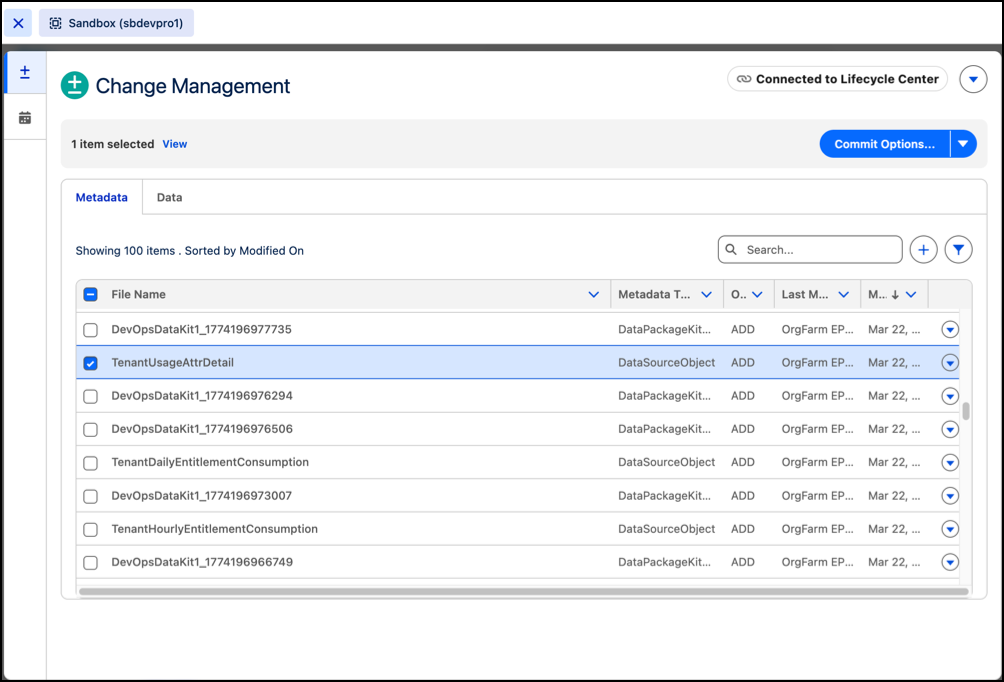
Source tracking automatically tracks metadata changes in sandboxes and scratch orgs, and shows them in the Metadata tab. Data changes, such as adding records or updating picklist values, appear in the Data tab. If source tracking isn’t enabled, add metadata manually from the Metadata tab.

To filter and view uncommitted changes, authenticate and connect to Lifecycle Center, previously known as DevOps Center. This filtered view shows the changes since your last commit to Lifecycle Center. You can sort, search, and filter the list by date, org, type of metadata, manual metadata, and uncommitted changes. After you review the changes, commit them directly to the source control repository.
If you're not connected to Lifecycle Center, you can deploy metadata and data together in a single orchestration to a target org. This type of deployment is suitable for solo Salesforce admins or smaller teams.
- Add Metadata Manually
The Change Management tab uses source tracking to automatically track metadata files in your org. However, when you require the flexibility to include additional metadata files that source tracking hasn’t pulled automatically, you can add metadata manually. - Commit Changes to Source Repository
Commit changes to your source repository from the Change Management tab. After reviewing the changes, select the ones you want to include in the work item, then commit them to your Lifecycle Center project repository. When you commit changes, DX Inspector stores them in the repository branch created when the work item moved to the In Progress status. - Create a Change Request
After you commit changes to an In Progress work item and are ready to share them with team members, start a review from the development environment using DX Inspector. Creating a review moves the work item to In Review status and opens a change request (also called a pull request).