
After the Build Agent creates your app, you can refine it in Builder Central without starting over. Describe the changes you want in the chat, or use visual editing to adjust elements directly on the design canvas.
When the Build Agent finishes building your app, you can keep refining it in a few ways. Describe the change you want and let the Build Agent apply it, or edit elements yourself with visual editing in the Design panel. You can also edit your app through a metadata visualization. See Edit Metadata Through Visualizations.
- Open Builder Central, and then open the app you want to refine.
Edit by describing changes to the Build Agent
-
In the chat, describe the change you want.
The more specific you are, the closer the result is to what you have in mind. For example, enter Make the New Case header a bit smaller, and change the font to Tahoma. The Build Agent applies the change to your app.
Edit directly in Design
- In the Design panel, select Edit.
-
Select the element you want to change, and then refine it in any of these ways.
- In the property panel, adjust design details such as color, font, spacing, and borders.
- Describe the change in the chat. When you select an element, the Build Agent recognizes which element you selected and shows it in the chat, so you can tell the agent what to change.
- Edit the text directly on the canvas. You can't edit dynamic text on the canvas, but you can ask the Build Agent to change it.
 Note If you change anything in the property panel, select Save before you chat with the Build Agent.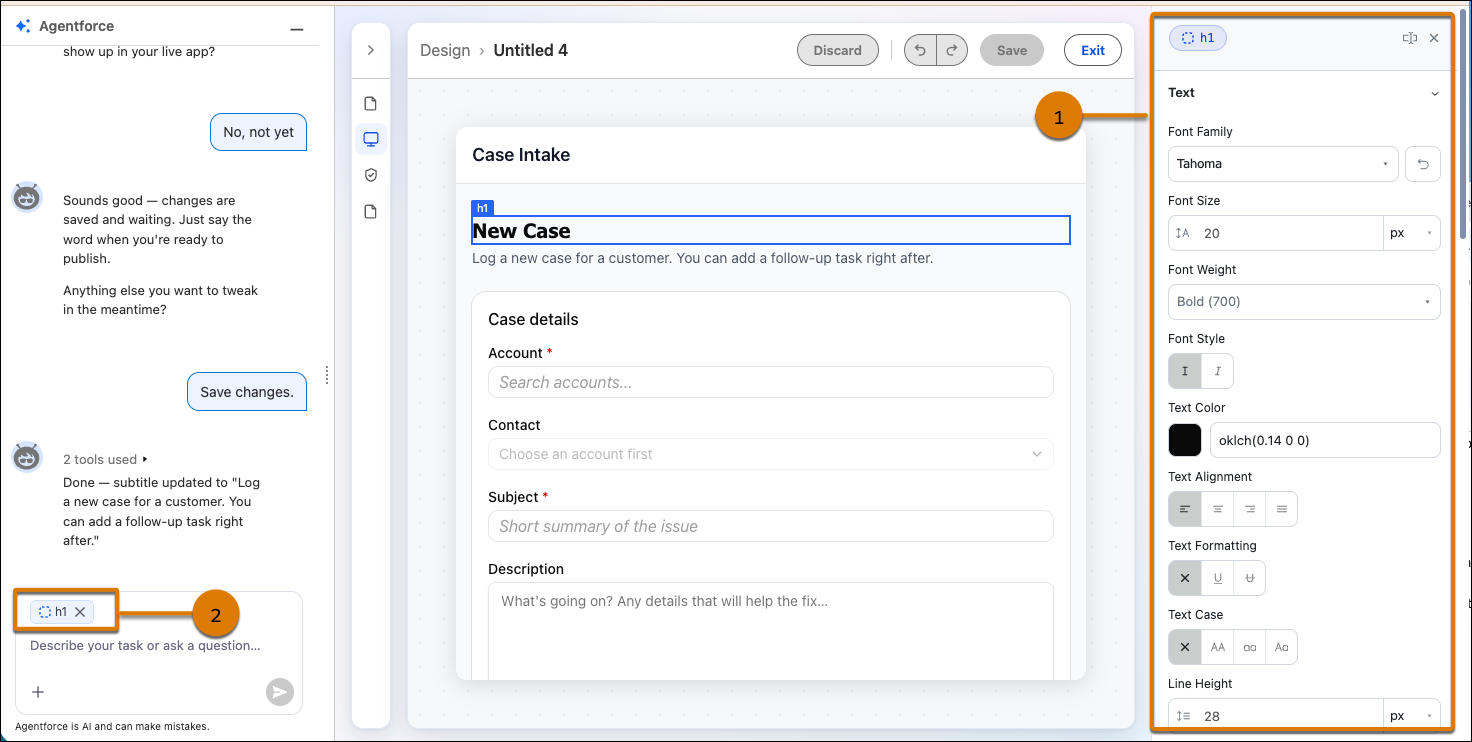
-
Select Save.
Saving keeps your changes in the app's draft. To make them live, publish your app.
Your refinements are saved to the app's draft. Publish the app when you're ready to make the changes live in your org.