
In Builder Central, when you visualize metadata such as a data model, an agent, a flow, a flexipage, or a permission set, you can select an element(s) in the visualization and use the agent to edit its metadata.
Based on the context and your requested changes, the agent updates both the metadata and its visualization. It also identifies impacted dependencies across the project and updates related metadata as needed, reducing the effort required to manually trace and update dependencies and helping prevent deployment failures caused by missed dependencies.
To edit the metadata:
-
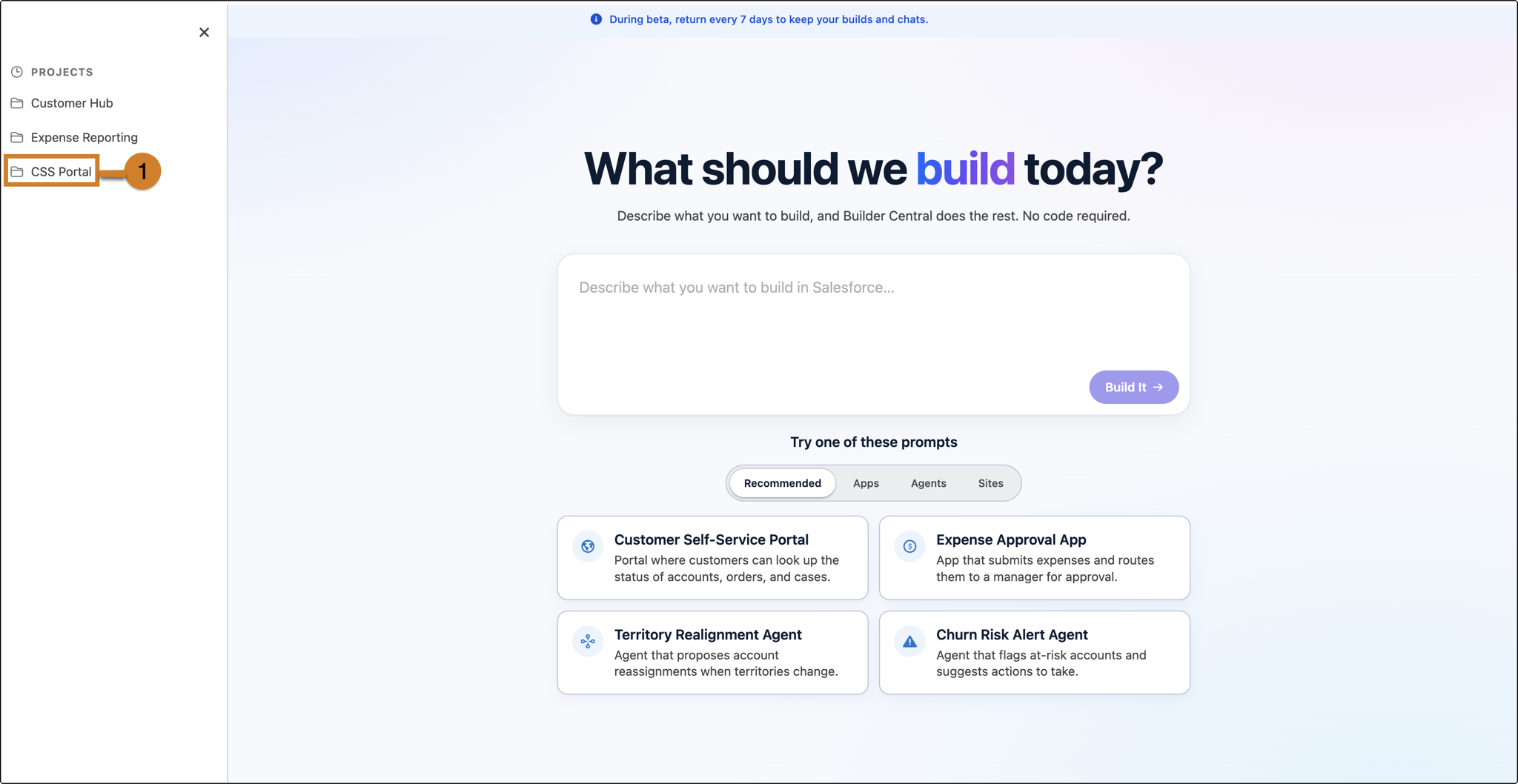
Open Builder Central and open the project that contains the metadata you want to
edit.
-
In the Explorer panel, expand the metadata category and select the
item you want to open.
For example, expand Agents and select CSS Portal Assistant. Its visualization opens on the design canvas, showing its structure.
-
Click Select to Edit in the top-right corner of the canvas and you
can click elements on the canvas to select them. Click the element you want to change. To
select multiple related elements, do one of the following:
- Click each additional element to add it to the selection.
- Click and drag to draw a selection box around the elements you want to select.
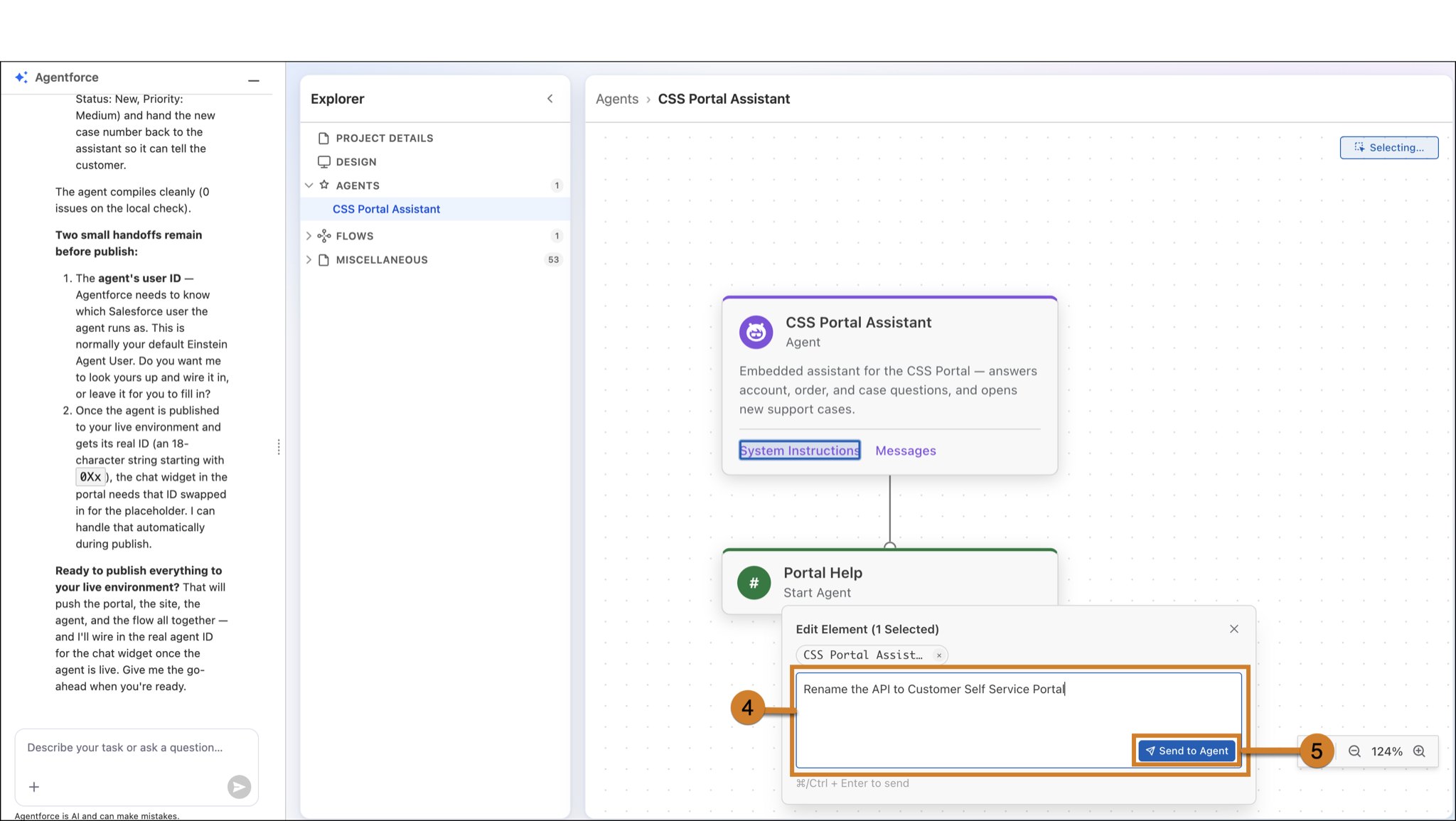
Each selected element is outlined, and it appears in an Edit Element popup at the bottom of the canvas, showing the current selection count — for example, Edit Element (2 Selected).
 Note If you select the wrong element, click the x on its chip in the popup to remove it from the selection.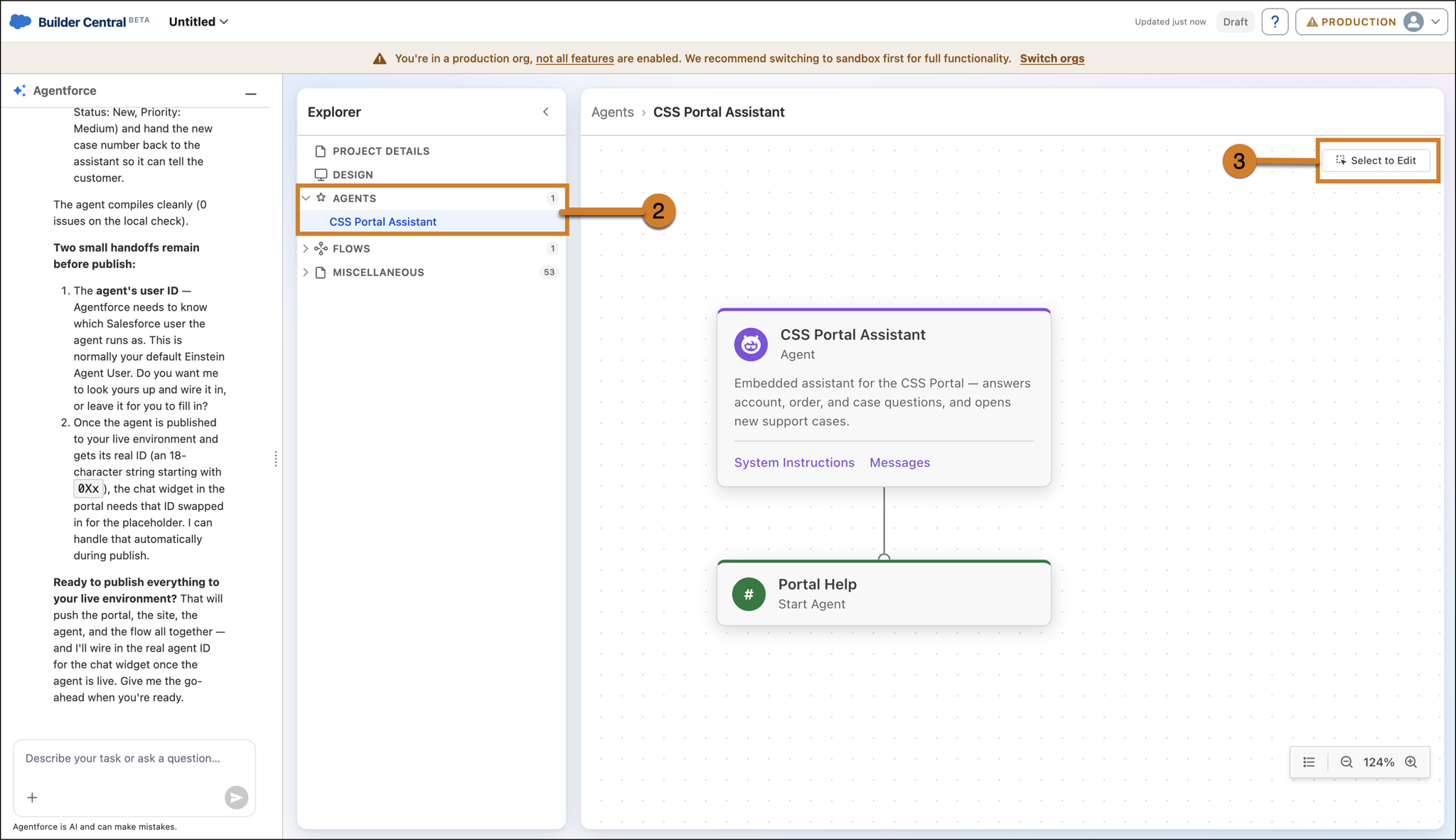
-
In the Describe your changes… box, enter your instruction, or click
the microphone icon to speak it.
For example, enter Rename the API to Customer Self Service.
-
Click Send to Agent.
Your instruction and the selected elements appear in the Agentforce chat panel. The Build Agent checks for upstream and downstream dependencies that the change affects and asks for your confirmation. After you confirm, it updates the metadata and reports what changed.
-
Review the canvas to confirm the change.
For example, the field now shows as required. To refine the result, enter more prompts.
-
Review the updated canvas to confirm the change was applied.
For example, the agent card now displays the new name consistently across the card and any connected nodes. You can continue refining the result with additional prompts as needed.