
This example creates a screen flow that sales reps launch from an account to update onboarding fields, attach paperwork, and create tasks.
Required Editions
| View supported editions. |
| User Permissions Needed | |
|---|---|
| To open, edit, create, activate or deactivate a flow using all flow types, elements, and features available in Flow Builder, including Einstein and Agentforce for Flow: | Manage Flow |

Your sales reps repeat the same steps every time they onboard a new account. They update account fields, create kickoff tasks one at a time, and chase down paperwork. Reps skip steps, and every account goes through a slightly different process.
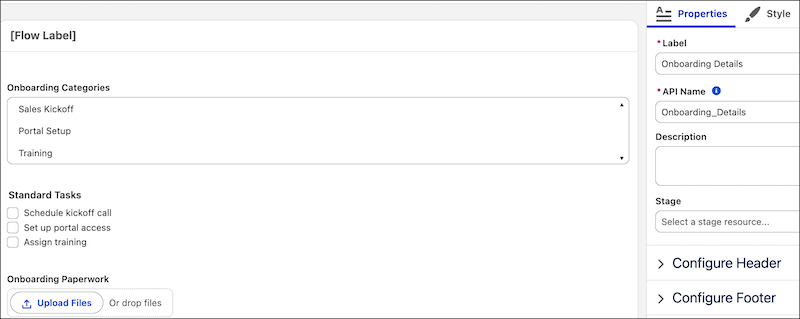
This screen flow gives reps one place to do it all. From an account, a rep chooses the onboarding categories, picks the standard tasks to create, and uploads the paperwork. The flow updates the account and creates one task for each selected item. The screen uses a Multi-Select Picklist, a Checkbox Group, and a File Upload component. You can build a similar flow for renewals by changing the fields and tasks.
To build the example, you create the account fields, the screen flow and its choices, and the task variables. Then you build the onboarding screen, add the logic that creates the tasks and activate the flow, and create the quick action that launches it.
See Also
Create the Account Fields
Create the custom fields that the flow updates on the account to track onboarding.
Required Editions
| User Permissions Needed | |
|---|---|
| To create and edit custom objects: | Customize Application |
Learn more about creating custom fields in Create Custom Fields.
- From Setup, click Object Manager, and then click Account.
-
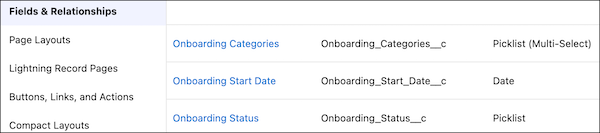
If you don't have an Onboarding Status field on Account, create one.
- Click Fields & Relationships, and then click New.
- Select Picklist, and then click Next.
- For Field Label, enter Onboarding Status.
- For Values, select Enter values, with each value separated by a new line.
- In the text box, enter these values on separate lines: Not Started, In Progress, and Complete.
- Use the default settings and click Next until you can save the field.
- Click Save & New.
-
If you don't have an Onboarding Start Date field on Account, create one.
- Select Date, and then click Next.
- For Field Label, enter Onboarding Start Date.
- Use the default settings and click Next until you can save the field.
- Click Save & New.
-
If you don't have an Onboarding Categories field on Account, create one.
- Select Picklist (Multi-Select), and then click Next.
- For Field Label, enter Onboarding Categories.
- For Values, select Enter values, with each value separated by a new line.
-
In the text box, enter these values on separate lines: Sales
Kickoff, Portal Setup, and
Training.
The values must match the choice labels that you create for the flow later in this example.
- Use the default settings and click Next until you can save the field.
- Save your changes.
Create the Screen Flow and Choice Resources
Create the screen flow, the variable that receives the account ID, and the choices that the screen shows.
-
Open the Flows list view.
- From the Automation app, select the Flows tab.
- From the Flows tab in any Lightning app, click the actions menu and select Open Flow.
- From Setup, in the Quick Find box, enter Flows, and then select Flows.
Note that the Automation app and Flows tab options don't require Setup access. -
Create a screen flow.
- From the Automation app, click New | Screen Automations | Screen Flow.
- From Setup, click New Flow | Screen Automations | Screen Flow
The new screen flow opens in Flow Builder. -
Create a variable to store the ID of the account where the user starts the flow.
The quick action passes the account ID into this variable. The flow uses the ID to find the account to update and to relate the new tasks and uploaded files to the account.
-
To open the Toolbox, click
 .
.
- Click New Resource, and then select Variable.
- For API Name, enter recordId.
- For Data Type, select Text.
- For Availability Outside the Flow, select Available for input.
- Click Done.
-
To open the Toolbox, click
-
Create a Choice resource for each onboarding category.
These choices appear in the Multi-Select Picklist component. Repeat these substeps for each category in the table.
- Click New Resource, and then select Choice.
- For Data Type, select Text.
-
For API Name, Choice Label, and Choice Value, enter the values from the table.
API Name Choice Label Choice Value SalesKickoff Sales Kickoff Sales Kickoff PortalSetup Portal Setup Portal Setup Training Training Training - Click Done.
-
Create a Choice resource for each standard task.
These choices appear in the Checkbox Group component. Repeat these substeps for each task in the table. Later in this example, you add the same task names to a collection, and those names become the task subjects.
- Click New Resource, and then select Choice.
- For Data Type, select Text.
-
For API Name, Choice Label, and Choice Value, enter the values from the table.
API Name Choice Label Choice Value ScheduleKickoffCall Schedule kickoff call Schedule kickoff call SetUpPortalAccess Set up portal access Set up portal access AssignTraining Assign training Assign training - Click Done.
Create the Task Variables
Create the variables that the flow uses to build the onboarding tasks.
Continue in the screen flow that you created.
-
Create a text collection variable that holds the standard task names.
The loop later in this example goes through this collection one task name at a time.
- Click New Resource, and then select Variable.
- For API Name, enter StandardTaskNames.
- For Data Type, select Text.
- Select Allow multiple values (collection).
- Click Done.
-
Create a record variable that holds one task at a time.
- Click New Resource, and then select Variable.
- For API Name, enter TaskRecord.
- For Data Type, select Record.
- For Object, select Task.
- Click Done.
-
Create a record collection variable that holds all the tasks to create.
The flow creates all the tasks with a single Create Records element after the loop. The flow is efficient when it creates more than one task.
- Click New Resource, and then select Variable.
- For API Name, enter TasksToCreate.
- For Data Type, select Record.
- For Object, select Task.
- Select Allow multiple values (collection).
- Click Done.
Build the Onboarding Screen
Add the screen that collects the onboarding categories, the standard tasks, and the paperwork.
Continue in the screen flow that you created.
-
Add a Screen element.
-
Click
 , and then select Screen.
- For Label, enter Onboarding Details and let the API name auto-fill.
-
Click
-
Add a Multi-Select Picklist component for the onboarding categories.
Users use this component to choose which onboarding categories apply to the account.
- From the Components list, drag a Multi-Select Picklist component onto the canvas.
- For Label, enter Onboarding Categories, and then for API Name, enter OnboardingCategories.
- For Choice, add the SalesKickoff, PortalSetup, and Training choices.
-
Add a Checkbox Group component for the standard tasks.
Users use this component to pick which standard tasks the flow creates.
- Drag a Checkbox Group component below the Multi-Select Picklist component.
- For Label, enter Standard Tasks, and then for API Name, enter StandardTasks.
- For Choice, add the ScheduleKickoffCall, SetUpPortalAccess, and AssignTraining choices.
-
Add a File Upload component for the paperwork.
Users use this component to attach onboarding paperwork to the account.
- Drag a File Upload component below the Checkbox Group component.
- For API Name, enter OnboardingPaperwork.
- For File Upload Label, enter Onboarding Paperwork.
- For Allow Multiple Files, select {!$GlobalConstant.True}.
-
For Related Record ID, select recordId.
This step attaches the uploaded files to the account.
- Click Done.
Add the Logic, Create the Tasks, and Activate the Flow
Add the elements that update the account and create the selected tasks. Then activate the flow.
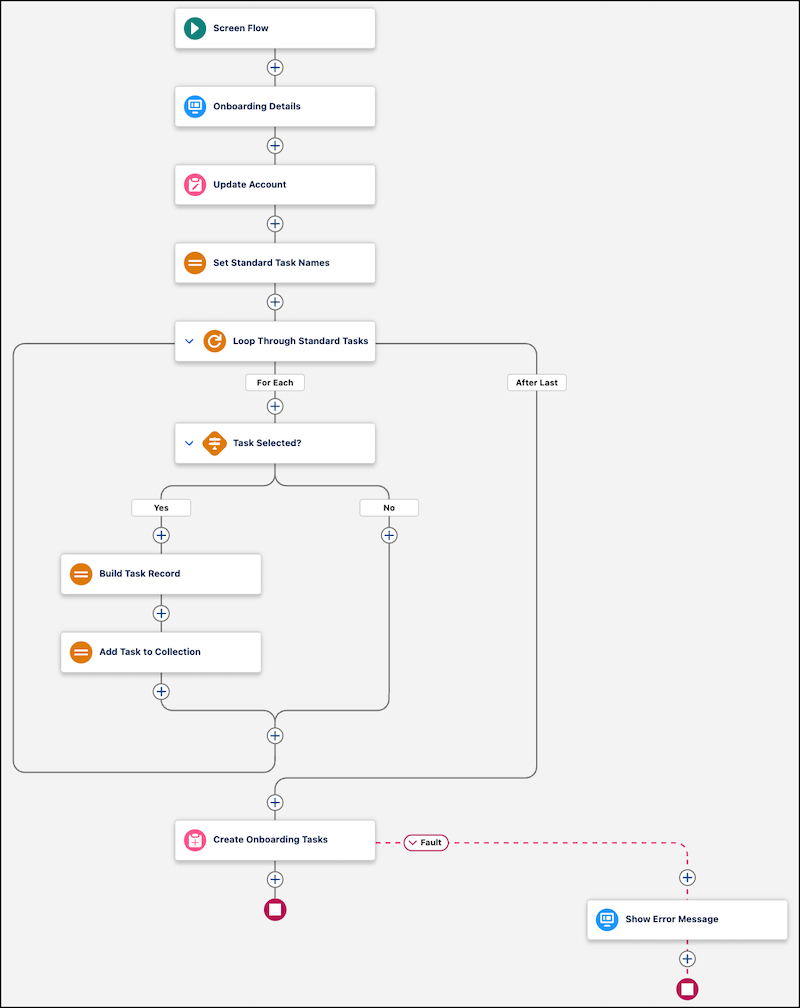
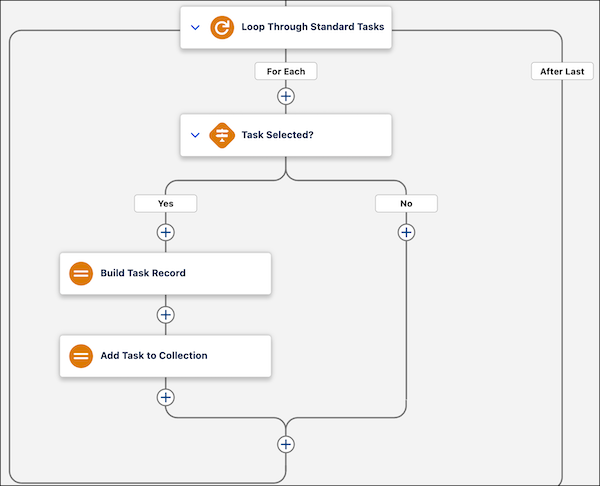
Continue in the screen flow that you created. The finished flow starts at the Onboarding Details screen. It then runs Update Account and Set Standard Task Names, and it loops through the standard task names. In the loop, Task Selected? checks each name, and the Yes path runs Build Task Record and Add Task to Collection. After the loop, Create Onboarding Tasks creates the tasks, and its fault path shows an error message.
-
Add and configure an Update Records element.
This step updates the onboarding fields on the account where the user started the flow.
-
After the Onboarding Details element, click , and then select Update Records.
- For Label, enter Update Account and let the API name auto-fill.
- For How to Find Records to Update and Set Their Values, select Specify conditions to identify records, and set fields individually.
- For Update Records of This Object Type, select Account.
-
Under Condition Requirements to Update Record, for Field select Account
ID, for Operator select Equals, and for Value select
recordId.
This step identifies the account where the user started the flow.
-
Under Set Field Values for the Account Records, set the fields in the table.
Field Value Onboarding Status In Progress Onboarding Start Date {!$Flow.CurrentDate} Onboarding Categories OnboardingCategories (the Multi-Select Picklist component)
-
After the Onboarding Details element, click
-
Add an Assignment element that fills the StandardTaskNames collection.
The flow adds each task name to the collection with an Assignment element. If you change a task name in the choices, change it here too.
-
After the Update Account element, click , and then select Assignment.
- For Label, enter Set Standard Task Names and let the API name auto-fill.
- For Variable, select StandardTaskNames, for Operator select Add, and for Value enter Schedule kickoff call.
-
Click + Add Assignment, and then add the other two task names
with the same variable and operator: Set up portal access and
Assign training.
The values must match the choice values that you created for the Checkbox Group component.
-
After the Update Account element, click
-
Add and configure a Loop element.
The loop goes through the standard task names one at a time so the flow can check each one against the user's selections.
-
After the Set Standard Task Names element, click , and then select Loop.
- For Label, enter Loop Through Standard Tasks and let the API name auto-fill.
- For Collection Variable, select StandardTaskNames.
- For Direction, select First item to last item.
-
After the Set Standard Task Names element, click
-
In the loop, add and configure a Decision element.
This step checks whether the user selected the task that the loop is on.
-
After For Each, click , and then select Decision.
- For Label, enter Task Selected? and let the API name auto-fill.
- For Outcome Label, enter Yes and let the API name auto-fill.
- Under Condition Requirements to Execute Outcome, for Resource select the StandardTasks component's selected values, for Operator select Contains, and for Value select Current Item from Loop Loop Through Standard Tasks.
-
Rename the Default Outcome to No.
The No path continues to the next item in the collection.
-
After For Each, click
-
On the Yes path, add an Assignment element that builds the task.
-
On the Yes path, click , and then select Assignment.
- For Label, enter Build Task Record and let the API name auto-fill.
-
Set the values in the table. For each row, select the variable in Variable, select
Equals in Operator, and enter or select the value in Value. Click
+ Add Assignment to add each row.
Resource Operator Value TaskRecord > Subject Equals Current Item from Loop > Loop Through Standard Tasks TaskRecord > Status Equals Not Started TaskRecord > Related To ID Equals recordId
-
On the Yes path, click
-
After the Build Task Record element, add an Assignment element that adds the task to the
collection.
-
Click , and then select Assignment.
- For Label, enter Add Task to Collection and let the API name auto-fill.
- For Variable, select TasksToCreate, for Operator select Add, and for Value select TaskRecord and then Entire Resource.
-
Click
-
After the loop ends, add and configure a Create Records element.
This step creates all the selected tasks in one operation.
-
After the loop, click , and then select Create Records.
- For Label, enter Create Onboarding Tasks and let the API name auto-fill.
- For How to set record field values, select From a Record Variable.
- For How Many Records to Create, select Multiple.
- For Record Collection, select TasksToCreate.
-
After the loop, click
-
Add a fault path to the Create Onboarding Tasks element, and then add a screen that shows
the error.
The fault path catches errors when the flow creates the tasks and shows the user what went wrong.
- On the Create Onboarding Tasks element, click the three dots, and then click Add Fault Path.
- On the fault path, add a Screen element. For Label, enter Show Error Message and let the API name auto-fill.
- Drag a Message component onto the screen. For API Name, enter ErrorMessage, and for Message Type, select Critical.
-
Create the text template that holds the error message.
- For Message Content, click + New Resource.
- For Resource Type, select Text Template, and then for API Name, enter Fault_Message.
- For Body, enter We couldn't create the onboarding tasks due to an error: .
- In the Insert a resource field, select Running Flow Interview | Fault Message.
- Click Done to close the resource, and then click Done to close the screen.
-
Save, test, and activate the flow.
- Click Save. For Flow Label, enter Onboard a New Account, and let the API name auto-fill.
-
Test your flow using sample information.
The flow updates the account and creates one task for each selected item.
- Click Activate.
The flow is ready to launch from an account. Next, create the quick action that starts it.
Create a Quick Action to Launch the Flow
Create a quick action on the account object. Reps click the action on an account record page to start the onboarding flow.
Required Editions
| User Permissions Needed | |
|---|---|
| To create and edit quick actions: | Customize Application |
The quick action passes the account's record ID into the recordId variable,
so the flow works on the account where the user clicks the action.
- From Setup, click Object Manager, and then select Account.
- Click Buttons, Links, and Actions, and then click New Action.
- For Action Type, select Flow.
- For Flow, select Onboard a New Account.
-
For Label, enter Onboard Account, and then click
Save.
The API name auto-fills.
-
Add the action to the account page layout.
- Click Page Layouts, and then select Account Layout.
- Click Mobile & Lightning Actions.
- Drag the Onboard Account action to the Salesforce Mobile and Lightning Experience Actions section.
- Click Save.
-
Open an account record, click Onboard Account, and test the flow
with sample data.
Reps can now onboard an account, update its fields, attach paperwork, and create the selected tasks from the account record page.