
To assign a Visualforce page or Lightning component as an override, first create the page or component (or use one created by a Salesforce developer in your org). It’s important to understand the action override options for each user experience and how your selections for each one can affect the others.
Required Editions
| Available in: Salesforce Classic and Lightning Experience |
|
Available in: Enterprise, Performance, Unlimited, and Developer Editions Visualforce overrides also available in: Contact Manager, Group, and Professional Editions Record types available in: Professional, Enterprise, Performance, Unlimited, and Developer Editions |
| User Permissions Needed | |
|---|---|
| To override standard buttons: | Customize Application |
When assigning overrides, keep in mind the following requirements.
- Salesforce Classic—To use a Visualforce page to override an action, the Visualforce page must use the standard controller for the object on which the action appears. To use a Visualforce page to override a tab, the Visualforce page must use the standard list controller for that tab’s associated object.
- Lightning Experience and the Salesforce mobile app—To make a Visualforce page available for use as an override, select Available for Lightning Experience, Experience Builder sites, and the mobile app in the Visualforce Pages setup panel.
- From Setup, select Object Manager, and select the object that you want to modify.
- In the Object Manager settings list, select Buttons, Links, and Actions.
- In the row for the action you want to modify, select Edit from the dropdown menu.
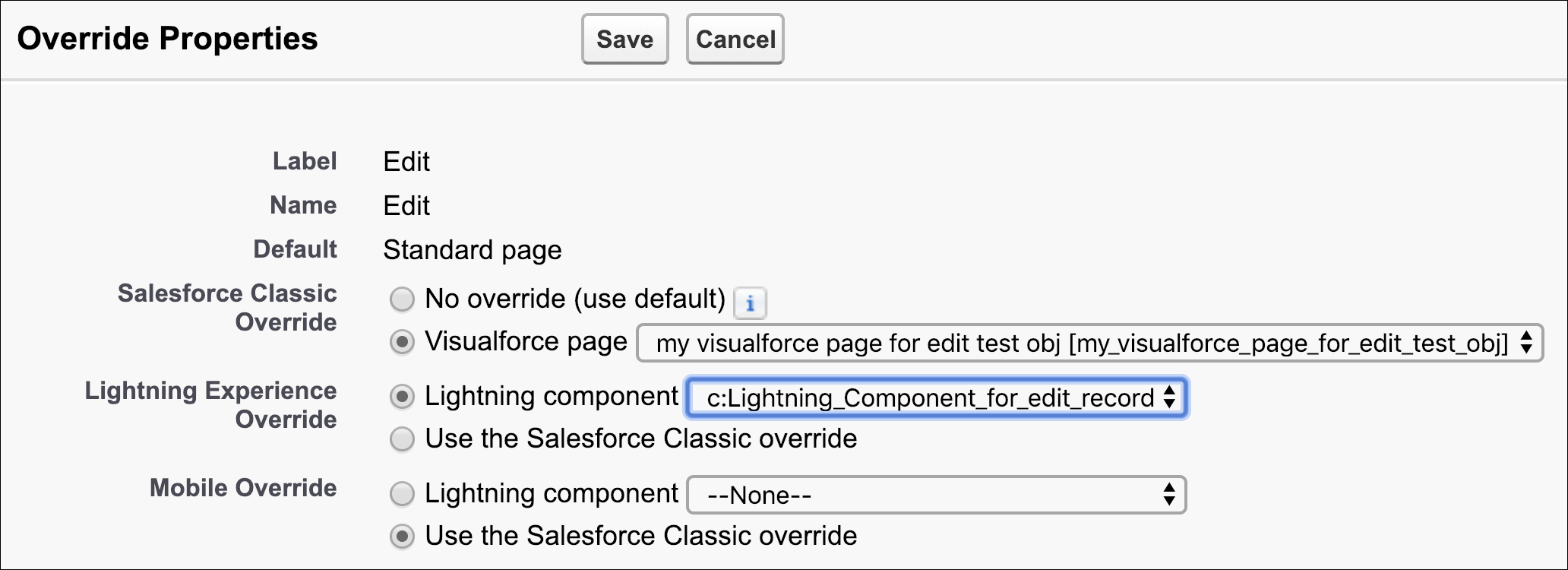
- Specify the override option for each user experience.

See Also
- Trailhead: Introduction to Creating Visualforce Pages
- Lightning Aura Components Developer Guide: Override Standard Actions with Aura Components
- Visualforce Developer Guide: Overriding Buttons, Links, and Tabs with Visualforce
- Visualforce Developer Guide: Overriding Tabs Using a Standard List Controller