
View and centrally manage MCP servers in API Catalog and use them with Agentforce or other supported MCP clients. Use MCP servers to give standardized access to your existing Salesforce and external services without custom integrations.
Required Editions
| Available in: Lightning Experience |
| Available in: Developer, Enterprise, Performance, and Unlimited Editions |
After you configure your MCP servers and activate them through your catalog, you can use the active servers with supported MCP clients, such as Agentforce. For information about using your MCP servers with Agentforce, see Add an MCP Tool Action to Your Agent. For information about using your Salesforce MCP servers with external MCP servers, see Salesforce Hosted MCP Servers.
Manage these types of MCP servers in your catalog.
- Salesforce MCP servers (for use in Agentforce and supported external MCP servers)
- Custom: Create these servers in your catalog
- Standard: Salesforce creates these servers and they appear in your catalog automatically
- External MCP servers (for use in Agentforce)
- MuleSoft: Sync these servers into your catalog from MuleSoft Anypoint Platform
- Manual: Register other external servers by using your catalog, by using Agentforce Registry, or by installing from AgentExchange
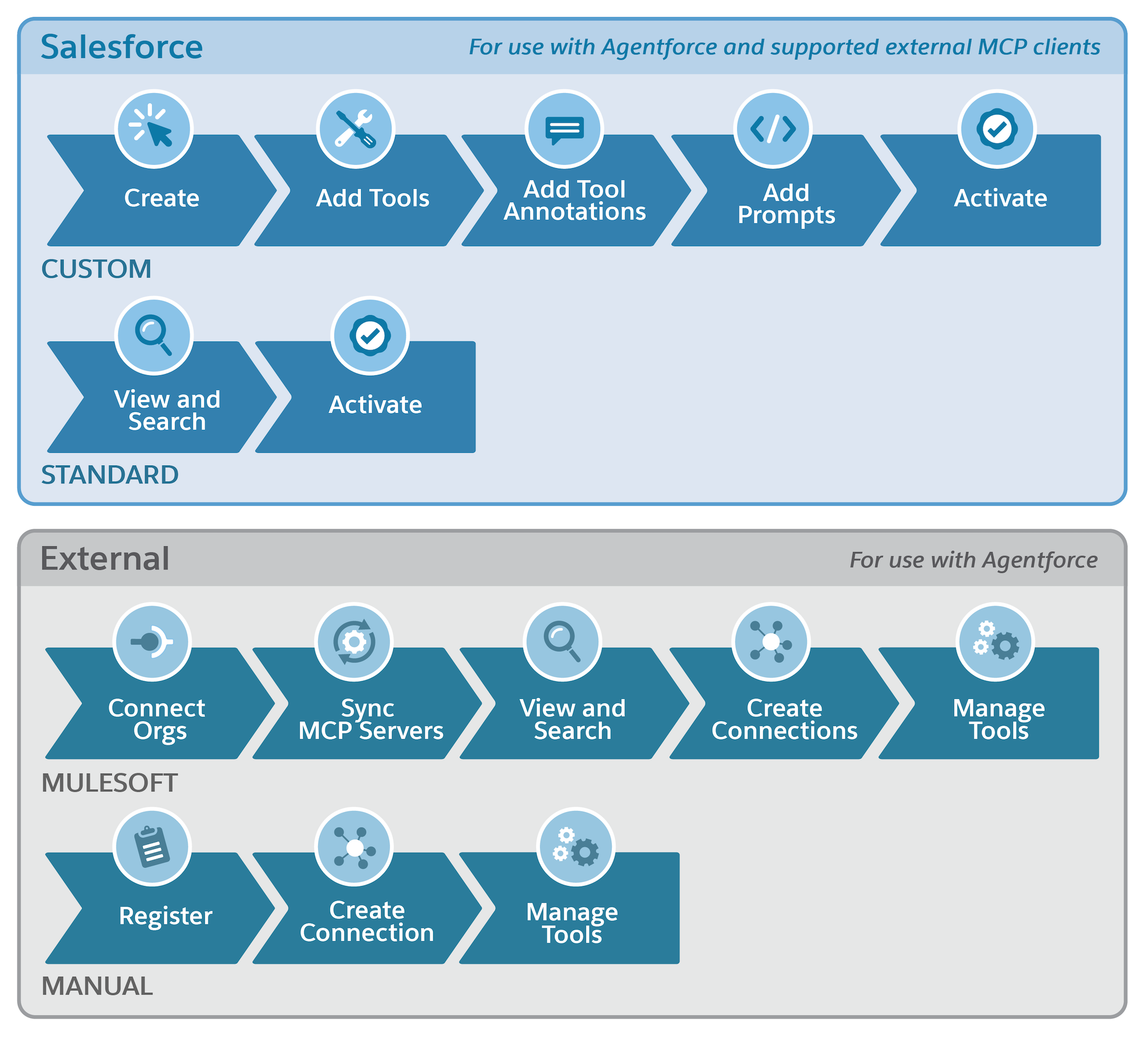
This table gives a summary of what you can view and manage in API Catalog for each MCP server source and type.
| MCP Server Source and Type | Creation and Visibility | Assets | Activation or Connection |
|---|---|---|---|
| Salesforce Custom | Create in API Catalog; optionally add active servers to Agentforce Registry | In API catalog, select and add tools that map to items such as API actions, agents, prompt templates, and other MCP servers’ tools; add prompts using Prompt Builder | Activate in API Catalog |
| Salesforce Standard | View servers provided by Salesforce; optionally add active servers to Agentforce Registry | View tools in API Catalog or Agentforce Registry | Activate in API Catalog |
| External MuleSoft | Create in MuleSoft Anypoint Platform; view all synced servers in API Catalog and view only active servers in Agentforce Registry | View and add tools in API Catalog; edit tools in API Catalog or Agentforce Registry | Create connections in API Catalog to activate |
| External Manual | Register in API Catalog or in Agentforce Registry and view in either | View, add, and edit tools in API Catalog or Agentforce Registry | Create connections in API Catalog or Agentforce Registry to activate |
| External Manual | Install packages from AgentExchange in Agentforce Registry and view servers there or in API Catalog | View tools in API Catalog or Agentforce Registry | Configure connections in Named Credentials to activate |
To view MCP servers in API Catalog, use these steps.
- In Salesforce, from Setup, in the Quick Find box, enter API Catalog, and then select MCP Servers.
- To view standard and custom Salesforce hosted MCP servers, select Salesforce Servers.
- To view MCP servers from MuleSoft and other external sources, select External Servers.

- Manage Salesforce Hosted MCP Servers in API Catalog
Create and activate custom Salesforce MCP servers and view and activate standard Salesforce MCP servers in API Catalog. - Manage External MCP Servers in API Catalog
Manage MuleSoft and other external MCP servers in API Catalog. Sync MuleSoft MCP servers from Anypoint Platform to make them discoverable in Salesforce. Register other external MCP servers in API Catalog or Agentforce Registry by creating connections to authorize them. Then, add the tools you allow. You can also view MCP servers installed from AgentExchange. - Remove MCP Servers from API Catalog
You can remove custom Salesforce, MuleSoft, and manually registered external MCP servers from API Catalog.