
After your anonymize templates are created and configured with the objects and fields, you can proceed to execute anonymize jobs. The Anonymize application enables you to select the service data to be anonymized. The service data to be anonymized can be retrieved either from the live service or from service backups.
- In the Templates tab of the Anonymize tab, scroll through the page and find the anonymize template that you want to use for the anonymize job.
-
In the anonymize template tile, click the three dots and select Anonymize. The [template name] window opens.
You can also open the [template name] window by selecting the anonymize template that you want to use the Templates tab in the Anonymize tab. When the selected anonymize template is displayed in the My Templates page, click Anonymize in the upper right corner of the page. The [template name] window opens.
- From the Anonymize Service field's drop-down list, select the service you want to anonymize.
-
In the Fetch Service Data From field, define the source from which to retrieve the service data.
Live is the field's default entry. Retrieve realtime data that exists in the live source of the service that you selected to anonymize.
-
When the selected Anonymize Service has backups from the past 6 months, the Fetch Service
Data From field provides these options:
- Live: Always the first, listed option.
- Recent backups: The Recent Backups section lists all backups from the past 6 months that exist for the selected Anonymize Service. You can select any one of these backups from which to retrieve the service data. Backups are listed in descending chronological order (newest to oldest) by their processing start date/time. If a label is defined for a backup (a best practice), it displays alongside the backup's start date/time. Backups must contain all the object(s) and field(s) defined in the anonymize template.
For very large sandboxes, to reduce API calls, and/or to reduce data retrieval time, it is recommended to select a recent backup from which to retrieve the service data to be anonymized, rather than retrieving realtime data from the live source.The recent backups option isn't available for block storage, where customer backups that are stored on hard drives. -
In the Automations section, you can select Salesforce automations that you want to disable.
Anonymize processing may take longer when disabling all Validation Rules, Workflows, Triggers and Processes.
- In the pane listing the automation groups, click the arrow of an automation group to open that group and display its list of automations. You can open multiple groups to display their automations. Use either the search field or the Show field dropdown to filter to find the automations you want to disable. The number of automations that are selected to disable is displayed. The number of unavailable automations also displays. You can't select automations that can't be externally disabled and that can only be manually disabled in the sandbox.
-
Click Anonymize.
If you selected a recent backup to be the source of the service data to retrieve/anonymize and that backup is missing objects that are defined in the anonymize template, the anonymize job doesn't start. The UI shows an error message that says why the backup you chose can’t be used for the anonymize job. The message lists all the objects that are missing from the backup you chose.If you select either Live or a valid, recent backup, the anonymize processing starts. The Activities tab opens and lists an entry for the anonymize job being processed. During processing, the anonymize job entry in the Activities tab displays the current object, and the number of records for that object. Also, you can view the total number of retrieved records to be anonymized.
When an anonymize job’s processing finishes, these reports about the job are available:
- Anonymization Report: This report provides detailed information about the anonymization job - both the records anonymized and any failures. You can download a CSV file of the log.
- Automations Report: This report is only prepared if you selected, in the [template name] window, to disable Salesforce automations during the anonymize job. The report provides details about disabled, and reenabled Salesforce automations.
Abort an Anonymize Job that’s Being Processed
You can abort an anonymize job that is being processed.
You can also abort an anonymize job during the update of the destination service [the synchronizing processing step], however, doing so is not recommended because the Anonymize application won't know what data, if any, was successfully updated before aborting the job.
- To abort an anonymize job, n the Activities tab, on the right side of the progress bar of an anonymize job entry, click the (enabled) X to abort that anonymize job being processed.
-
To abort an anonymize job during the update of the destination service [the synchronizing
processing step]:
- Access the Salesforce Setup interface of the destination <service>.
- Open the Setup Home tab.
- In the Quick Find field, search for the term Bulk Data Load Jobs.
-
In the In Progress table, look for Bulk Data Load jobs that meet the criteria:
The job was submitted by the authenticated user.The job's operation (update) matches with the object mentioned beneath the progress bar of the anonymize job entry in the Activities tab.In the Action column, click Abort for any Bulk Data Load jobs meeting the criteria.
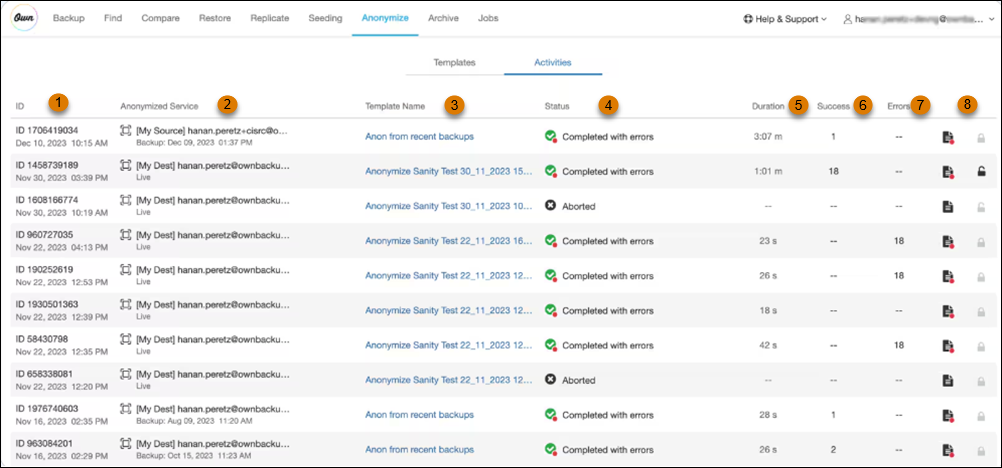
Understanding Anonymize Job Summaries in the Activities Tab
The Activities tab lists an information entry for each anonymize job. The entries summarize either an anonymize job that is currently being processed or a completed anonymize job.
Job Summary Information
| # | Label | Description |
|---|---|---|
| (1) | ID | ID of the anonymize job, and the date and time the job processing started. |
| (2) | Anonymized Service |
1st line: The name of the service whose data either is being or was anonymized by the job. 2nd line: The source of the service data, meaning the data was retrieved from either Live or a specific Backup: <date>, <time>. |
| (3) | Template Name | Name of the anonymization template that was used for the job |
| (4) | Status |
|
| (5) | Duration | Amount of time to process the job to conclusion. |
| (6) | Success | Number of records successfully anonymized in the service selected to be anonymized. |
| (7) | Errors | Number of records that failed to be anonymized in the service selected to be anonymized. |
| (8) | Actions |
Click Click |


