
If unauthenticated guest users don’t see the correct data in your Experience Cloud sites, work through these steps to identify and fix the problem.
Required Editions
| Available in: both Salesforce Classic and Lightning Experience |
| The available user and data management options vary according to which Salesforce edition you have. |
| User Permissions Needed | |
|---|---|
| To access features or complete tasks mentioned in this topic: | See the related Help documentation. |

Note If you think that guest users have access to records and data that they shouldn’t have,
deactivate the site and public guest user
access as you identify the issue.
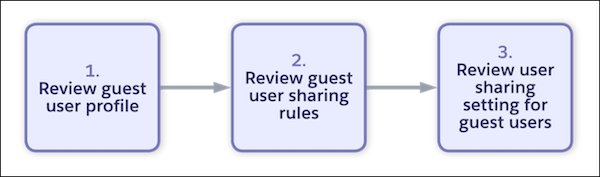
- Review the guest user’s profile for the specific Experience Cloud site. Make sure that the user has the correct permissions for your business needs.
-
Review guest user sharing rules on the Sharing Settings Setup page. Guest user sharing
rules are the only way to open up record access to guest users. Make sure that existing guest
user sharing rules target the correct records. If necessary, you can create a new sharing rule
to open up read access to guest users.
Note You can also use the Guest User Sharing Rule Access Report in Setup to see what data is accessible to guest users per site.
- For user visibility, review the Let guest users see other members of this site setting. This setting controls whether user sharing is available for guest users on a site-by-site basis.