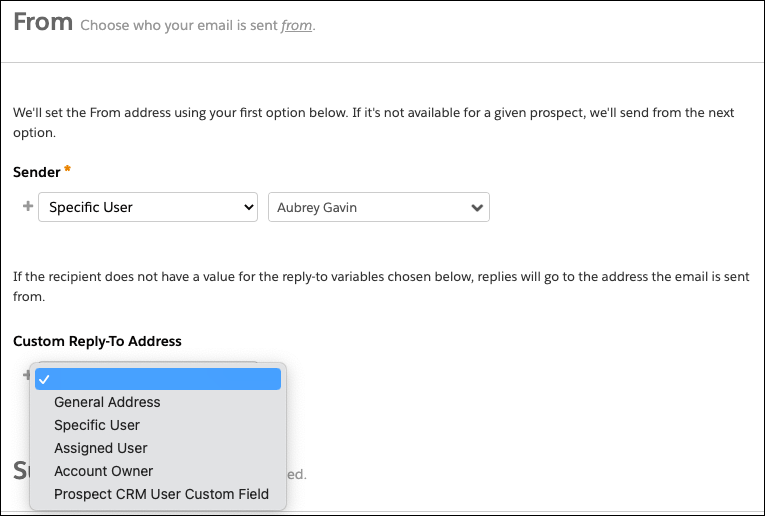
You can configure a sender and a custom reply-to address for your classic email in
Account Engagement. The sender is the name and email address that appears in a prospect’s inbox.
Optionally, you can specify a different email address to receive replies from your prospects. If
you don’t specify a reply-to email address, Account Engagement uses the sender email
address.
Required Editions
| Available in: All Account
Engagement Editions |
The options for choosing a sender and a reply-to address are the same. Only the Sender
address is required.
The last sender in a sender hierarchy must be either a Specific User with a verified email
domain or General User with a verified email domain. If the Specific User or General User
sender email address doesn't include a verified email domain, an error occurs in the
editor, preventing you from saving or sending the email or email template.
At the time of the email send, the sender hierachy is reviewed, starting at the top. The
first sender found in the hierarchy that has an email address with a verified email domain
is considered valid, and the email sends from that email address.
If no senders in the hierarchy are found to be valid, the email doesn’t send, resulting in
a failed email send. You can learn more about failed email sends here.
- General User
- Enter the sender’s name and email address. Avoid role-based addresses that are often
caught by spam filters. For example, don’t use sales@ or
admin@ addresses.
- Specific User
- Select an Account Engagement user from the dropdown.
- Assigned User
- The email uses the address of the user that the prospect is assigned to.
- Account Owner
- The email uses the address of the user that owns the prospect’s account. The current
Account Owner only displays in Account Engagement after it’s synced
from Salesforce.
- Prospect CRM User Custom Field
- Select a CRM User custom field from the dropdown. The email uses the address of the
CRM User displayed on the prospect record. You can learn more about using CRM User
custom fields here.