
Turn on Einstein Key Accounts Identification in Marketing Setup, and tell users that they can add the Einstein Account Tier field to their list views or custom reports.
Required Editions
| Available in: Account Engagement Advanced and Premium Editions with Salesforce Enterprise, Performance, or Unlimited Edition |
| User Permissions Needed | |
|---|---|
| To turn on and show Einstein for Account Engagement features in Salesforce: | Account Engagement Administrator role with Sales Cloud User, Service Cloud User, or CRM User permission set |
| To view Einstein Key Accounts component: |
Salesforce Administrator OR View AI Insight Objects system permission * and ViewMLModels system permission * and Read on Accounts object setting * and Read on AI Record Insights object setting * and Read on AI Record Insight Reasons object setting * |
User permissions with an asterisk must be enabled in the order listed.
- From Marketing Setup, enter Key in the Quick Find box, and then select Einstein Key Accounts Identification.
- Turn on the feature.
- From Object Manager, open the Account object, and add the Einstein Account Tier field to the page layouts.
- Use the Lightning App Builder to place the Einstein Key Accounts component on account records.
-
To show Einstein tier rankings on list views, create a public list view that includes the
Einstein Account Tier field.
Field-level security for Einstein Account Tier defaults to Visible, so users can add the field to their own list views.
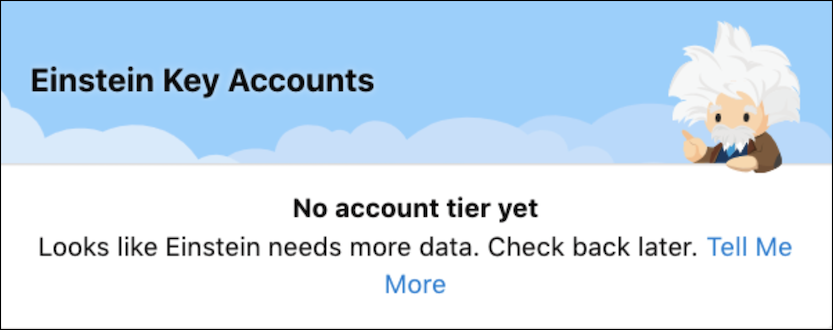
It can take up to 72 hours for an account tier to appear on the card.
The Einstein Account Tier field is available for use in custom reports.