
After you design your email content, define a campaign, an audience, tracker domain, sender options, and completion actions.
Required Editions
| Available in: any Account Engagement Edition with Salesforce Professional, Enterprise, Performance, and Unlimited Editions |
| User Permissions Needed | |
|---|---|
| To send an email: |
Manage Email Content AND Account Engagement Administrator or Marketing role OR A custom user role in Account Engagement that includes Send to List on Emails, View on Segmentation Lists, and View on Campaigns |
You can send an email content record as many times as needed. Send it immediately or schedule it for later. Account Engagement Premium and Advanced users can also choose to send with Einstein Send Time Optimization.
- Test your email thoroughly and verify that all text, images, and links appear and work as expected.
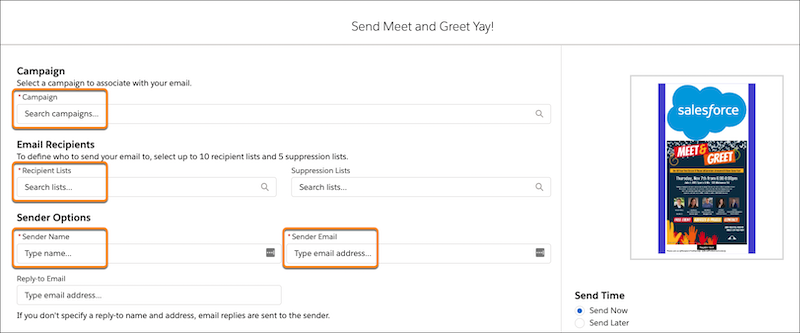
- In the email content record’s action menu, click Send.
- Enter the required values, such as campaign, recipient list, and sender information.
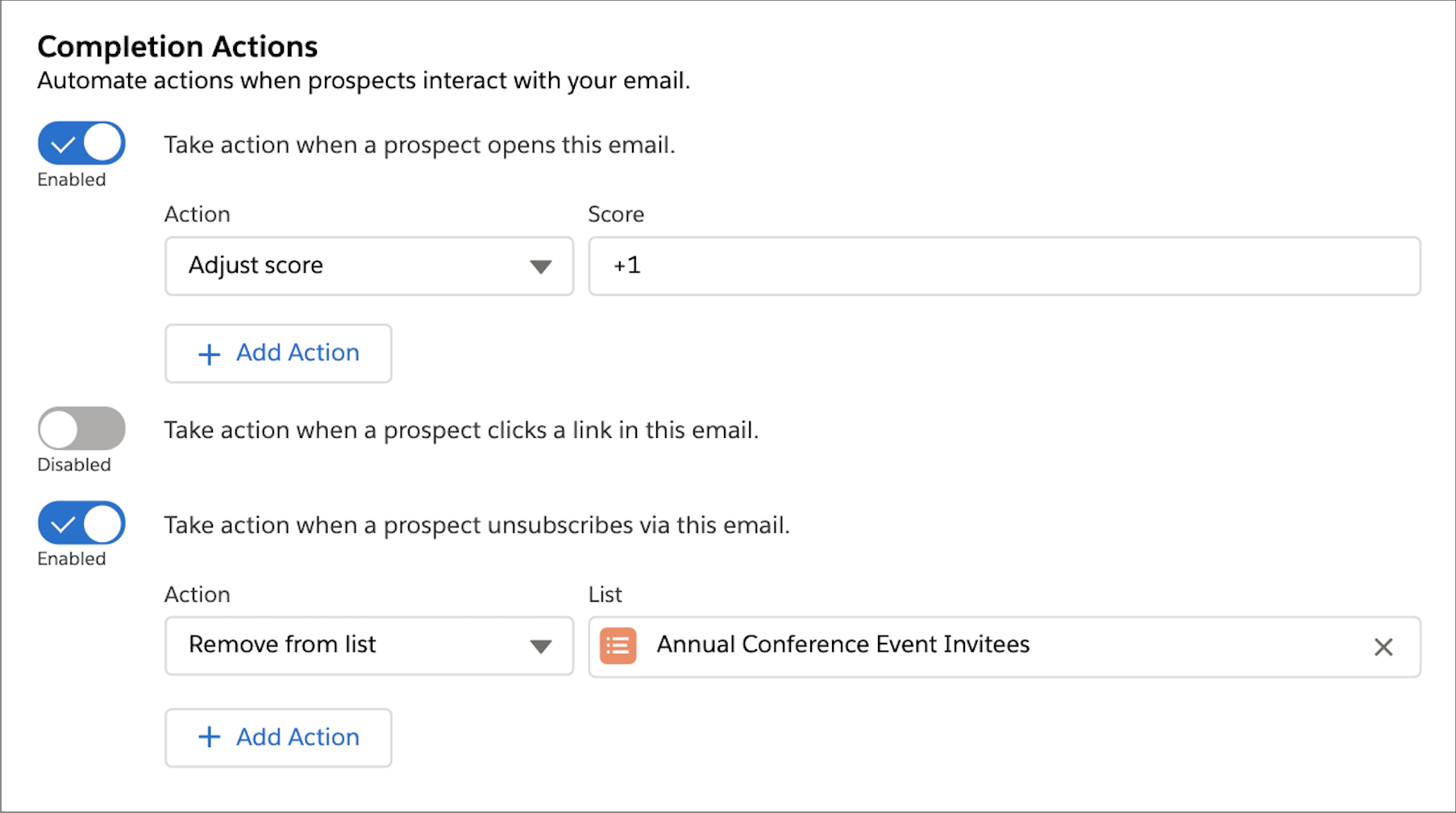
- To configure completion actions, enable a trigger type and then, select the
action.
- Select Send Now or Send Later.
If you select Send Later, enter a date and time for sending.
- Click Send.