
To capture, automate, and personalize Einstein Send Time Optimization scores, set up a data graph based on the Unified Individual object.
Required Editions
| User Permissions Needed | |
|---|---|
| To create a data graph or to select a data graph in Marketing Cloud Next setup |
View Setup and Configuration OR Salesforce Admin profile OR Marketing Cloud Admin permission set AND Data Cloud Architect permission set |
Customers using Einstein Send Time Optimization must have flows that use Einstein Send Time Optimization based on Data 360 data graphs that include the Email Send Time Optimization data model object and the Hourly Scores By Week attribute.
Data graphs are only available in Marketing Cloud Next Growth and Advanced editions. Einstein Send Time Optimization in Starter, Pro, and Foundations editions use scores that are based on aggregated data and continue to blend in global model factors.
If Einstein STO was previously enabled in your org, you may need to disable and then re-enable it to get the latest updates to the STO data model. See Enable AI Features.
Use an Existing Data Graph for Einstein Send Time Optimization
Follow these steps if your org doesn’t already have a data graph created. To include personalized Einstein Send Time Optimization scores, start with a data graph that’s based on the Unified Individual object.
-
In Data 360, create a data graph and add these
customizations.
- For the primary data model object, select Unified Individual.
- Add the Email Send Time Optimization attribute.
- Select the Hourly Scores By Week checkbox.
For example, the following join order is required when configuring the data graph.
Unified Individual → Unified Link Individual → Individual → Contact Point Email → Email Send Time Optimization -
Check the email address field in the Contact Point Email DMO.
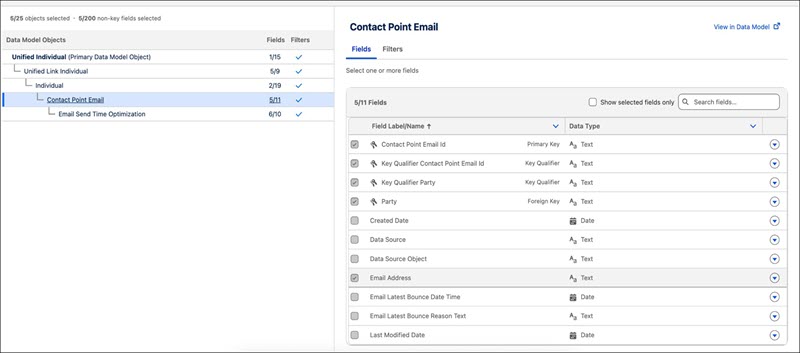
- Save the data graph.
After you build and save the data graph, Einstein Send Time Optimization scores that appear on records and in reports are refreshed weekly.
Select a Data Graph for Einstein Send Time Optimization
If you’re already using a data graph for personalization, confirm that it includes the Email Send Time Optimization attribute and the Hourly Scores By Week field. If these attributes are missing, edit the data graph to include them.