
Get more consistency and control over how data is referenced in your marketing content by saving personalized merge field criteria in an expression. Define filter and sort options across related data objects to select the right attribute for the merge field. Save the expression, including the references to those data objects, in Salesforce CMS. You can reuse the expression in email, SMS, MMS, RCS, WhatsApp, In-App, and Push messages.
Required Editions
| User Permissions Needed | |
|---|---|
| To create or edit content: |
Marketing Cloud Manager permission set AND any CMS workspace contributor role |
| To publish or unpublish content: |
Marketing Cloud Manager permission set AND a CMS workspace contributor role of content admin or content manager |
You must have a data graph set up to create an expression. See Set Up Personalization Features for Marketing Cloud.
- From the Content tab, open your marketing workspace.
- Select Add | Content | Expression.
- Give your expression a title for internal use.
- Select a data source. Choose from available Inputs (Content Variables, Apex, Events, Activations) or Data sources (Data Graph, Salesforce Record, Offers, and others) depending on what data you want to use.
- Navigate the resource path to select an attribute.
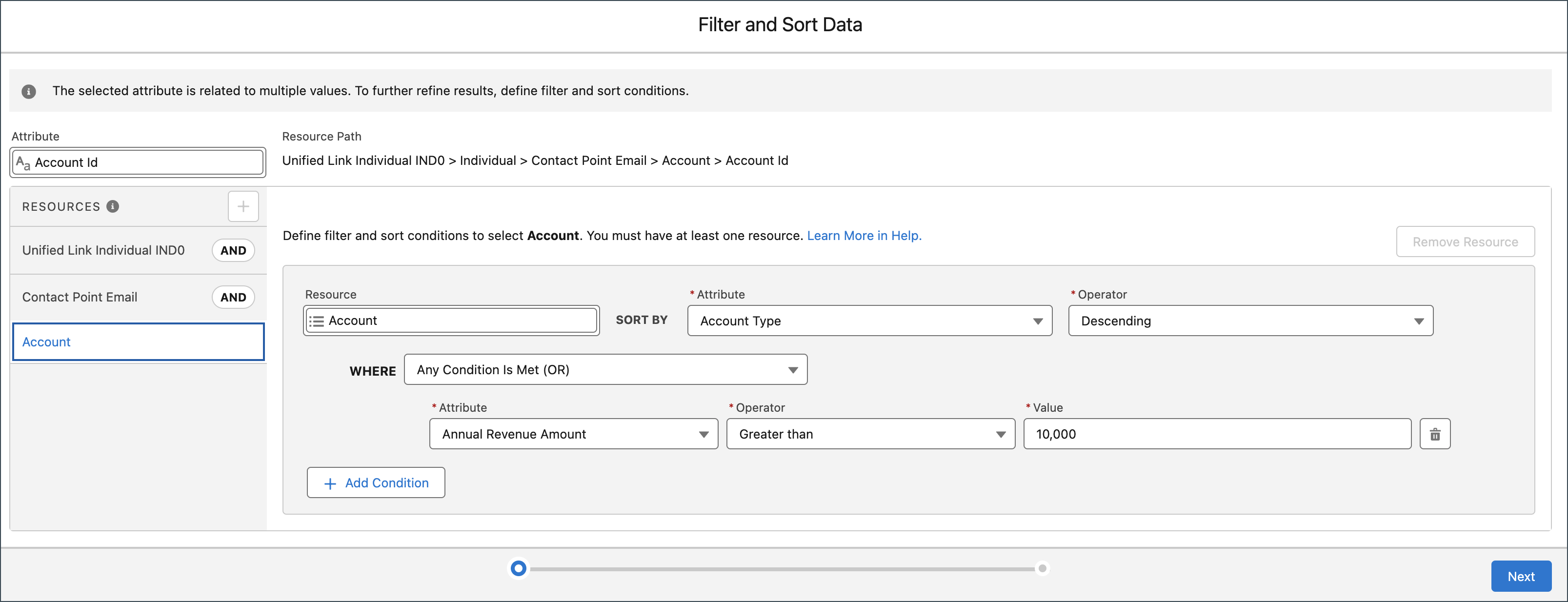
- Add filter and sort conditions for the attribute.
- To add another resource to narrow your expression results further, click the plus icon next to Resource and define the filter and sort conditions.
- Save your work.
- Open a message in a channel builder (Email, SMS, MMS, RCS, WhatsApp, In-App, or Push).
- Position your cursor where you want to insert the personalized field, then type @ and select the published expression you want to insert.
- Or, in the content side panel, click Add Merge Field.
- In the merge field modal, configure your merge field details and select a display format. To preview merge field logic, select View Merge Field Logic.
- The merge field appears in your content. At send time, it resolves to the configured attribute value.
- To edit or remove a merge field, click the merge field value and select Edit Field or Remove Merge Field.
- Save your changes and publish.

This example shows building an expression with filter and sort conditions to find accounts with an annual revenue amount greater than $10,000.
To make your expression available for use in marketing content, you must publish it. To change the expression or to prevent it from being used in content, unpublish it.