
To make marketer-approved emails and email templates available, first create an event-triggered flow manually or from a pre-built template. Then, customize the flow to include your approved template and configure the sender settings, scheduling options, and delivery preferences. When you activate the flow, users can personalize and send distributed messages by using the template.

After you’ve created an email template, follow these steps to configure the flow manually.
- From a campaign record, create an event-triggered flow and open it.
- In the Start element, select the Distributed Marketing and Alerts Message event type.
-
Choose from the optional sender settings.
- Scheduled sending: Allow users to schedule their email send. If you turn this on, set up the additional flow logic.
- Send on behalf of: Allow users to send using a specific From email address of a lead, contact, or person account. First, go to Setup and create a custom lookup field on the campaign object for the user. Then return to the template flow and select the specific user.
-
Add a Send Email Message element.
- Select the published email content or template that you want to make available to users.
- Select a workspace and folder to save emails created from this template.
-
Configure the rest of the settings.
If dynamic sending or dynamic reply options are enabled in the Send Email Message element, the system ignores the Send on Behalf of settings in the Distributed Marketing and Alerts Message event.
- To make the template available, save and activate the flow.
Customize the Flow for Scheduled Sending
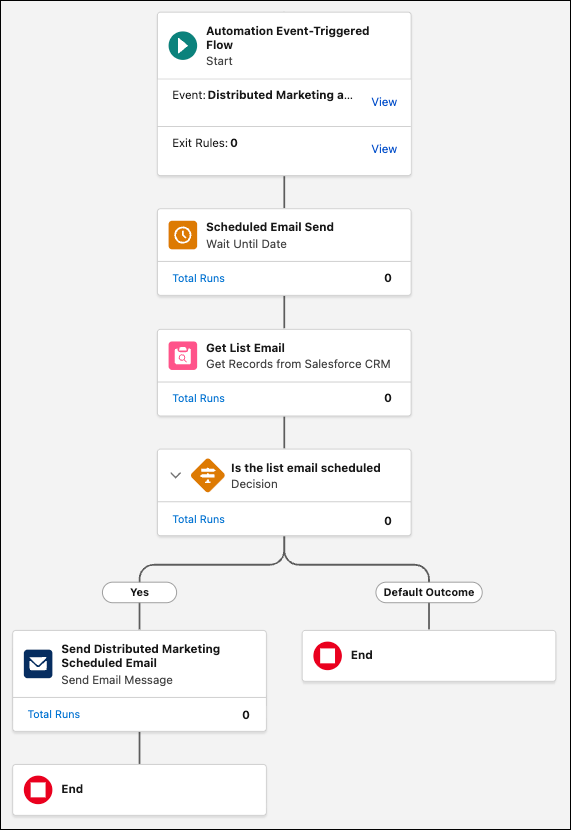
After setting up the Distributed Marketing and Alerts flow, configure the additional flow logic so the flow sends the email at the scheduled date and time.
-
After the Start element, add a Wait Until Date element.
- To get the scheduled date from a field, select Get from Attribute.
- In the Attribute field, select .
-
Configure flow elements to prevent sending when a user cancels an email. These steps
check the status of the email to make sure that it's scheduled to send.
- After the Wait Until Date element, add a Get Records element.
- For the data source, select .
-
Set these filtering conditions:
- Condition Requirements: All Conditions Are Met (AND)
- Field: List Email ID
- Operator: Equals
- Value:
-
After the Get Records element, add a Decision element. For one of
the two outcomes, configure the criteria to check if an email is canceled or scheduled to
send:
- Outcome Label: Yes
- Outcome API Name: Yes
- Condition Requirements: All Conditions Are Met (AND)
- Resource:
- Operator: Equals
- Value: Scheduled
-
On the decision branch that checks for a scheduled email, add a Send Email
Message element. Configure the rest of the settings.
Emails that are canceled go down the alternate path and flow doesn't send them.
- To make the template available, save and activate the flow.
After you activate the flow, users can create and send a Distributed Marketing and Alerts message by using the designated email template. Each email enters the flow and sends on the schedule set by the user.