
Apply a consistent look and feel, and build trust across your marketing content, while grounding the content that your Agentforce agents generate.
Required Editions
A brand kit is your single source of truth for your brand’s identity, voice, and visual style. When you build a brand kit and activate it, your agents apply it across channels, from emails to seller conversations. Brand Center brings your CMS brands and your Agentforce brand kits together in one place. Specify your company’s colors, fonts, button styles, brand identity, and tone, and create as many brands as you need.
We recommend that you assign your primary brand kit as the default brand in your marketing workspace. The default brand kit’s settings extend to all your Marketing Cloud Next content, but you can create other brand kits for specific events or products.
| User Permissions Needed | |
|---|---|
| To create or edit content: |
Marketing Cloud Manager permission set AND any CMS workspace contributor role |
| To publish or unpublish content: |
Marketing Cloud Manager permission set AND a CMS workspace contributor role of content admin or content manager |
Marketers can assign a brand kit to an email, form, or landing page when they create content. When the content is published, its related brand kit is also published.
When you use Agentforce to create emails, landing pages, or SMS messages for marketing campaigns, the brand identity and tone fields help the AI agent generate text that reflects your company’s personality. Select a default tone from the standard options, and edit the tone’s description as necessary to generate text in your company’s voice.
Considerations for Branding Your Content
When you craft your company’s brand styles in Marketing Cloud Next, keep these considerations in mind.
All contributors in a Marketing workspace can create or edit your company’s brand styles. When an unpublished brand kit is attached to an email, landing page, or form, and you publish the content, the brand kit is also published. To protect your company’s brand values from unauthorized changes, establish an approval process for creating, updating, and publishing brand styles.
When you update and publish a brand kit that’s associated with a published landing page or form, the previous version of the brand kit remains visible to visitors until their browser cache expires or is cleared.
When the workspace default brand kit is assigned to a published piece of content and you update the default brand kit, the update isn’t applied to the published content. To apply the update, unpublish the content, remove the existing brand kit, and select Use Default Brand.
Mobile-specific brand kit settings apply to landing pages and forms. They don’t apply to emails.
Create and Manage Brand Kits
Create a brand kit to ground the content that your Agentforce agents generate, define its guidelines, and then activate, preview, and share it.
Required Editions
| User Permissions Needed | |
|---|---|
| To create or edit content: |
Marketing Cloud Manager permission set AND any CMS workspace contributor role |
| To publish or unpublish content: |
Marketing Cloud Manager permission set AND a CMS workspace contributor role of content admin or content manager |
Before you begin, make sure that you've set up Brand Center.
Where you create a brand kit determines its scope. Create a local brand kit for one team, and a global brand kit for your entire org.
Create a Brand Kit
Create a local brand kit in a single workspace when a team needs a brand kit that's scoped to their own content. Create a global brand kit in Brand Center so that it's available to your agents across workspaces and is syndicated to Common Assets.
-
Select a brand kit creation method.
- From your marketing workspace, click Add and select Content | Brand. Select Continue with Existing Builder for a local brand kit and Try Brand Center for a global brand kit. Then, click Create.
- From the App Launcher, find and select Brand Center and then click New.
- Give the brand kit a name.
- Specify an API name.
- Optionally, enter a description.
-
Select a workspace.
- For a local brand kit, select a local workspace.
- For a global brand kit, select Brand Center.
-
Select a data space to associate with the brand kit.
You can't change the data space association later.
- Save the brand kit.
Define Brand Guidelines
Define your brand kit by adding sources, entering guidelines, and building out each brand component.
Open the brand kit, and then complete the components that apply to your brand.
- In the Knowledge Sources section, upload files and add instructions so that your agents ground their content in your brand's documents.
- In the Style Guidelines section, define visual elements, such as colors, fonts, buttons, margins and padding, and borders to keep your brand consistent.
-
In the Brand Guidelines section, define the brand basics, tone, and guardrails.
- For brand basics, define the brand identity and vision.
- For brand tone, add one or more tones to guide how your agents communicate.
- For guardrails, set rules that keep your brand voice safe and consistent. Specify details such as a time range or segment, and define constraints, such as thresholds or formats.
Activate and Preview a Brand Kit
Activate a brand kit to make it available to your agents, and generate sample content to confirm that your agents follow your intended brand guidelines.
For the best results, activate your brand kit before you generate sample content.
- On the brand kit, click Activate. Activation processes the kit, so allow a few minutes and refresh the page to see the updated status.
- Under Preview Sample Output, select a channel.
- Select a tone. These tones are defined in your brand guidelines.
- Select a sample prompt or enter a custom prompt.
- Click Generate Preview to test how your settings affect agent communication.
- Review the sample output against your intended tone, guidelines, and guardrails.
After activating a brand kit, assign it to an email, form, or landing page.
Copy a Global Brand Kit to Another Workspace
Copy global brand kits to other workspaces so that more teams can customize and use them.
After copying a brand kit, changes to the source brand kit don't apply to the copies.
- From the App Launcher, find and select Common Assets.
- From the dropdown arrow for the brand kit that you want to copy, select Copy Brand Kit.
- Select the workspace to copy the brand kit to, and click Next.
- Click Copy.
Assign a Default Brand Kit in Your Marketing Workspace
Save time and ensure consistency across all your communications by assigning a default brand kit to your marketing workspace. All content that’s created in the workspace uses the default brand kit. A marketer can apply a different brand kit to an individual piece of content.
Only a user with the CMS contributor role of Content Admin or Content Manager can assign or change a workspace default brand kit.
-
In your marketing workspace, click
 and select Default Brand.
-
Click Select Brand and select a brand kit from the list, or
click Shared with Workspace to select a brand kit from another
workspace that’s shared with your marketing workspace.
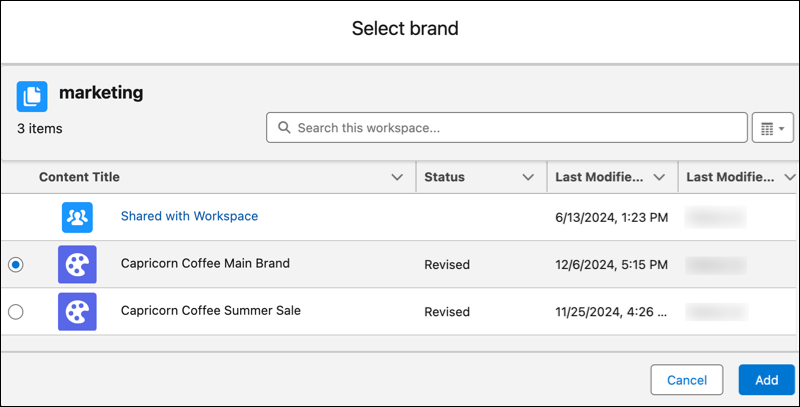
If your default brand kit is stored in a shared workspace, and that workspace is unshared from your marketing workspace, you can no longer use the brand kit as your default.
- Click Add, and save your changes.
Common Assets and Content Syndication
Global brand kits become available across your workspaces so that teams don't have to recreate the same brand.
When you create a global brand kit, the system automatically syndicates it to Common Assets, a shared workspace that teams across your org can use. Content syndication is a cross-cloud capability, so your brands are reusable across Salesforce content workspaces.
After a brand kit is syndicated to Common Assets, teams have two options.
- They can use the centrally governed brand kit directly, so that it stays consistent with the source.
- They can copy the brand kit into their own local workspace when they need to customize it. A copy is independent of the source brand kit.
Global and Local Workspaces
The global workspace is where you create centrally governed brand kits that syndicate to Common Assets and are available to your agents across workspaces. Brand Center is the global workspace for brand kits.
A local workspace is scoped to one team. An agent in that workspace can use it, but agents in other workspaces can't. Use a local copy when a team needs to customize a global brand kit.