
This Quick Start guide covers the steps that are required to set up WhatsApp with Marketing Cloud Next. It outlines the simplest implementation, so that your team can get up and running. For in-depth information, special features, or customization options, we provide additional resources along the way.
Required Editions
| Available in: View supported editions |
| User Permissions Needed | |
|---|---|
| To manage settings in Salesforce Setup: |
System Administrator profile AND Marketing Cloud Admin permission set |
| To import data and create campaigns: |
Marketing Cloud Manager permission set OR View Flows and Create and Edit Flows user permissions |
Included in this guide:
- Get Started with Marketing Cloud Next
- Connect Your WhatsApp Business Account
- Set Up WhatsApp Data Streams in Data Cloud
- Configure WhatsApp Consent Settings
- Set Up Reporting
Get Started with Marketing Cloud Next
Before you can set up WhatsApp, complete these required steps to configureMarketing Cloud Next.
- Create a WhatsApp Business Account (WABA).
- Prepare your audience and consent data in CSV format with phone numbers in E.164 format (such as +14155551234).
- Select admins and assign permissions.
- Enable Marketing Cloud Next.
-
Install the data kits that are required to work with marketing data.
See Install and Deploy Data Streams
 Note Data kits are occasionally updated and must be redeployed. Check your notifications regularly.
 -
Create identity resolution rulesets.
See Configure Identity Resolution Rulesets
Note Identity resolution rulesets consume credits, which impacts billing. We recommend having only one active ruleset for the Individual object, and one ruleset for the Account object. See Billable Usage Types.
Connect Your WhatsApp Business Account
To use WhatsApp in Marketing Cloud Next, connect a new WhatsApp Business Account (WABA) and phone number to your Salesforce account. You can't reuse an existing WABA.
- From Setup, in the Quick Find box, enter Your Numbers, and then select Your Numbers.
- Click Add Number.
- Select Create a WhatsApp Business Account, and then click Next.
- Select the Company portfolio where you want to create your account.
- Confirm that Create a WABA Account and Create a new WABA Profile are selected, and then click Next.
- Enter a name for your new WhatsApp Business Account.
- Enter the phone number to use for your WhatsApp campaigns.
-
Choose how to verify your phone number: Text message or
Phone call, and complete the verification.
Make sure that the related device is available to receive the validation code.
- In the dropdowns, select your new WhatsApp Business Account and the verified phone number.
- To add a capability to your WhatsApp connection, click Configure and then add the necessary information.
- After you save the configuration, click Activate.
Set Up WhatsApp Data Streams in Data 360
Deploy the data streams that track consent settings and WhatsApp engagement events in Data 360. Data kits are prebuilt packages that contain these data streams. For each one, you select the corresponding data kit and its associated connector.
- From the App Launcher, select Data 360.
- On the Data Streams tab, click New.
- Under Other Sources, select Installed Data Kits & Packages, and then click Next.
-
On the Data Kits tab, select and deploy each of the required data kits along with its
associated data stream and connectors:
- Unified WhatsApp Data kit MessagingEventsWhatsAppV2 data stream > MessagingEventsWhatsAppV2 connector
- Unified Messaging Consent Data kit > ConsentAuditTrailBundle data stream > ConsentAuditTrailV2 connector
- Unified Messaging Consent Data kit > MessagingConsentBundle data stream > MessagingConsentV2 connector
- On the next page, click Next, and then click Deploy.
After deployment completes, you're redirected to the Data Streams tab with the new data stream listed. Verify that Data Stream Status is Active for each stream:
- Unified WhatsApp data stream (MessagingEventsWhatsAppV2)
- Consent Audit Trail data stream (ConsentAuditTrailV2)
- Messaging Consent data stream (MessagingConsentV2)
Configure WhatsApp Consent Settings
To comply with messaging regulations, set up consent keywords and messages for your WhatsApp number.
- From Setup, in the Quick Find box, enter Your Numbers, and then select Your Numbers.
- Select the number that you want to edit.
-
On the Consent tab, under Consent
Settings, specify the keywords and messages for opting in, opting out, and
requesting help.
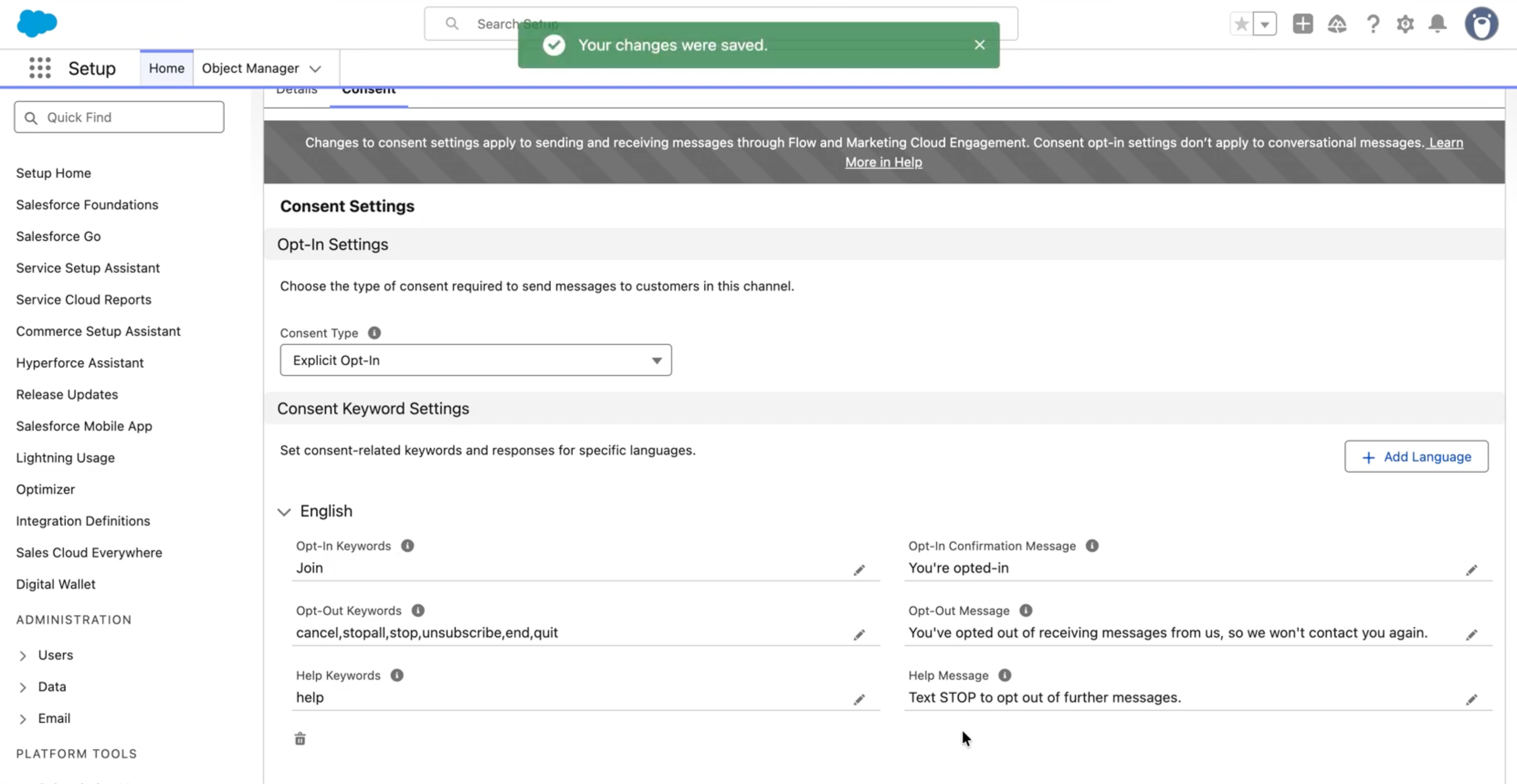
Trigger Default keywords Default response Help help Text STOP to opt out of further messages. Opt-out cancel, end, quit, stop, stopall, unsubscribe You've opted out of receiving messages from us, so we won't contact you again. -
To include keywords and messages for other languages, click Add
Language-Specific Consent Keywords, and then enter the text.
The keywords that you enter in Step 3 apply to all languages by default. Language-specific keywords override the defaults for that language only.
- Save your work.
Set Up Reporting
Configure reporting tools to track WhatsApp campaign performance. To avoid data processing issues, preserve field visibility for the Data Cloud Salesforce Connector permission set before you begin.
- From Setup, in the Quick Find box, enter Marketing, and select Marketing Performance Intelligence.
- In the Install Marketing Performance Intelligence section, click Install.
- Assign the Tableau Next Included App Business User permission set to any users who require access to Marketing Performance data.
-
In the Marketing app, go to the Analytics tab to view the main dashboard and confirm
that your install is complete.
Using Analytics consumes Data Cloud credits, which can increase your bill.
-
Install Analytics packages.
- From Setup, in the Quick Find box, enter Reporting.
- Under Marketing Setup, click Reporting and Optimization.
- In the Analytics Packages section, install the Marketing Engagement Analytics package and Flow Reports Analytics Package for all users.
-
Define user access to Analytics folders.
- From the Marketing app, on the Analytics tab, click Browse, and select Folders.
- For each report or dashboard folder, click the Actions icon and select Share.
- Set the access to Viewer for the entire organization.
- To add other users or groups, such as Editors or Managers, search for them in the Name field, and then apply the correct role.
- Save your changes.