
This guide covers the basic steps to send a promotional WhatsApp message to opted-in leads and contacts with Marketing Cloud Next. It outlines the simplest path, so that you can get a feel for using the tools.
Required Editions
| Available in: View supported editions |
| User Permissions Needed | |
|---|---|
| To manage settings in Salesforce Setup: |
System Administrator profile AND Marketing Cloud Admin permission set |
| To import data and create campaigns: |
Marketing Cloud Manager permission set OR View Flows and Create and Edit Flows user permissions |
Included in this guide:
- Import Leads and Contacts
- Import Consent Data
- Create a WhatsApp Message Template
- Create WhatsApp Content in Marketing Cloud Next
- Create a WhatsApp Campaign
- Create and Add a Segment
- Schedule and Activate Your Campaign
- Monitor Your Campaign Performance
Import Leads and Contacts
Import the leads and contacts that you want to target using a CSV file. If your leads and contacts are already in Salesforce, you can skip this step.

- On the Leads or Contacts tab, click Import.
- Follow the steps to upload a CSV file. If you don't have a CSV file yet, download the sample file from the import window, add your data, and upload it.
After the import completes, Salesforce sends a notification email to the user who imported the file.
Import Consent Data
Separately, import consent data for each phone number to update their consent status. You can send promotional WhatsApp messages only to contacts who have opted in to receive messages from you.
A consent import updates information for contact point phone numbers that are related to existing lead and contact records. These imports don't create lead or contact records or any fields besides the consent status.
Your CSV file must meet these requirements:
- A Phone column and a Consent Date column
- Phone numbers are in E.164 format (for example, +14155551234)
- Consent dates are in a supported DateTime format: MM/DD/YYYY or yyyy-MM-dd
- On the Consent page, select Consent Imports, and then click Import.
- For Channel, select WhatsApp.
-
For Communication Subscription, selectMarketing.
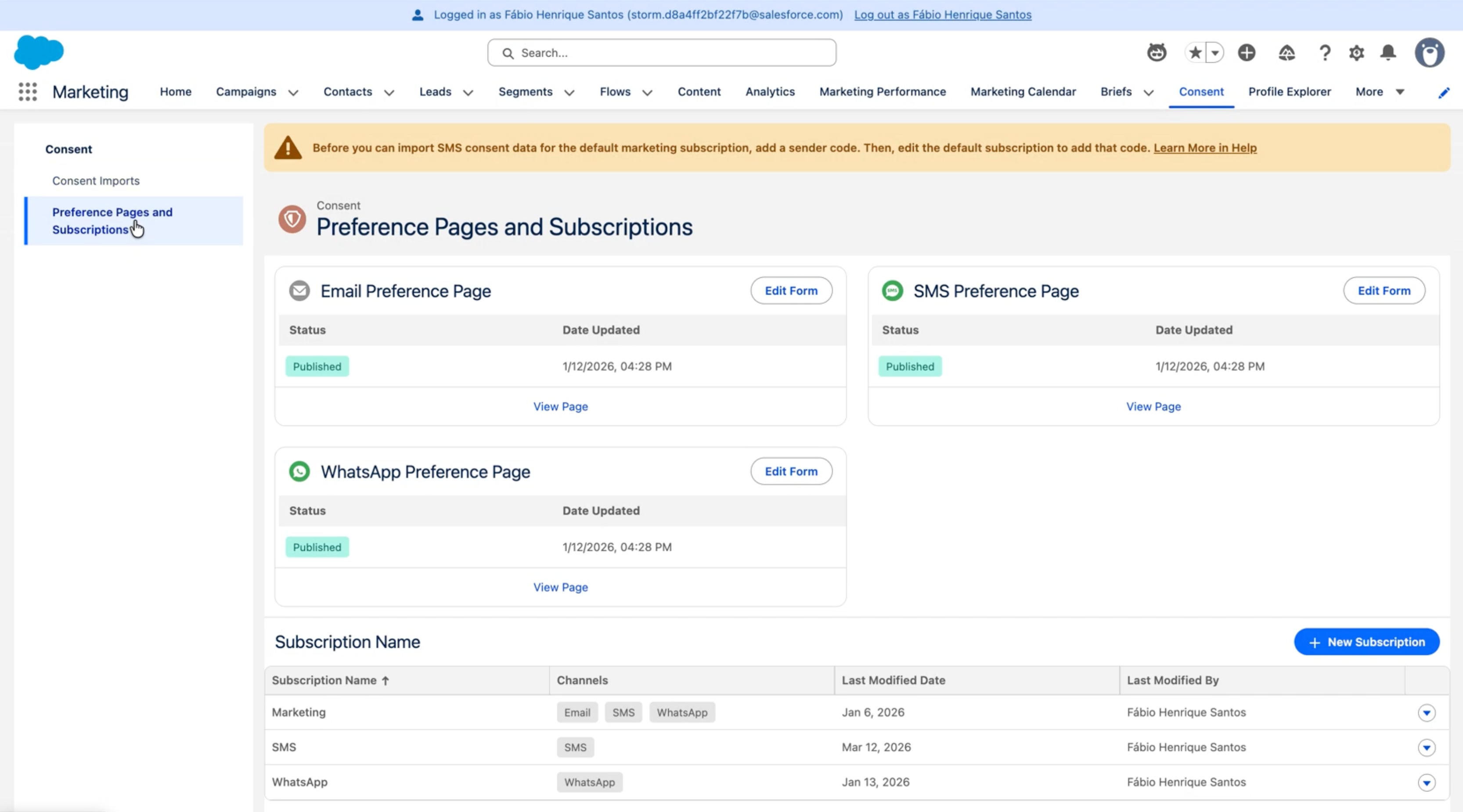
- For the consent status, select Opt In, and then click Next.
- Upload your CSV file, and then click Next.
- On the preview step, review the sample fields from your file, and then click Import.
To import opted-out contacts, repeat these steps, but select Opt Out for the consent status.
After the import completes, Salesforce sends a notification email to the user who imported the file. Consent status changes can take more time to sync to Data Cloud.
Create a WhatsApp Message Template
Create templates for common, reusable messages that share the same basic content and structure. Meta must approve a template before you can use it in campaigns.
- From the dropdown list for your active WhatsApp Business Account, select Message Templates.
- If prompted, log in to the Facebook account associated with your business.
- Select Create Template.
- Select a template category, and then name your template.
- Select a language, and then click Continue.
-
Enter the message body and optional header, footer, or button.
- To add a media file to the header, select Media from the dropdown.
- Click Add Sample, and upload a JPG, PNG, or PDF file from your computer. You can add only images, videos, and documents to a template message. Audio files aren't supported.
- Click Done.
 Important If you include a URL in your template message, make sure that the URL has a valid landing page and belongs to your business. A template with an invalid URL is rejected.
 - Submit your template request.
After submitting, you can check the status of your template on the Message Templates page. After a template is approved, you can edit it once every 24 hours.
Create WhatsApp Content inMarketing Cloud Next
Create content for your campaign by using the approved template.
- From your CMS workspace, click Add, and then select Content.
-
In the Create CMS content window, select WhatsApp Template
Message or WhatsApp Session Message, and then click
Create.
- To send outbound promotional messages using a Meta-approved template, select WhatsApp Template Message .
- To respond within an active conversation window, select WhatsApp Session Message.
- Select your WhatsApp Business Account, language, and the template that you want to use.
- In the Content Details section, specify a name and description for internal use.
- If your template includes variables, fill in the values.
- Preview your message and save.
To learn more, see Create a WhatsApp Template Message and Create a WhatsApp Session Message.
Create a WhatsApp Campaign
- From the Campaigns tab, click New.
-
Fill in your campaign details.
- Enter a descriptive campaign name.
- Add a description (optional).
- Select WhatsApp as the campaign type.
- Click Create.
- In the Content section of the campaign record, click Select Content.
- Select the WhatsApp Template Message that you created earlier, and then click Add.
After you create the campaign, the campaign record shows links to configure your flow, select a recipient segment, and schedule a send time. Complete each section to finish setting up the campaign.
See Work with Campaigns.
Create and Add a Segment
Target your recipients with a segment. The easiest way is to use a quick filter directly on the campaign record.
-
In the Quick Start tab in Campaigns, select Blank
WhatsApp.
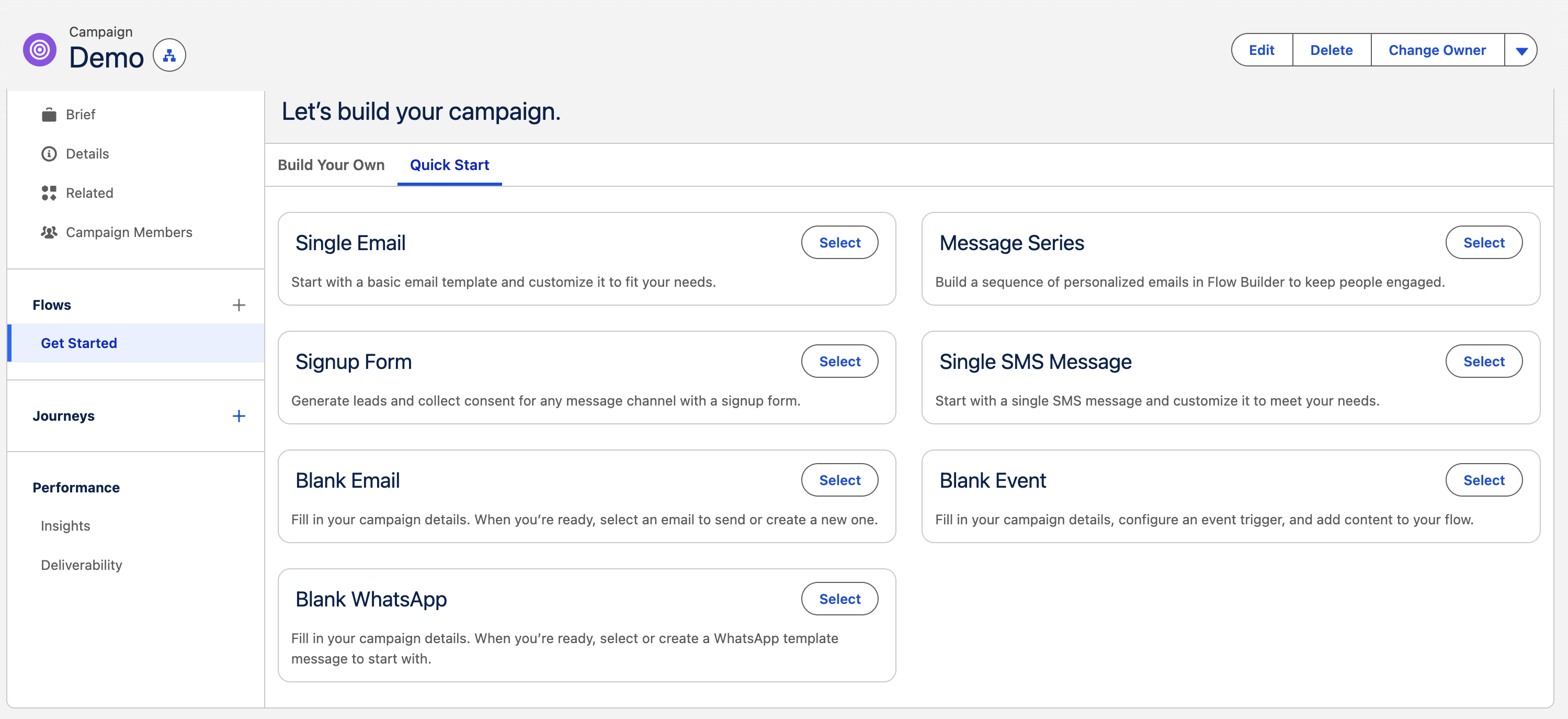
- Select the segment and the WhatsApp Template Message that you created earlier
- Click Add.
- From the campaign record, click Publish.
- Wait for the segment to publish, and then refresh the page.
- After the segment is published, click Preview to review a sample of the people in your segment.
Schedule and Activate Your Campaign
To begin sending messages, set the send time for your WhatsApp campaign, review your audience and campaign details, and activate.
-
In the campaign record, configure your send settings.
- Send immediately or schedule for a specific date and time.
- Review your audience size and estimated reach.
- To start your campaign, click Activate.
Monitor Your Campaign Performance
After your campaign is active, you can track its delivery and engagement metrics.
- On the Campaigns tab, select your campaign.
- View metrics such as messages sent, messages delivered, messages read, and click-through rate.
- Access detailed reports in the Analytics tab for deeper insights.