Install the analytics packages and add users to analytics folders. Then, head to Digital Experiences to finalize the data connection.
Required Editions
| User Permissions Needed | |
|---|---|
| To install data kits and packages: |
View Setup and Configuration OR System Administrator profile OR Marketing Cloud Admin permission set |
| To deploy data streams: | Data Cloud Architect permission set |
| To add Digital Experiences integrations: | Content Admin role |
| To customize the Analytics tab: |
Marketing Cloud Admin permission set OR Marketing Cloud Manager permission set |
Before you install the analytics packages, make sure to install and deploy the required marketing data kits.
Also, confirm that Enable the Unified Experience for Analytics Home is turned on in your org. This setting controls access to the Analytics tab, where the installed dashboards, reports, and folders appear.
- From Setup, in the Quick Find box, enter Marketing Cloud. Under Reporting and Optimization, select Analytics.
- From the Analytics Packages section, install the Marketing Engagement Analytics package for all users.
- (Optional) If you’re using the SMS add-on, repeat these steps for the SMS Analytics package.
-
(Optional) Configure tracking and analytics for the default Marketing Landing Pages
site.
- From Setup, in the Quick Find box, enter All Sites. Under Digital Experiences, click All Sites.
-
Next to Marketing Landing Pages, select Builder.
Landing pages in Marketing Cloud Next are served using the Data 360 Sites framework. This site operates behind the scenes—don’t add content to it.
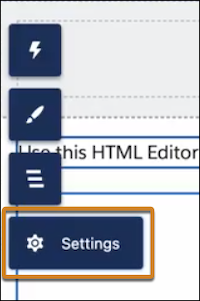
- Click Settings and select Integrations.
- On the Data Cloud tile, click Add to Site.
-
(Optional) To collect engagement metrics and consent for tracking on landing pages,
add the Data 360 Web Tracking Consent Banner integration. Then,
in the site toolbar, click Publish.
If you don’t need to track consent, skip this step and see Activity Tracking for Landing Pages.
- From Setup, in the Quick Find box, enter Marketing Cloud. Under Reporting and Optimization, select Analytics.
- Install the Landing Pages and Forms Analytics package for all users.
-
From the Marketing app, make folders available to users.
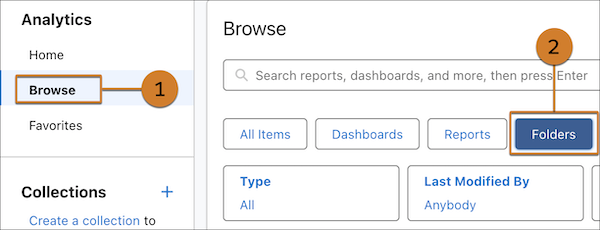
- On the Analytics tab, click Browse (1), and select Folders (2).
-
For each report or dashboard folder, click
 and select Share.
- For Entire Organization, set the access to Viewer.
- To add other users or groups, such as Editors or Managers, search for them in the Name field, and then apply the correct role.
- Save the changes.