
The unnest transformer enables you to transform concatenated values into separate rows. The measurement values linked to the nested row are duplicated to each new row. For example, If there are three values, comma-separated, and one field must be broken out into individual rows of data, this transformer creates individual rows for each value in that field.
- Navigate to the Import tab.
- Expand Data Streams List.
- Create a data stream, or edit an existing one.
- In the Preview Source screen, click Edit Transformers.
- In the Add Transformers area, next to the Unnest Transformer, click the blue plus icon.
- In the Column field, select the column that you want to transform.
- In the Delimiter field, enter the delimiter that is used in the selected column data to separate between the values to be unnested.
- In the Unnest Column Name field, enter the name of the new column to be created in the file. The column specifies the number of values included in the nested row. If you want to divide the measurement values between the new rows, set a function in the mapping process that divides the measurement value by the number specified in this column.
- To indicate which column that you want to initiate the process, select the By Column Index checkbox. (If necessary, you can apply multiple unnest transformers to the same column.)
- Click Done.
Example of Unnest
Original file:
| Day | Campaign Name | Campaign Key | media buy Key | Impressions | Clicks | Media Cost |
| 3/5/2015 | Camp1 | 8423517 | mb1, mb4;mb5 | 500 | 50 | 2500 |
| 3/5/2015 | Camp2 | 8423518 | mb2, mb22, mb10;mb11 | 900 | 90 | 9000 |
|
3/6/2015 |
Camp3 |
8423519 |
mb3,mb6;mb7,mb8;mb9 |
1000 | 1000 | 1000 |
Unnest transformer:
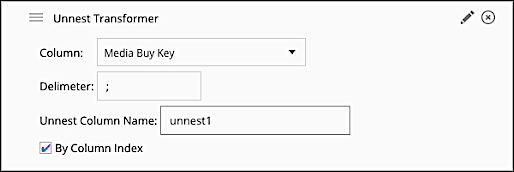
Result:
| Day |
Campaign Name |
Campaign Key |
media buy Key |
unnest1 | Impressions | Clicks | Media Cost |
|
3/5/2015 |
Camp1 | 8423517 |
mb1, mb4 |
2 | 500 | 50 |
2500 |
|
3/5/2015 |
Camp1 |
8423517 | mb5 | 2 | 500 | 50 | 2500 |
|
3/5/2015 |
Camp2 |
8423518 |
mb2, mb22, mb10 |
2 | 900 | 90 | 9000 |
|
3/5/2015 |
Camp2 | 8423518 | mb11 | 2 | 900 | 90 | 9000 |
|
3/6/2015 |
Camp3 | 8423519 |
mb3,mb6 |
3 | 1000 | 1000 | 1000 |
|
3/6/2015 |
Camp3 | 8423519 |
mb7,mb8 |
3 | 1000 | 1000 | 1000 |
|
3/6/2015 |
Camp3 | 8423519 | mb9 | 3 | 1000 | 1000 | 1000 |
If you want to divide the measurement values by the number of new rows, add a function to the
measurement’s mapping. For example, for Impressions, use this formula: csv['Impressions']/csv['unnest 1']
You can further separate the values from the previous file by adding a second unnest transformer:
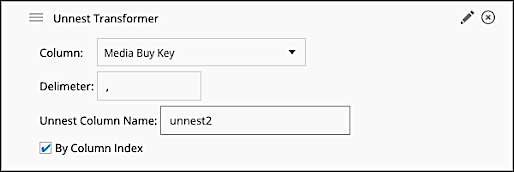
Result:
| Day |
Campaign Name |
Campaign Key | media buy Key | unnest1 | unnest2 | Impressions | Clicks |
Media Cost |
|
3/5/2015 |
Camp1 | 8423517 | mb1 | 2 | 2 | 500 | 50 | 2500 |
|
3/5/2015 |
Camp1 |
8423517 |
mb4 | 2 | 2 | 500 | 50 | 2500 |
|
3/5/2015 |
Camp1 | 8423517 | mb5 | 2 | 1 | 500 | 50 | 2500 |
|
3/5/2015 |
Camp2 | 8423518 | mb2 | 2 | 3 | 900 | 90 | 9000 |
|
3/5/2015 |
Camp2 | 8423518 | mb22 | 2 | 3 | 900 | 90 | 9000 |
|
3/5/2015 |
Camp2 | 8423518 | mb10 | 2 | 3 | 900 | 90 | 9000 |
|
3/5/2015 |
Camp2 | 8423518 | mb11 | 2 | 1 | 900 | 90 | 9000 |
|
3/6/2015 |
Camp3 | 8423519 | mb3 | 3 | 2 | 1000 | 1000 | 1000 |
|
3/6/2015 |
Camp3 | 8423519 | mb6 | 3 | 2 | 1000 | 1000 | 1000 |
|
3/6/2015 |
Camp3 | 8423519 | mb7 | 3 | 2 | 1000 | 1000 | 1000 |
| 3/6/2015 | Camp3 | 8423519 | mb8 | 3 | 2 | 1000 | 1000 | 1000 |
| 3/6/2015 | Camp3 | 8423519 | mb9 | 3 | 1 | 1000 | 1000 | 1000 |
To divide the measurement’s values, you must add the unnest2 column to the formula, for
example, for Impressions: csv['Impressions']/(csv['unnest1']*csv['unnest2'])