
You can add fields that don’t exist in the source data. Define the new fields by either applying code that is based on the existing columns or creating a new value.
- From the Import tab, select Data Streams List.
- Select a LiteConnect data stream and click Mapping.
- To add a column, click Add Field.
-
Select the type of field: dimension or measurement. The Formula Editor appears.
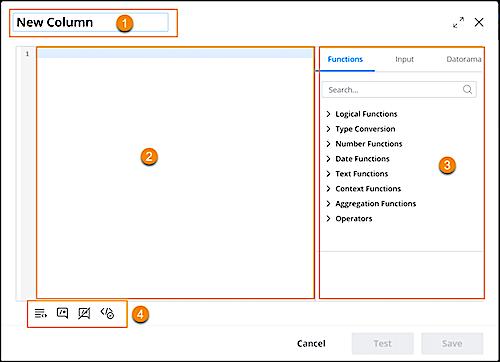
- Name your new column. (1)
- Enter the formula. You can type your formula manually or select one from the available functions or fields.(2)
- Functions/Fields — Select a function or field from the list. These types are available
(3).
- Functions – A list of available functions that can be implemented on dimensions, and measurements.
- Input – A list of all fields from the source file that were uploaded to the data stream.
- Datorama – A list of available dat fields in the "transformed" file currently being manipulated by a data stream. The values are affected by formula manipulation (like you see in the data preview).
- Additional Options – These options are also available (4)
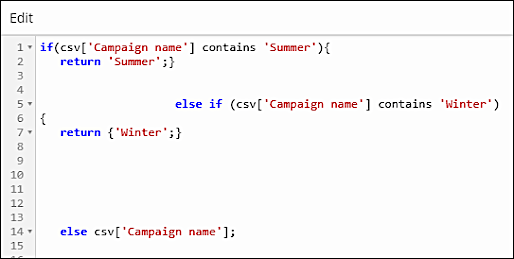
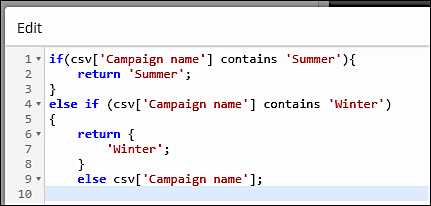
- Auto Format Code – Formats your code into the standard structure.
Before Auto Format:
After Auto Format
- Comment Out — Allows you to mark a comment in the code for the formula. This code is processed, even if it has dimensions or measurements.
- Ucomment — Allows you to remove the comment from the code.
- Validate Syntax — Ensures that your syntax is free of errors.
- Evaluate — Runs the code on manually entered values.
- Auto Format Code – Formats your code into the standard structure.
- Save your work.