
Use an API connector to create an API data stream. You can choose from one of thousands of API connectors, or you can go to the Marketplace and install connectors.
- Navigate to the Import tab.
- Expand Data Streams List.
- Click Add New.
-
In the Search bar, enter the name of the connector you’re connecting to. For example, enter
Facebook Ads.
The settings change according to the API connector, so not all fields are available.
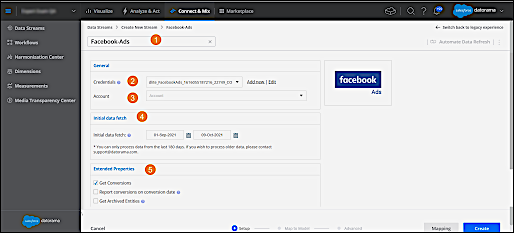
- Name the data stream (1).
- Within Credentials (2), select the account that you want to pull data from, or to add your API credentials, click Add new. Usually, this is a valid username and password. However, some vendors require more information, such as an API token. Check with each vendor to confirm what their API requirements are.
- After you add your credentials, choose the entity that you want to pull data from (3). This entity can appear under different names in different API connectors, such as Profile, Publisher, or Account. With some connectors, you can further specify the segment that you want to pull data from, such as Advertiser, Segment, or Queries.
- In Initial Data Fetch, (4), select the initial date range that you want to retrieve data from. You can only process data from the last 180 days. If you want to process older data, please contact support.
- In Extended Properties (5), if available, retrieve additional data on the source platform. These options change from one connector to another.
- To view how the data was mapped, click Mapping. For more information about mapping, see Mapping.
- To apply advanced settings to the data stream, click Advanced. For more information about advanced settings, see Advanced Settings.
- To create the data stream, click Create. After you create the data stream, it appears in the Data Streams List, and it can be used throughout the platform.