
Salesforce Marketing Cloud is a platform for delivering relevant, personalized journeys across channels and devices - enabling marketers to deliver the right message at the right time throughout all phases of the relationship.
The SFMC Data Extensions connector enables you to pull in data extensions, which are custom tables with fields of data about your contacts. They can be standalone or can be related to other data extensions as well. For more information about Marketing Cloud, click here.

- You must not edit the data extension after creating a data stream. If you remove or rename any columns after creating a data stream, the automation won’t work. If for some reason you must edit the data extensions, contact Marketing Cloud Intelligence Data Pipelines Support.
- Sendlog DEs aren’t supported.
- Your user must have Enterprise-level access.
- Your user must also be an Admin and Marketing Cloud Admin.
- This API connector supports the following:
- Enterprise 1.0
- Enterprise 2.0
- Core or Connect
- You must make sure the user you’re using has access to the parent member, otherwise the authentication will fail.
- Channel: Display
- Data Stream Type: Generic
- Data Lagging: 1 day
Details
- The data stream runs on an hourly basis, but usually pulls data once a day. The data is pulled after it becomes available from Marketing Cloud.
- Usually Marketing Cloud data is not available upon the creation of the data stream, and will only be available 24–48 hours later. Therefore, if no data is pulled in during the first process, it’s recommended you check the data stream a day or two later. After initial provisioning the data stream iw processed as expected and data becomes available daily.
Prerequisites
To connect to the Salesforce Marketing Cloud API, you need a valid username and password with API access.
- Your user must have Enterprise-level access.
- It’s advised you check your Business Unit Marketing Cloud time zone. If it differs from CST (Marketing Cloud Intelligence Data Pipelines’s default time zone), you could see discrepancies in your data.
Enabling
- Log in to your Salesforce Marketing Cloud account and click your username on the top right of the screen.
- Under Settings, select Setup.
- Expand Users.
- Click Roles.
- Select the role you want to update permissions for. Your user must be an Admin and Marketing Cloud Admin.
- Scroll down and click the plus icon to expand Marketing Cloud Intelligence Data Pipelines.
- Under Enable Marketing Cloud Intelligence Data Pipelines Integration, select the Allow checkbox.
General Setup
After entering your credentials, select the following options:
- Account - Select the relevant account that you want to retrieve data for.
- Data Extension - Select the data extension you want to retrieve data for.
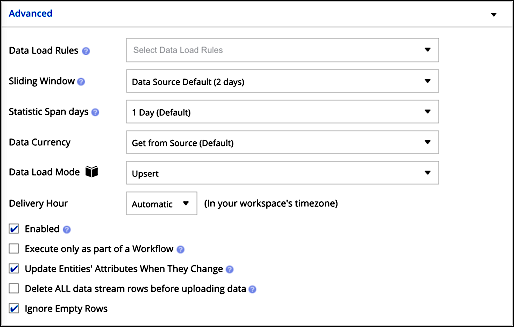
Advanced Settings
This section allows you to define advanced settings for your API connector. These settings are the same for all API connectors.
Extended Properties
In this section:
- Data Stream Type - Select the relevant data type for the data being pulled.
How to QA Your Data
- Create the desired report in the Salesforce Marketing Cloud platform for the required date range.
- Next, process the relevant Data Stream in Marketing Cloud Intelligence Data Pipelines for the same date range.
- Compare the Measurement Totals and make sure they’re aligned.