
You can apply formulas directly to your field mappings to perform complex manipulations of your data. The formulas are intuitive and use a similar syntax found in Excel. For more complex manipulations, you can also use MVEL, a Java-based expression language. You apply formulas during the mapping stage when creating data streams.
- Navigate to the Import tab.
- Expand Data Streams List.
- Create a data stream or edit an existing one.
- At the bottom of the Data Stream page, click Map to Model.
The Formula Editor contains these areas:
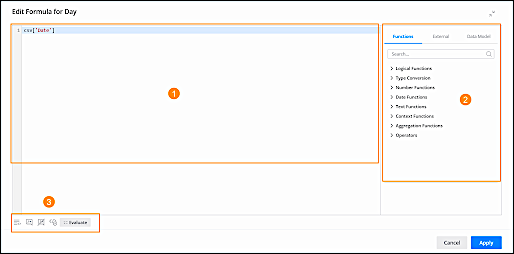
- Edit Area — Enter the formula. You can type your formula manually or select one from the available functions or fields.
- Functions/Fields — Select a function or field from the list. These types are available:
- Functions – A list of available functions that can be implemented on dimensions, measurements, native values, and variables.
- External fields – A list of all fields from the source file that were uploaded to the data stream.
- Data model fields – A list of all fields available in the data stream type of the chosen data stream, listed with their system native name. These fields can be used with dimensions or measurements that already have a formula in the mapping. A value is given after the formula is processed instead of the native CSV value from the original file. This value enhances ETL performance because it doesn’t require more processing.
 Note Only mapped fields can be used as MDP fields.
The practical difference between the two types of fields in the mapping stage is:
Csv[…] =pre-formula— Refers to the external fields and appears in this format. The value is taken as it exists in the source file before any formula manipulations were performed.Dat[…] = post-formula— Refers to the MDP field and appears in this format. This field takes the value after the formula is applied. For example, if you map Media Buy Name, you can usedat[media_buy_name]in another field formula without writing or evaluating it again.
- Additional Options – These options are also available:
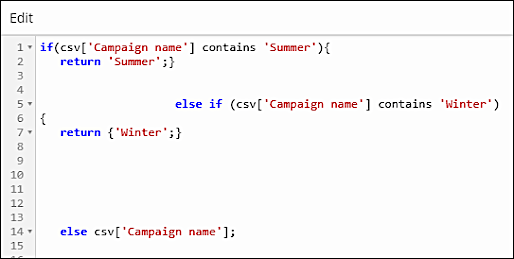
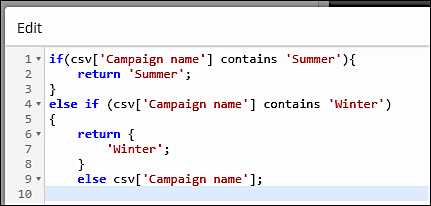
- Auto Format Code – Formats your code into the standard structure.
Before Auto Format:
After Auto Format
- Comment Out — Allows you to mark a comment in the code for the formula. This code is processed, even if it has dimensions or measurements.
- Ucomment — Allows you to remove the comment from the code.
- Validate Syntax — Ensures that your syntax is free of errors.
- Evaluate — Runs the code on manually entered values.
Note- Function syntax and the values inserted in the formula are case-sensitive.
- VLOOKUP functions aren’t supported.
- Auto Format Code – Formats your code into the standard structure.