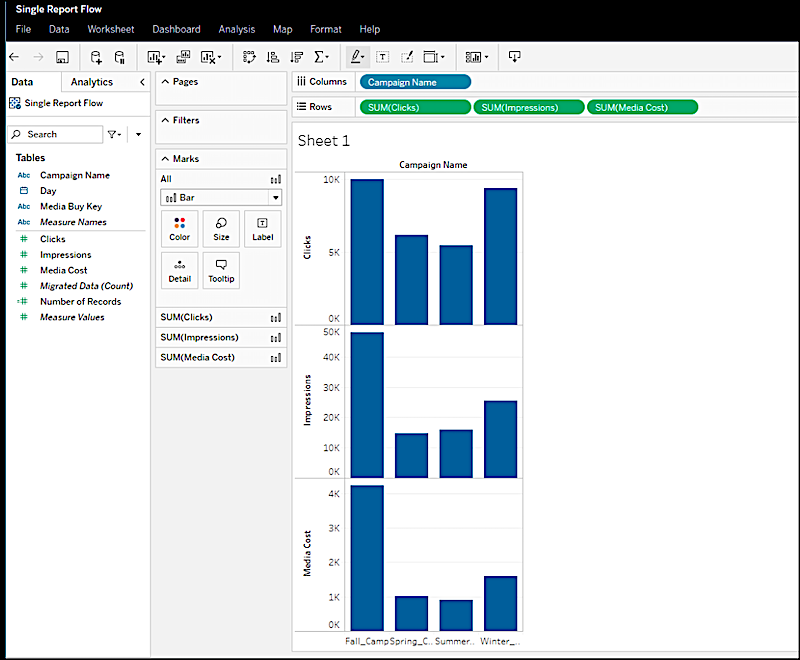
Integrate Marketing Cloud Intelligence Data Pipelines with Tableau by pushing a single view. During the process, you create a Tableau view, a Tableau feed, run the data source, and then visualize your data in Tableau Online.

Note Tableau views are limited to 5 million rows in a single execution.
- Go to Export.
- Select Tableau Data Connection.
- Create a Tableau view.
-
On the Create New View page, enter these details:
- Name the report.
- For Export Format, the default is Tableau, and it’s recommended to leave as is.
- Select the number of days after which reports are deleted. For example, if you enter 30, after 30 days all reports are deleted from MDP. By default, the number of days is 180, which is also the maximum number of days you can save history.
- Select the time period from which you want to retrieve data.
- Select the measurements that you want to include in the report.
- Select the dimensions that you want to include in the report.
- To add a filter, click Add Filters.
- Save and run your report.
-
Create a Tableau feed:
- Click Create New Tableau Feed.
- Enter the data source name.
- In the Views List, select the Tableau view that you created.
- To send the view to Tableau Server or Tableau Online, select Send to Tableau Server/Online. If you select this option, enter the delivery setup information and click Next.
- If you aren’t sending to Tableau Server or Online, click Create & Run.
-
Define the delivery setup:
-
If you want to use a private access token instead of a username and password, enable
Private Access Token, and enter the token name and secret. A token is especially useful for
customers who use SSO, Active Directory, or LDAP authentication. For more information see
Personal Access Tokens.
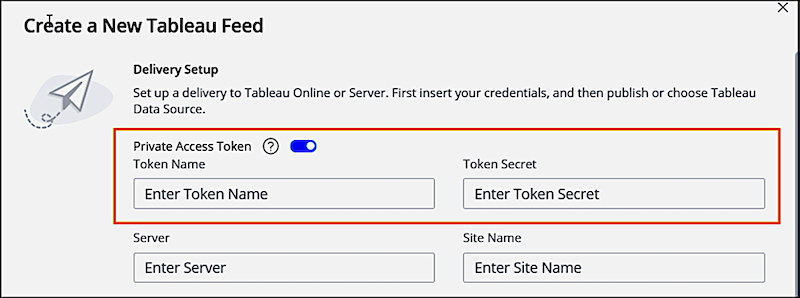
- If you don’t want to use a token, enter your Tableau username and password.
-
Enter your server URL and site name. The server URL includes everything from https to
tableau.com, for example,
https://10ax.online.tableau.com. The site name is after site/, for example,datoramademo.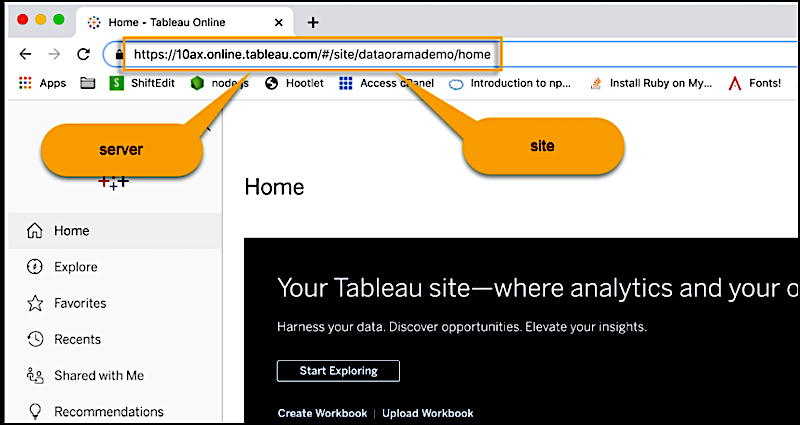 Note If the URL doesn’t include a site name or if there’s a #, it’s the default site, so enter Default.
After entering the server and site information, the Tableau Project and Data Source fields are generated.
- To create a new data source in Tableau, select Publish a New Data Source.
- From the Frequency dropdown, select how often you want the data to be published.
-
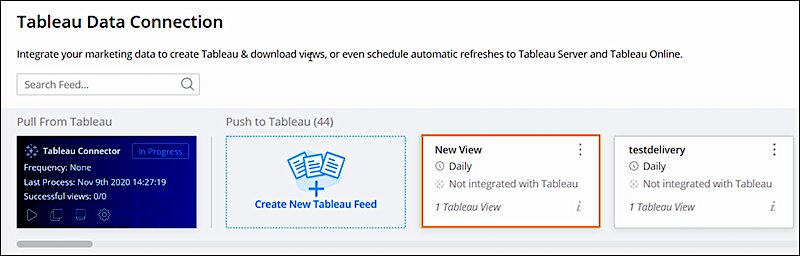
Save your work. The data feed is created and appears as a new tile on the Tableau Data
Connection page.
-
If you want to use a private access token instead of a username and password, enable
Private Access Token, and enter the token name and secret. A token is especially useful for
customers who use SSO, Active Directory, or LDAP authentication. For more information see
Personal Access Tokens.
-
Run the data source:
- On the Tableau Data Connection page, select the tile.
- Click Options, and then select Run Now. After the source runs successfully, a Success status appears. If the job fails, a Failed status appears.
- To view all jobs, go to Execution History.
-
Visualize your data in Tableau Online: