Locate what you need in the Marketing Cloud Personalization user interface.
Design and Layout
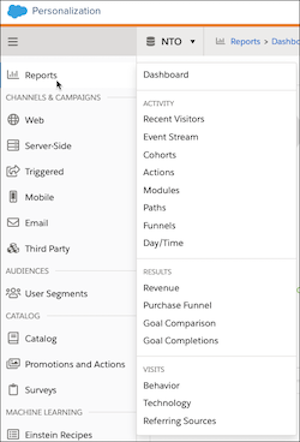
The main navigation pane is on the left. Submenus appear when you hover over or click a main navigation item (like Reports). The main page changes as you select items from the submenu.
Channels and Campaigns
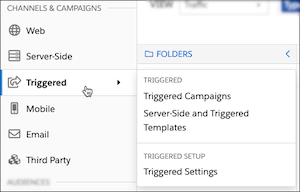
The Channels & Campaigns section organizes the different touch points where you can interact and communicate with visitors and customers into Web, Server-Side, Mobile, Email Email, and Third Party. You can access campaigns and campaign-related resources by hovering over or clicking a specific channel in the left-hand navigation menu.
Audiences
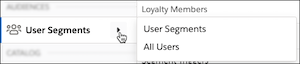
You can access user and account segments in the Audiences section of the left-navigation menu. User Segments shows you existing segments and gives the option create new ones. Details about the segment are listed below the segment list. All Users shows you a list of all visitors to your site, including active visitors indicated by.
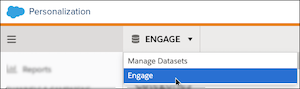
Dataset Selector
You can switch to a different dataset by using the selector in the gray bar at the top of the application, just to the right of the Interaction Studio logo. Many customers have only one dataset, but if you personalize multiple digital properties, you likely have to change datasets.
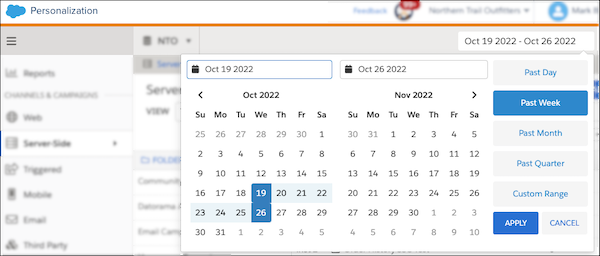
Date Picker
The date picker offers several standard date ranges: past day (beginning at midnight UTC), past week, past month, or past quarter. You can also select a custom range by dragging your mouse over the time period or using the arrows at the top to navigate to a start and end date. If you select Custom Range, click APPLY to run the query and see the changes.
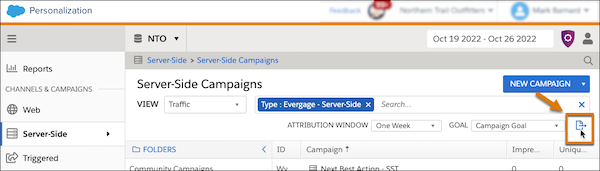
Campaign Exports
You can export campaign statistics to a CSV file right from the Campaigns list screen.
Select the channel, select a campaign, and then click the download icon ( ) to automatically download the file.
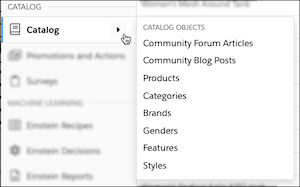
Catalog
You can quickly access your catalog content using the Catalog selection in the left navigation pane. This option also provides access to subsets of the catalog like brands, authors, item classes, or content classes.
Breadcrumbs
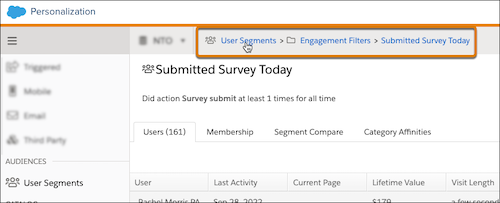
See where you are, or move up a level or two quickly, by using the breadcrumb navigation at the top of the application window.