
Configure a Convert Lead activity in Journey Builder.
- Drag the Convert Lead activity onto the canvas.
-
.
Hover over the activity and click Configure.
 Note When a Marketing Cloud Engagement contact enters the journey, Journey Builder searches the Sales and Service Cloud to find a matching lead ID. If no lead ID is found, the lead doesn’t convert.
 -
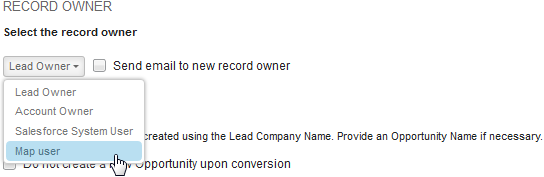
Select the owner of this lead record. To tell Journey Builder where to find the
record owner, select Map user. Use the mapper to locate
the user.
- Enter an opportunity name.
-
Set the convert status of each lead record that Journey Builder converts.
Use this activity to convert only qualified leads. Journey Builder doesn’t verify that leads are qualified before conversion.
- To create an account for each converted lead, select Always Create a New Account. The Lead Company Name becomes the new account name.
-
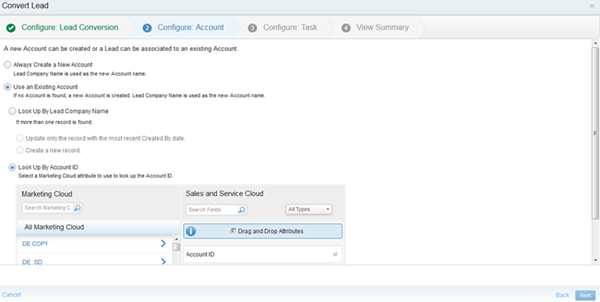
To associate the lead to an existing account, select Use an Existing
Account
- When selecting Look Up By Lead Company Name, choose how Journey Builder handles multiple Lead records with the same Lead Company Name. If no record with the same Lead Company Name is found, Journey Builder creates an account.
- If you select Look Up By Account ID, drag a Marketing Cloud Engagement
attribute onto the Sales and Service Cloud field with a matching value in an
account record field. This mapping is used to identify the correct
record.
- Click Next.
-
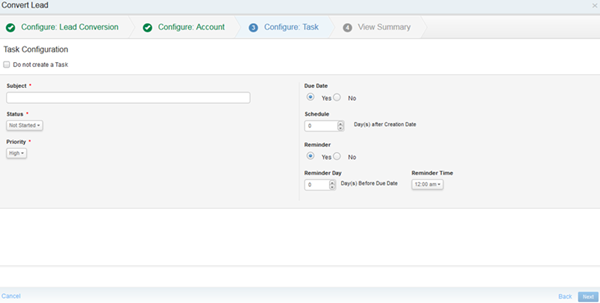
When you set up a task, populate only the fields that contain the same data
value for each task created.
-
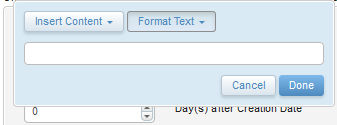
When populating the Subject field, use variables to create the subject
dynamically. Click the Subject field to access variables.
- Click Next and complete the configuration.