
Verify the data your automation uses in Automation Studio.
To verify that records in a data extension in an automation meet your expectation, set up a verification activity. The activity analyzes target data extensions populated by the automation's activities or another source, then triggers actions based on user-defined conditions.
-
Drag the verification activity into an automation step.
 Note You can add more than one verification activity in a single step, but not in the same step as any other type of activity.
 - Click Configure.
-
Select the target data extension to verify. Data extensions
populated by activities in the automation appear by default.
- To select from a larger set, choose All.
 Tip If you do not see the data extension that you expect, save the automation and retry.
 - Click Next.
-
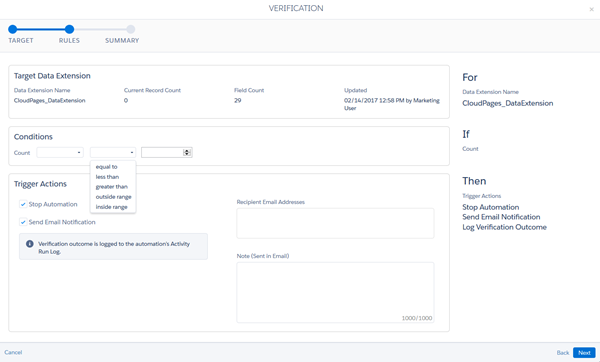
Set the conditions that the verification activity
monitors.
-
Choose the action the automation takes when the target data
extension meets the conditions you set.
- To receive an email when verification conditions are met, specify the email addresses that receive the notification.
- If necessary, add a note to explain the condition that was met, or any other information you want to include in the notification to aid in troubleshooting.
- Complete activity setup.
The automation's Activity Run Log logs the verification activity's outcome.