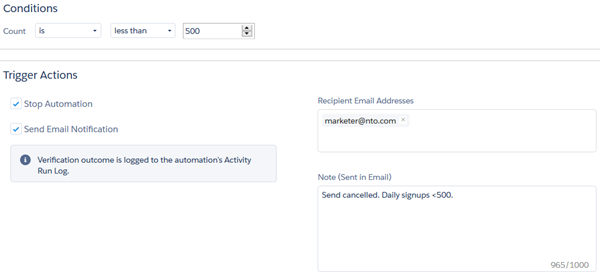
This example shows how to verify the data your automation uses in Automation Studio.
Use the verification activity to avoid unintended outcomes in an automation by monitoring a data extension used in the automation for an unexpected record count.
In this example, a marketer for Northern Trails Outfitters (NTO) has an automation that runs daily. The automation imports a file from NTO’s e-commerce system, queries the data imported to produce an audience segment, and then sends a message. Occasionally, the file provided from the e-commerce system is incomplete, resulting in an unexpectedly low audience segment and send count. The marketer uses a verification activity to catch these scenarios and course-correct before the segmentation and send occur.
To achieve this result, the marketer follows these steps.
- A verification activity is dragged into the workflow between the step with the Data Copy or Import activity and the step with the SQL Query activity.
- The marketer sets the verification activity to monitor the Import's destination data extension. If the import into the data extension results in a record count that is less than 500, the activity stops the automation and sends the marketer an email notification.
- When this unexpected scenario occurs, the automation stops before the
segmentation occurs and prevents the message from being sent to the incorrect
audience. The marketer can promptly act to correct the file and rerun the
automation as intended.