
Avoid unintended outcomes by verifying the data used in an Automation Studio automation.
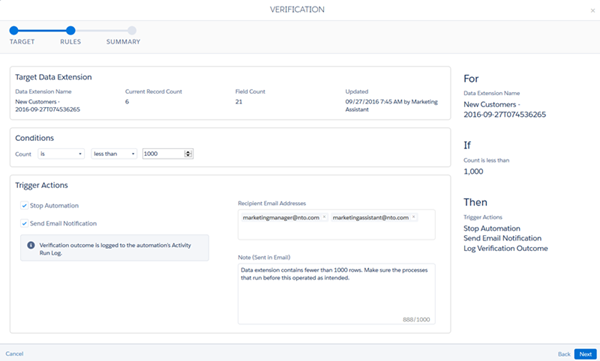
Use the Verification activity to avoid unintended automation outcomes. The activity lets you select a target data extension in your automation and evaluate the target data extension for conditions you set.
When the activity detects the conditions you set are met, the activity can stop the automation or send you an email notification or both, depending on the actions you define. If you choose to receive a notification when the conditions are met, you can opt to include a note in the email to provide more context for investigation or troubleshooting.
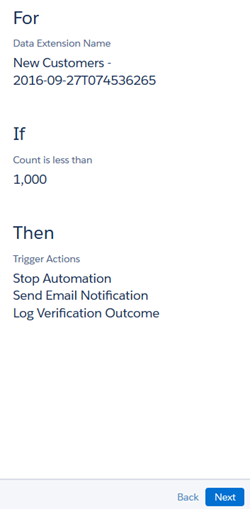
Hover over the Verification activity icon in the automation's Run Log to view the latest run's results. These results give greater confidence that data used in subsequent activities in the automation is what you intend.
Considerations
- The Verification activity can only be used in an automation and cannot be reused across multiple automations. Configuring the activity outside an automation is not supported.
- You can add multiple Verification activities in a single step. However, Verification activities cannot be placed in the same step as any other type of activity.
- The activity shows target data extensions of activities in the automation first by default, but you can use the activity to find and verify any data extension.
- Verification Activity Example
This example shows how to verify the data your automation uses in Automation Studio. - Verify Automation Data
Verify the data your automation uses in Automation Studio.