
When you access Automation Studio, view up to 50 automations in your account, a snapshot of automation activities, run history, and folders. You can also run each automation once from the Overview page.
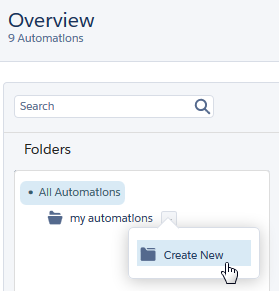
Folders
View folders that you created, and create folders without leaving the page.
View Options
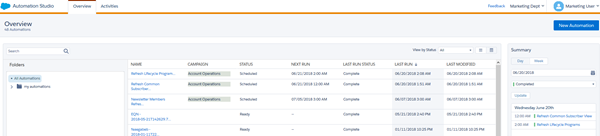
View your automations in List or Detail view.
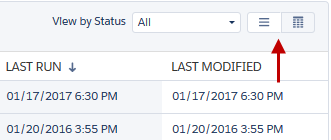
List view displays more automations on a page without activity-level detail.
Detail view includes an abbreviated view of the automation’s design and any errors.
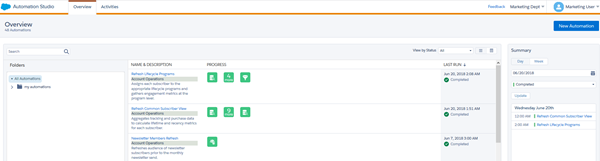
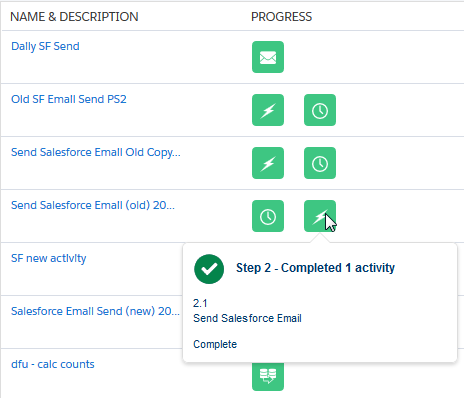
Hover over an activity to view its type, progress, and name. When a single automation step includes multiple activities, you can view the entire automation’s setup.
Error Messages
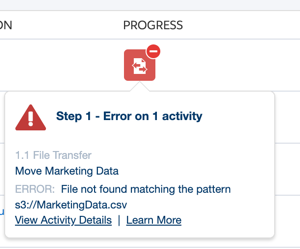
When an activity has an error, you can view activity details or click Learn More to get more information. If the automation step includes multiple activities, the timeline shows where the error occurred.
Summary
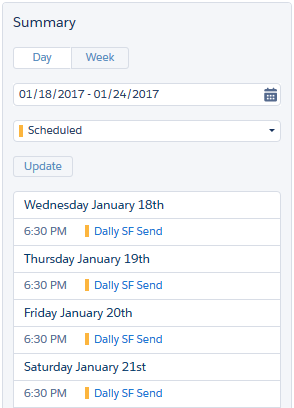
The Summary displays your automations by day or by week and by status. Filter results by status using the dropdown menu, and then click Update.
- Run an Automation from the Overview Page
Start an automation directly from the Automation Studio Overview page with one click. - Delete an Automation from the Overview Page
Delete unneeded automations in Automation Studio without leaving the Overview page.