
A starting source defines how an automation starts. You can schedule an automation to run at specific intervals or start an automation when a file is uploaded to the Enhanced FTP. Or, use a trigger to start an automation when a file is uploaded to an external location such as Amazon Web Services, Google Cloud Platform, or Microsoft Azure.
This table compares starting sources.
| Starting Source | What causes the automation to start? | Sample Use Case |
|---|---|---|
| Scheduled Automation | Starts on a schedule that you define. | You import and refresh your birthday list daily, and then send an email to all contacts whose birthday is today. |
| File Drop Automation | Starts when a file is uploaded to your Enhanced FTP site. Upload files to the Import or Triggered_Automations folders, or a subdirectory of one of these folders. | You use other processes that update files in an FTP folder and you want to create an automation that starts when activity occurs in that folder. |
| Trigger Automation | Starts when a file is uploaded to an external location, such as Amazon S3, Google Cloud Storage, or Microsoft Azure Blob Storage. | You use other processes that update files in an external location and you want to create an automation that starts when activity occurs in that location. |
Scheduled Automations
When you create a scheduled automation, configure the start date, time, and time zone. Next, specify how often the automation repeats and when it ends. Alternatively, click Run Once to start a scheduled automation immediately.
Keep these considerations in mind when you use scheduled automations:
- You must activate a scheduled automation for it to run.
- The automation’s duration must be compatible with its schedule. For example, if an automation is scheduled to run every 24 hours, but has a duration of 36 hours, it stops running when after 24 hours when the next scheduled automation starts. In this situation, the automation never completes.
File Drop Automations
When you create a file drop automation, you provide a file name pattern or Enhanced FTP directory that Marketing Cloud Engagement monitors. When a file matching the pattern is placed on the Enhanced FTP site or in the directory that you specify, the automation runs.
File drop automations are queued by default. When the running automation completes or encounters an error, the next file in the queue starts the next automation. This process continues until the queue is empty. If you turn off queuing, additional files are ignored when an automation is already running.

Consider these factors when you use file drop automations:
- You must configure Enhanced FTP before you can create a file drop automation.
- If you change a file name without modifying the file content, the automation doesn’t start.
- If you use a folder for the file drop, any file placed in the folder triggers the associated automation.
- If you use a folder for file drop, don’t use it for other purposes. Each Enhanced FTP folder supports only one file drop automation. This limitation doesn’t apply if you use a file name pattern.
- If you use a file name pattern for the file drop, the automation is associated with the pattern and isn’t associated with a specific FTP folder. The automation isn’t affected if you change the FTP folder that the file is uploaded to, as long as you don’t change the file name pattern.
- To make your files easy to audit, use dynamic file names whenever possible. For example, use example%%Year%%%%Month%%%%Day%%.csv instead of example.csv.
- File drop automations don’t read file extensions. Any characters following the final dot (.) in a file name are ignored.
- You can’t use these file types to start a file drop automation:
- .bmp
- .eml
- .jpg
- .jpeg
- .png
- .xml
Trigger Automations
When you create a trigger automation, enter a file name pattern and choose a file location. Create a trigger API that monitors the external file location. Marketing Cloud Engagement listens for the trigger API and runs the automation when a file that matches the pattern is placed in that location.
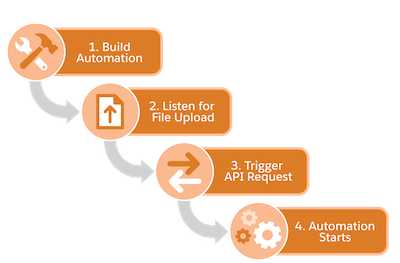
Trigger automations are queued by default. When the running automation completes or encounters an error, the next file in the queue starts the next automation. This process continues until the queue is empty. If you turn off queuing, additional files are ignored when an automation is already running.
Consider these additional factors when you use trigger automations:
- You must set up a file location for the external location before creating a trigger automation.
- You must use a trigger API to check for files from external locations.
- To make your files easy to audit, use specific file names whenever possible. For example, use example_YYYY_MM_DD.csv instead of example.csv.
- To easily identify the related file name in downstream file transfer activities and
import activities, use the variable
%%FILENAME_FROM_TRIGGER%%. - Trigger automations can read file extensions. File extensions are required if you use the Equals operator or the Ends With operator.
- Configure a Scheduled Automation
Set up an automation that runs on a schedule. - Configure a File Drop Automation
Set up an automation in Marketing Cloud Engagement that starts when a file is uploaded to your Enhanced SFTP location. - Configure a Trigger Automation
Set up an automation that starts when a file is placed in an external location, such as Amazon S3, Google Cloud Storage, Microsoft Azure, or your own SFTP location. - FTP and File Drop Automation Example
In this use case, learn how to trigger an automation in Automation Studio by dropping a file in an FTP location. - Filename Patterns Reference
Review these guidelines for the design of a file naming pattern in Automation Studio.