
Create an exact copy of an automation to extend or modify it in Automation Studio.
Copying an automation doesn’t create activities to be edited. The activities are referenced to the original automation. Editing the activities in the copied automation also edits the activities from the original automation. After the new automation is copied, use the replace option for each activity and include new activity created.
-
Click
 .
.
-
Give the copy a unique name, description, and external key.
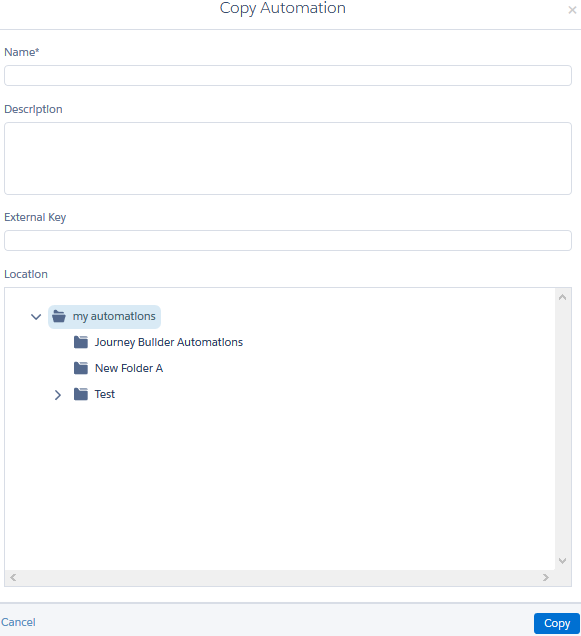
- Choose a different file location for the copy as appropriate.