
Automation Studio includes options to schedule an automation, run it automatically when a file is dropped, or run an automation once. Use Advanced Run Once to run only a portion of an automation.
Use Advanced Run Once to run only a portion of the automation, or to restart the automation from an activity that follows an errored activity. Or fix a single activity that errors and run that activity only. Select an entire step, individual activities, or any combination of steps and activities. Run a subset of activities you select by clicking Run Once in an automation, then selecting the activities to run.
Considerations
- Only scheduled automations support Advanced Run Once.
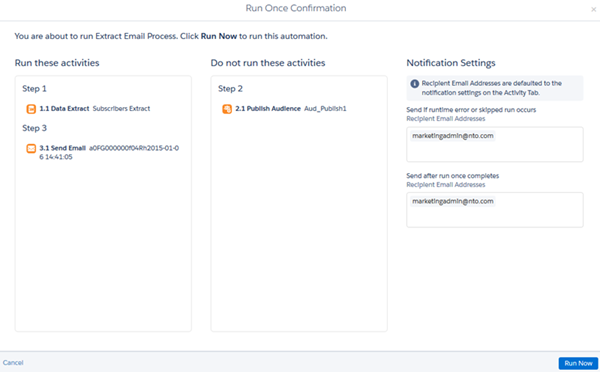
- The last run's result appears in the right pane. Select the activities to run, then confirm the activities that you want to run before the automation's run begins.
- Users can select an entire step, individual activities, or any combination of steps and activities.
- To run an entire automation once without selecting or deselecting activities, hover over the automation's name on the Automation Overview page and click Run Once.
- Notification settings are carried over from the automation-level notification settings.
- Notification Settings are edited on an automation’s Activity tab, not in the Run Once Confirmation modal. Notification email addresses appear in the modal for reference only.

Note The hierarchy of statuses is important. Not Selected is an option for Run Once
automations only. So if a user sees Completed status, that could mean that only the selected
activities in the step completed. Activities that were not selected did not complete, or run at
all.