
After you create a highlighting rule, add it to a widget.
| REQUIRED USER ROLE | |
|---|---|
| To add a highlighting rule to a widget | Admin and Power User |
- Go to the Visualize tab.
- Select the dashboard page where the widget is located.
- Make sure that you’re in edit mode by clicking the pencil icon.
- Click the widget you want to add the highlighting rule to, which opens the Edit Widget dialog.
- Select the Design tab.
- Scroll down and click Interactions.
-
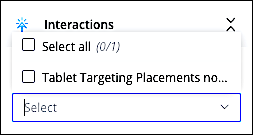
Select the Highlighting Rules checkbox.
If highlighting rules exist, they appear in a list:
-
Select the highlighting rule you want to add. The rule automatically appears in your widget
after it’s selected.
If you don’t have any existing highlighting rules, click the + sign to create a new rule. You’re automatically directed to the Highlighting Rules tab. If you only want the highlighting rule to apply to the dimensions or measurements in the widget, follow these steps:
- Create your rule, and navigate to the Data tab.
- Click the measurement or the dimension you want to apply the rule to.
- Under Highlighting Rules, select the rule you want to add.
- To remove a highlighting rule, click the X next to the highlighting rule you want to remove.
- When you’re done, make sure that you save your dashboard page, otherwise you lose the changes.
To create a rule that applies to dimensions and measurements simultaneously, create two separate rules, and then apply them individually to the widget as explained previously.
For example, to highlight all banner placements that made less than 1,000 impressions, first create a rule that highlights all placement names that contain the word Banner. Then create another rule that highlights all impressions that are under 1,000. Attach these rules separately to the widget as a whole under the Design tab, or attach them to the measurement or dimension under the Data tab