
You can share widgets and pages with Marketing Cloud Intelligence Insights for Slack to collaborate with colleagues and clients.
| REQUIRED USER ROLE | |
|---|---|
| To share in Slack | Admin and Power User |
- Select the page or widget you want to share, and click the Share icon.
-
Click Slack, and enter the sharing information.
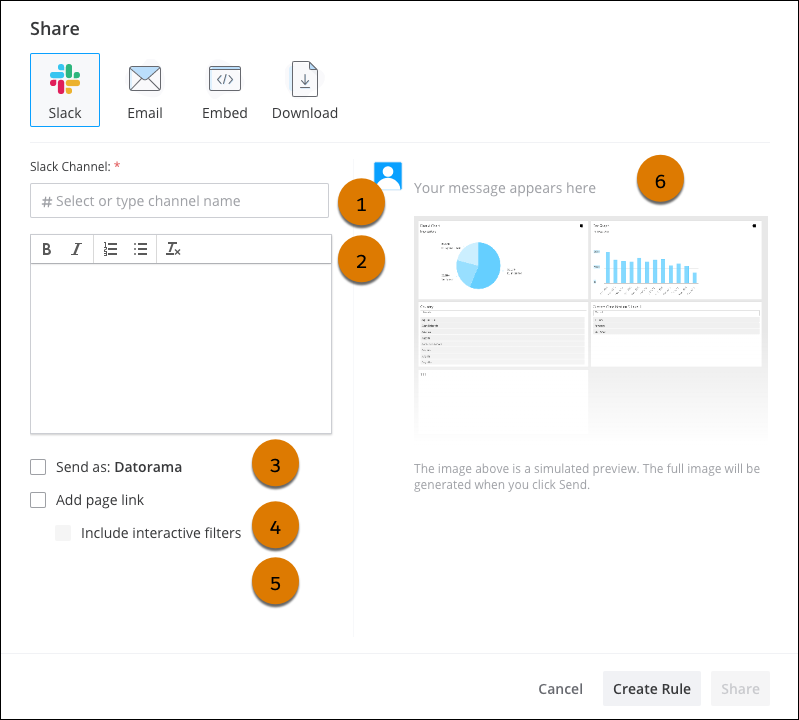
- Enter the Slack channel (1). Private channels and DMs aren’t supported.
- Add a message (2) to describe what you’re sharing.
- Select Send to send the message with a predefined name (3). This option appears only when defined in the configuration settings.
- You can also add a link to the page you’re sharing (4).
- Select Include interactive filters to share the dashboard with interactive filters applied (5).
- Preview what you’re sending (6).
- Click Share.
Watch this video about Marketing Cloud Intelligence Insights for Slack:
- Create a Slack Rule
Create a rule in Slack to trigger alerts based on specific KPIs or by a particular date and time. Use rules to stay updated on the progress of your data.