
Create a rule to trigger an email. You can schedule email alerts based on specific KPIs or by a particular date and time. Use rules to stay updated on the progress of your data.
| REQUIRED USER ROLE | |
|---|---|
| To create an email rule | Admin and Power User |
- Go to the dashboard page or widget you want to share.
- Click the Share icon.
- Click Email
-
Click Create Rule and define the rule.
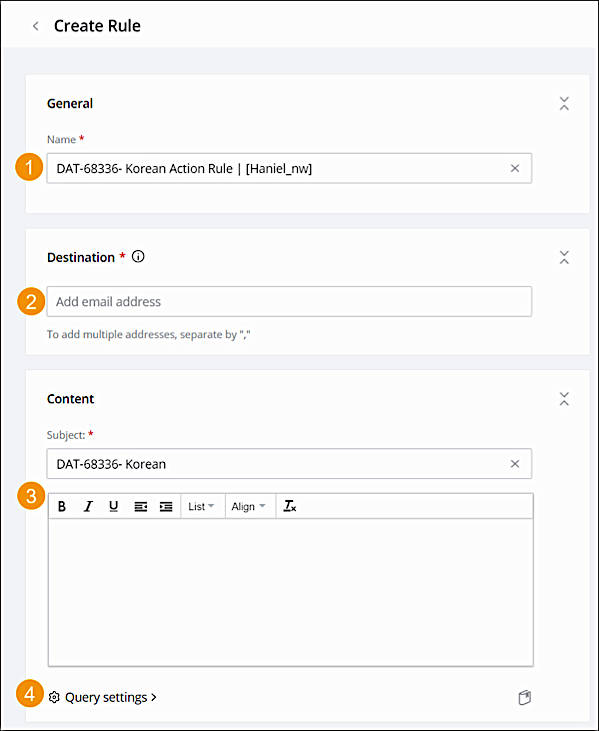
- In the General section name your rule (1) In the destination section, add the email address you are creating a rule for (2).
- In the Content section add a message or information you want to share (3).
- You can add queries to your rule to make the data dynamic and interactive (4). When you add a query to your content be sure that the measurements and dimensions you selected are available in your data.
- To add more dimensions or measurements select them from the dropdown.
-
In the Trigger section, define the trigger for your alert:
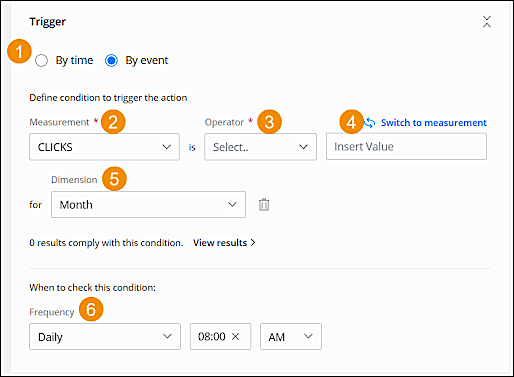
- Choose whether it’s by time or by event (1).
- If you’re using by event, select the measurement to apply (2) and the operator (3).
- Add a value (4). For example, you want to be notified when your Message Total Clicks drops below 100.
- You can add a dimension (5). If you’re creating a rule from a widget that already contains a dimension, it’s automatically populated.
- Define how often you want to check if the conditions are true (6).
-
In the Filters section, you can see all the filters that are applied
to your rule and edit the date range. On the right you can see a preview of the email you are
sending.
 Note When creating a rule that is scheduled to run in the future, it is recommended to set the date range as a relative date. For example Last week. This ensures that the data from the rule is always relevant.
 - When you are finished click Create Rule.