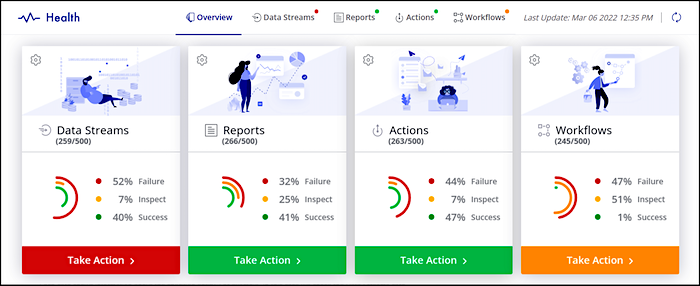
Get an overall view of your workspace entities with the Workspace Health Monitoring app.
View all successful and failed data streams, reports, actions, and workflows. Open an entity to
view more details, and then fix an issue by opening a ticket or by sending an email to a colleague
informing them of the issue.
Required Editions
| User Permissions Needed |
| To run the Workspace Health Monitoring app |
Admin |
-
In Marketing Cloud Intelligence, on the Marketplace tab, select
Apps.
-
Click Installed Solutions, and then select the Workspace
Health Monitoring app. The main page shows an overview of your workspace’s health.
-
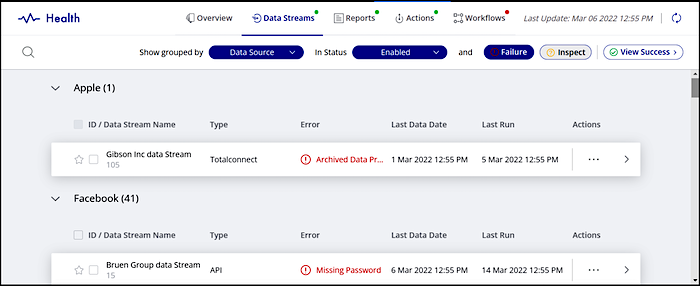
To view more details about a specific entity, such as data streams, select the tabs at the
top of the page, or click Take Action.
The content changes per entity type, so not all filters and options are available for each
tab.
-
Group the items by data source or error, and filter by different statuses, such as enabled
or disabled.
-
Filter by the type of error:
- Failure: The process failed and the entity wasn’t created.
- Inspect: The process didn’t work as expected. For example, a
data stream was processed successfully but didn’t log any new data.
-
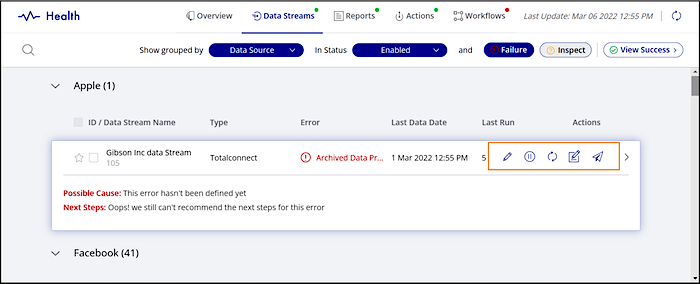
Click the failed entity, and view more details.
- Edit: Edit the entity. For example, if you’re viewing a data
stream, this option takes you to the data stream to fix it.
- Disable: Disable the entity and prevent it from running.
- Re-Process: Reprocess the entity.
- Open Ticket: Create a ticket, and send it directly to the
Marketing Cloud Intelligence support team.
- Send Email: Create and send an email to inform another admin in
your account. Your local email provider opens up automatically.
Here’s a video about the Workspace Health Monitoring app “Inspect” Entities: