You can customize the information that you display for each entity in the Workspace
Health Monitoring app. For example, you can change the tolerance to set the urgency level and
register to a daily email service.
Required Editions
| User Permissions Needed |
| To configure the Workspace Health Monitoring app |
Admin |
-
In Marketing Cloud Intelligence, on the Marketplace tab, select
Apps.
-
Click Installed Solutions, and then select the Workspace
Health Monitoring app.
-
Click the Settings icon on each entity card.
-
Set the tolerance.
Sensitive: The card appears in red on the main overview and the
top filter even if only one failure occurs.
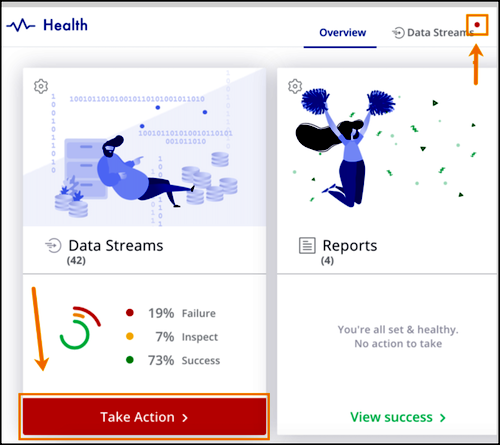
Proportional: The card appears in red if most items failed. If
not, it appears in yellow or green.
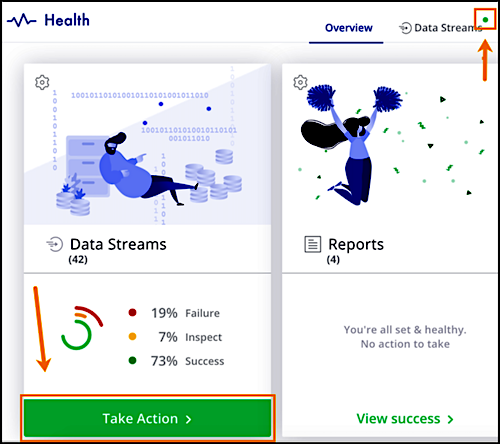
-
To subscribe users to a daily email status, select Subscribe to daily status
emails, and then enter the email addresses.
-
Save your work.
Watch this video for more information about configuring the Workspace Health
Monitoring app:
