
Installing the Social Intelligence app creates an app page that shows all the social competitive data gathered during configuration.
| REQUIRED USER ROLE | |
|---|---|
| To view Marketplace apps | Admin, Power User, or Viewer |
- In Marketing Cloud Intelligence, on the Marketplace tab, select Apps.
- Click Installed Solutions, and then select the Social Intelligence app.
- Filter the app page by date, competitors, and social networks.
To view the different sections, scroll up or down or use the bookmarks on the left-hand side of the page.
- You Vs Competitors — Get overall social presence by looking at your score. The score is calculated by comparing the number of likes per brand across each social network. The number of followers also plays a role, adding more weight to the social network with more followers. For example, if most followers are on Facebook, likes on Facebook have more weight on the overall score.
- Follower Growth — View how well your follower base is growing compared to your competitor’s. A dynamic graph is used to show this information by looking at how your follower growth over time. This graph changes as the app gathers more data. After there’s enough data, you can see the growth rate for you and your competitors. Note: You can only see data from the date of installation. You can’t view prior data.
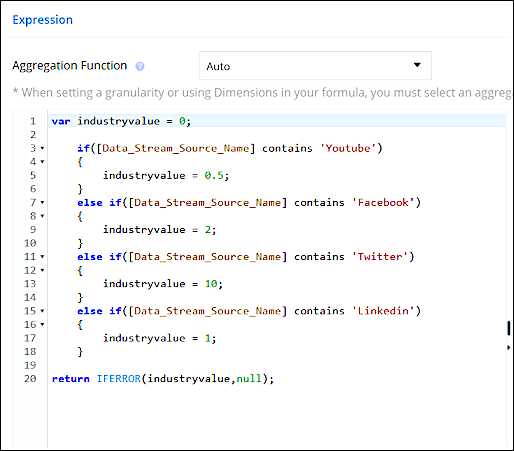
- Frequency — Determine how frequently to post per social network. You
can customize these calculations using calculated measurements. For example, you can adjust the
industry value like in the example to change the numbers used for the general benchmark
column.
- Post Timing — Get insights about the best day of the week or time of day to post to your social networks. You get a score based on a number of factors and see the times with the highest number of highly rated posts.
- Top Posts — Shows which posts were the most successful per social network according to the number of likes and shares and, if available comments.
- Messaging — View how each brand uses different messaging tactics.
Scan posts and find the terms or hashtags that are used the most. See where messages overlap,
which means more than one company uses the same term. Determine which terms to use and which
make your marketing tactics more unique.
- Each competitor appears on its own in a different location on the page.
- If the term is connected to more than one competitor, the term appears closest to the competitor that uses it the most.
- If you hover over a term, you can see if another competitor uses the term.
- The colors used represent the uniqueness of the words. Font size also plays a role. Terms that appear with a larger font are used more often per competitor.