
The eCommerce Optimize app provides an analysis of Return On Ad Spend (ROAS) data. Setting up the app involves connecting your revenue data and spend data.
Required Editions
| User Permissions Needed | |
|---|---|
| To install Marketplace apps | Admin |
Installing the eCommerce Optimizer app requires:
- A Google Analytics account with ecommerce Transactions tracking implemented.
- If using custom Google Analytics data streams, mapped revenue to the Web Site Transaction Revenue field.
- Credentials or existing data streams of spend, such as Facebook ads, Google Adwords, Linkedin, and Ads.
-
Install the eCommerce Optimizer app:
- In Marketing Cloud Intelligence, on the Marketplace tab, select Apps.
- Select the app, and then click Get it Now.
-
Connect your revenue data:
- Click Start with your revenue data.
- Connect to a Google Analytics data stream or create one. All websites configured for the account appear in a list.
- Select the website that you’re pulling data for.
-
Enable additional touch points to show a page-level breakdown of the Google Analytics
connector, which allows the app to show insights of conversions in your site.
- Select Enable page data points. A preview of the funnel appears.
- Click Next.
-
Connect your spend data:
- Connect to an existing data stream or create one. If you’re creating a data stream, you can enter authentication details for Google Ads or Facebook Ads.
- If you’re connecting to existing data streams, all of the spend data streams found in your workspace appear in a list. These data streams are available: Facebook Ads, Google AdWords, LinkedIn Ads, Twitter Ads, YouTube Ads, and Pinterest Ads.
- To remove a data steam, click the trash icon.
- To add a new data stream from your workspace, click Add Data Stream from workspace.
- Select the measurement that represents spend in each data stream. Media Cost is selected by default. If the data stream uses a different measurement, such as booked cost, change the default measurement.
- To change the date range of the measurement data, use the date picker. At the bottom of the table, you can see the total ad spend data. This total changes according to the measurements and dates that you select.
- Click Next.
- Review the number of data streams and names for revenue and spend.
- To complete the installation, click Finish.
Installing the eCommerce Optimizer app creates these entities:
- Data Streams
- Calendar Events – Created by default for these major commerce events:
- Blue Monday
- Valentine’s Day
- International Women’s Day
- Easter Sunday and Easter Monday
- May Day
- Mother’s Day
- Father’s Day
- Halloween
- Singles’ Day
- Thanksgiving
- Black Friday
- Cyber Monday
- Saint Nicholas Day
- Christmas Day
- Classification Rules – Created to map the different channels and platforms.
- Calculated Dimensions – Created based on the classification rules.
- Calculated Measurements – Created based on your data.
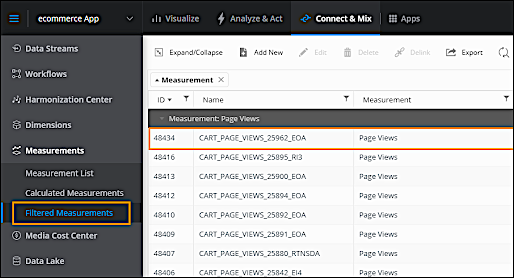
- Filtered Measurements – If you select the page event checkbox during configuration, a funnel
chart and a new Cart Pages Viewed underlying entity are created.
- EMI Bots – Created based on your data.