The Media Planning Center app manages media plans, analyzes spending, and optimizes budget.
Required Editions
| User Permissions Needed | |
|---|---|
| To install Marketplace apps: | Admin |
After the app installs you must define the time frame of the media plan for budget allocation and set your spend and success measures.
-
Install the Media Planning Center app.
- In Marketing Cloud Intelligence, on the Marketplace tab, select Apps.
- Select the app and click Get it Now.
- Click Next.
-
Define the time frame you want to plan your budget allocation for.
The time frame is made up of two components, the date range and the increments that this range is subdivided into.
- Select the increments.
-
Set the date range using the calendar. As you set the dates, a preview of your budgeting
plan appears at the bottom of the page and changes as you make adjustments.
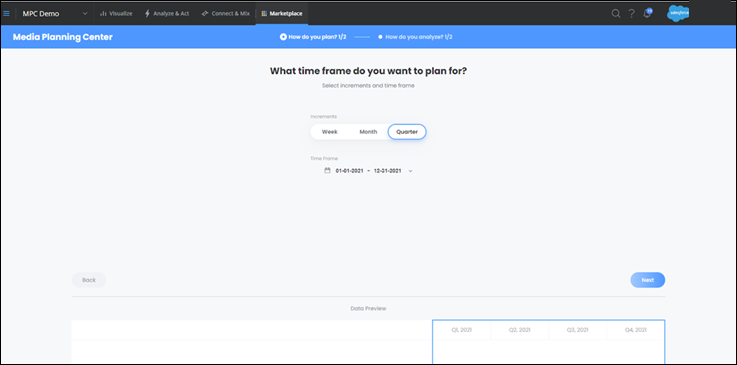 Partial date ranges that conflict with your selected increments aren’t supported. If you select monthly increments and have a date range with a partial month in it, the partial month is auto-selected as the entire month. The same applies to weekly, and quarterly increments.
 -
To set your plan according to your organization’s fiscal calendar, select Use
Workspace custom calendar.
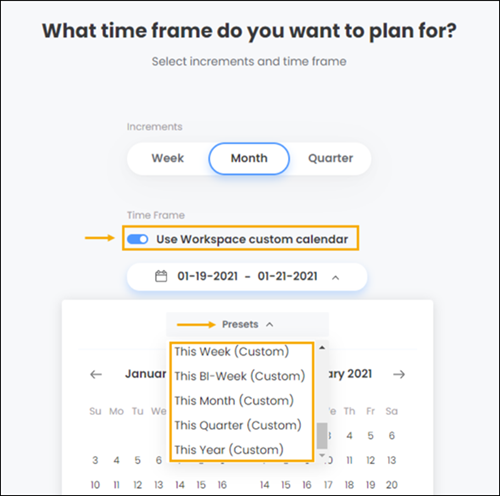
 Note You must have a custom calendar setup in your workspace. Contact your account manager for more information.It’s suggested that you have custom calendar installed for the previous year, as well as the current one. This way you can compare by correlating date ranges.
 - Click Next.
-
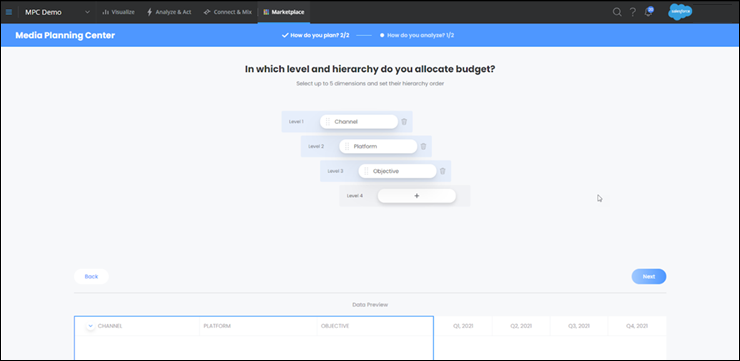
Select the dimensions by which you want to perform your budget allocation and define the
hierarchy between them.
- These dimensions can be any dimensions that you have in your workspace. You can have a total of 5 dimensions.
-
It’s recommended that you select dimensions that are at a high level and denote activity
types you can strategize by. For example, channel, platform, strategy, market, and target
audience.
-
As you make your selections, the dimensions are placed in a hierarchy relative to one
another. The lowest level represents the level the budget is allocated for. Each level is a
summation of the levels below it, and the top level represents the sum.
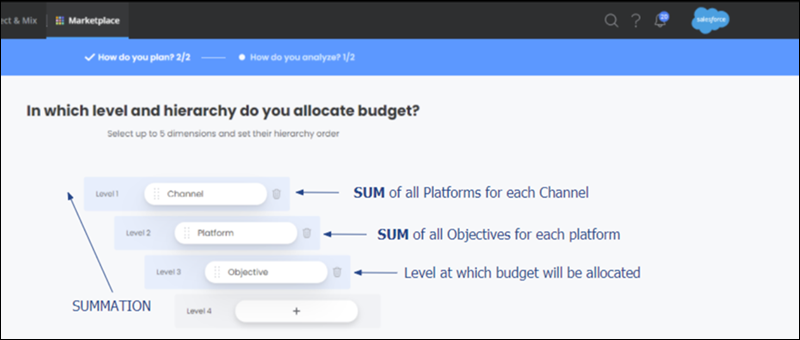
- To change the positions of the different levels in the hierarchy, drag a level and change the position if needed.
- Click Next.
-
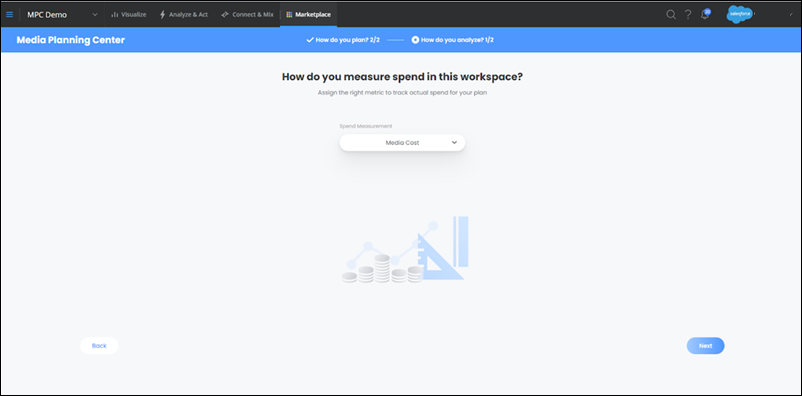
Define the measurement you use to visualize media cost in your workspace.
The Media Planning Center must know how you measure cost because all of its comparisons, forecasts, and optimization calculations are cost-based.These calculations treat your selected spend measurement as the historical ‘actual’ spend value, which is aligned with your ‘planned’ spend for example, your budget.You can use any measurement that you have in the system, such as mapped measurements, calculated measurements, or even system-generated calculated measurements.
-
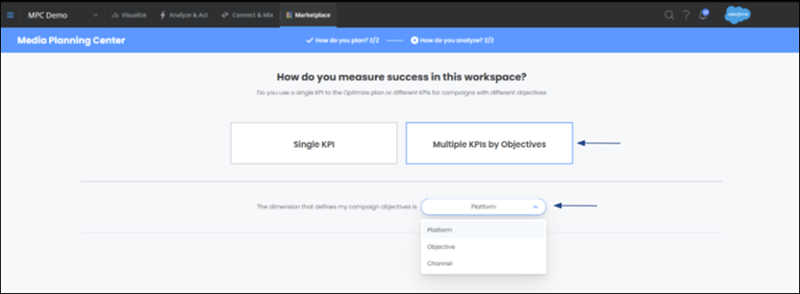
Define which measurements (KPIs) you use to measure the success of your objectives.
- Select Single KPI, if you have one objective.
-
Select Multiple KPIs by Objective, if you have more than one
objective and each one is measured differently. Then, select the dimension that holds your
objective values from the dropdown.
-
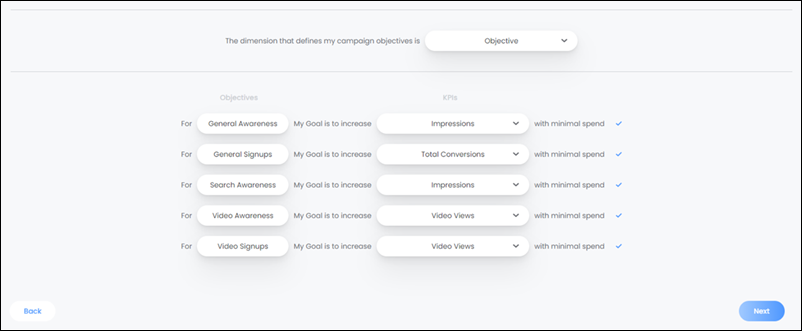
After selecting your dimension, all the objective values available for the selected
dimension appear. You now must define how you want to measure the objective. For example, if
your objective is to increase awareness, what measurement do you use to quantify awareness?
Is it Impressions? Is it Reach?
- Click Next.
-
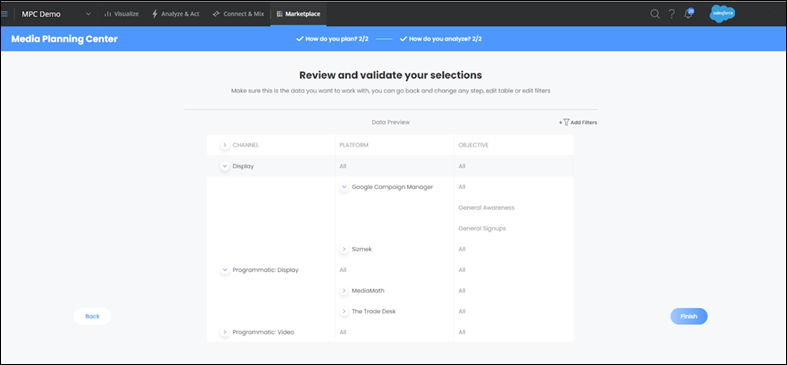
Review the outline of your plan and when you’re done click Finish.