Media Planning Center Scenario Planning allows you to compare multiple versions of the same plan, by their projected KPIs.
Required Editions
| User Permissions Needed | |
|---|---|
| To view installed Marketplace apps: | Admin, Power User, or Viewer |
With this view, identify the plan that’s likely to produce the best results for you. The existing scenarios for budget allocations appear at the top of your screen allowing you to manage multiple versions of the same plan from one instance. To see a demo, check out this video.
- In Marketing Cloud Intelligence, on the Marketplace tab, select Apps.
- Click Installed Solutions, and then select the Media Planning Center app.
-
To view an existing plan, click a plan from the scenario panel(1).
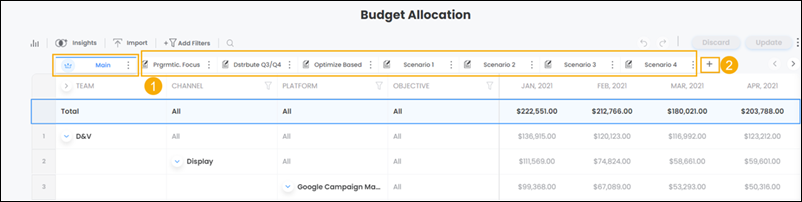
- To add a plan, click the + icon next to the scenario panel(2).
- To copy a plan from an existing scenario, select Copy from an Existing Scenario and then select a scenario from the dropdown.
- To create a plan from scratch, select Start from Scratch.
-
Click Add.
After you add a scenario, the original scenario becomes the ‘main’ scenario and is identified with a crown icon. The main scenario acts as a focal point of comparison for additional scenarios created. For example, adding or changing budgeting figures in a new scenario immediately presents the difference between newly added budgets, and budgets that exist in the main scenario.
-
To see a simulation for the selected scenarios, select the Simulate
tab.
The simulation forecasts each plan’s KPI totals by the end of the plan’s defined timeframe.
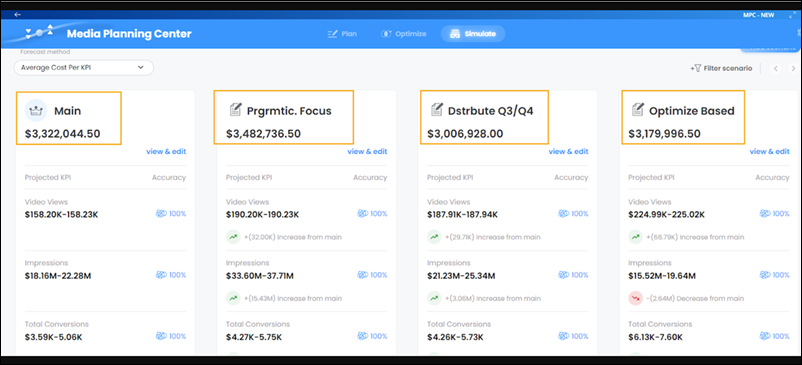
- To reconfigure, which of the multiple scenarios is considered to be the main scenario, click the menu icon, and then select Set as main scenario.
-
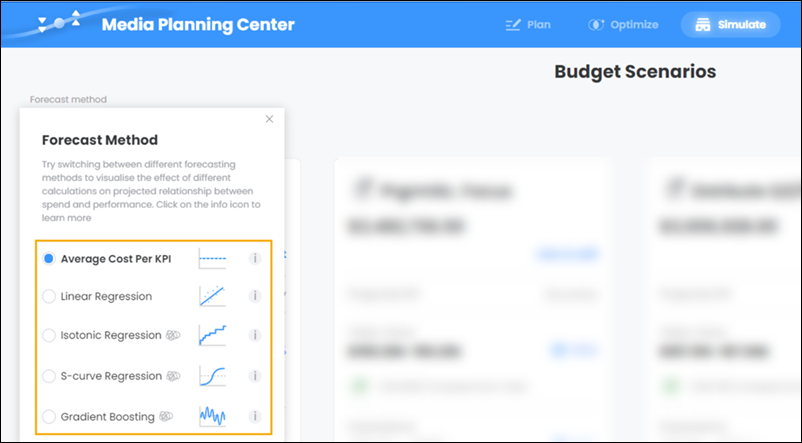
To change the forecasting method by which the KPIs are projected, on the left-hand side,
select a forecasting method.