Add a custom widget to apply more advanced use cases to your dashboard page. For
example, use an EMI custom widget to surface AI-powered insights in your dashboards.
Required Editions
| User Permissions Needed |
| To use a custom widget: |
Admin and Power User |
-
In the Marketing Cloud Intelligence platform, select the Visualize tab.
-
Select the dashboard and the page that you want to add the widget to.
-
Click the pencil icon.
-
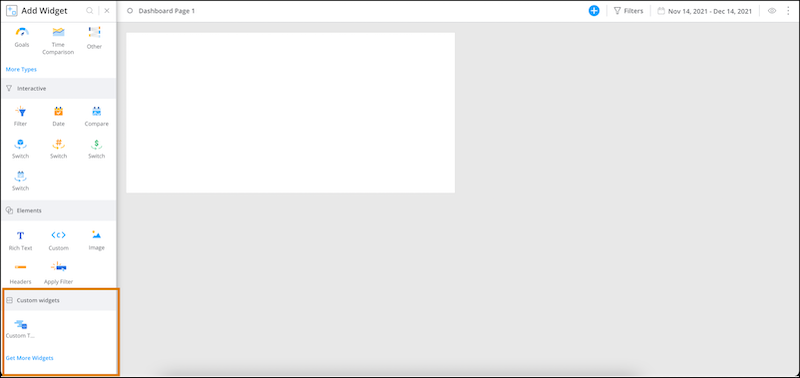
Click the + icon.
The available widgets appear under Custom widgets.
-
Select the widget.
-
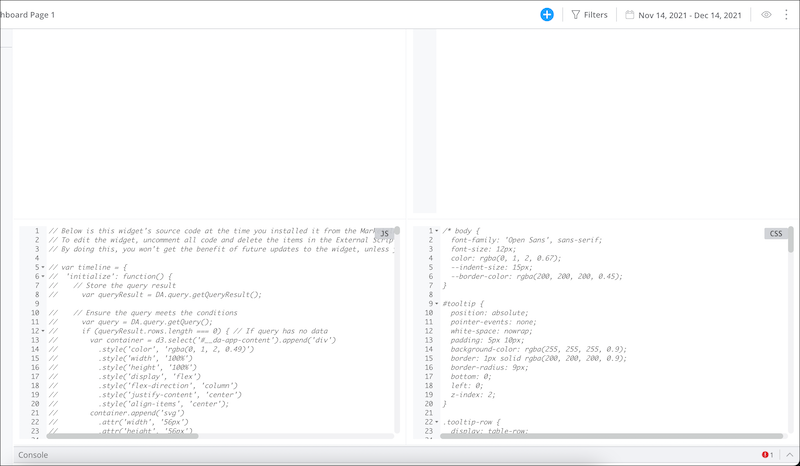
Modify the code if needed.
Here’s an example of a custom widget that was added to the page.
-
To add data to your widget, click the blue + icon.