
Create a classification rule to classify your data. You can upload a classification file or define the classification from scratch.
Required Editions
| User Permissions Needed | |
|---|---|
| To create a classification rule: | Admin |
- From the Connect & Mix tab, select Harmonization Center and then Data Classification.
- Click Add New.
-
Define the classification rule:
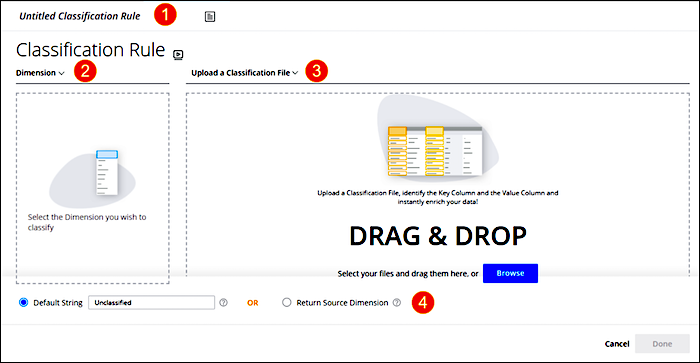
- Enter a name (1).
-
Select the dimension the classification rule applies to (2).
 Note Custom dimensions can’t be used in Classification Rules.
 - Upload a classification file or create one (3).
-
Determine what to do with unclassified values (4.).
Default String Select to return a default string whenever unclassified values are found. You can change the string if necessary. Return Source Dimension Select if you don’t want the unclassified values to be aggregated. - After the classification loads, set the Key and Value columns and control the way Marketing Cloud Intelligence classifies the values.
-
Click Done.
After the classification rule is created, a data stream is created automatically.