
After you upload or create a classification file using data classification, customize and configure the columns in your file. Determine which column is the Key column and which is the Value column. Control the way the system recognizes values in your file as well.
Required Editions
| User Permissions Needed | |
|---|---|
| To configure classification rules: | Admin |

Note If you’re using LiteConnect dimensions when classifying, the Match Type is limited to Exact
Match only, and Case Sensitivity is disabled.
- From the Connect & Mix tab, select Harmonization Center and then Data Classification.
- Edit a classification rule, or create one.
-
Here’s an example of a classification rule:
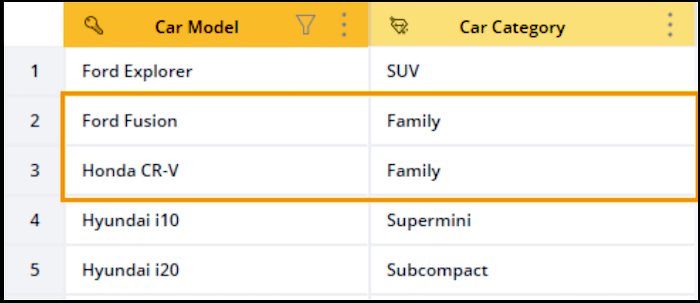
Key Column (Car Model: notice the key icon) - The column that contains the unique dimension values on which the classification is applied. The key column is Ford Fusion. Note If you upload or create a file that doesn’t contain a column with unique Dimension values, Marketing Cloud Intelligence highlights the duplicate values for you. You can then use the in-line editing tool to remove them.Value Column (Car Category ) - The column that displays the classification values. In our example, both Ford Fusion and Honda CR-V were classified as Family. -
To control how Marketing Cloud Intelligence classifies the values for the Key and Value
columns and when classification takes place, click the Options button
which is located to the right of the column name.
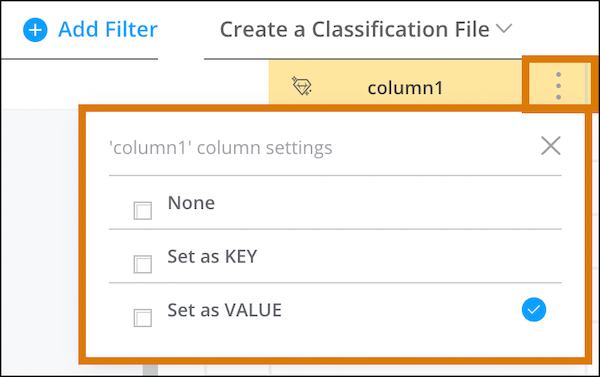
None Excludes the column from your classification rule entirely. Set as KEY Sets the column as the Key column and defines how you want to determine the value. Exact Match (Selected by default) The full Dimension value must be matched with one of the keys in order for classification to take place. Key Contains Dimension The values in the Key column contain the values in the Source Dimension. Dimension Contains Key The values in the Source Dimension contain the values in the Key column. Case Sensitive Dimension values must be capitalized the same as the Key Values for the classification to apply. Set as Value Sets the Key column as the Value column instead, or vice versa if you’re editing the Value column.
- Classification Rule Example
This table shows how configuration types affect data classification and what happens when data is classified.