
After harmonized dimensions are created, they appear in a list so you can easily manage them. Add classifications and validations, see previews, find and replace in bulk, and more.
Required Editions
| User Permissions Needed | |
|---|---|
| To manage and monitor harmonized dimensions: | Admin |
- From the Connect & Mix tab, select Harmonization Center and then Harmonized Dimensions.
- View all of your harmonized dimensions.
- To review where the harmonized dimension is used and replace it with another dimension, click Find/Replace.
-
To view more details about a harmonized dimension, double-click it.
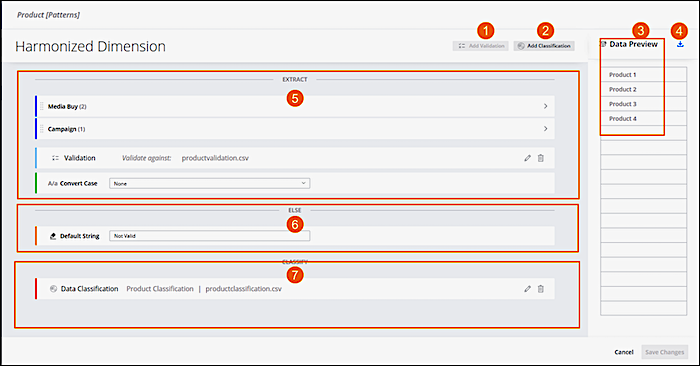
- To add another layer of validation, such as a list of products, click Add Validation (1).
- To classify your harmonized dimension by categories, click Add Classification. You’re redirected to the Data Classification page, and the classification rule is filtered according to your selected harmonized dimension (2).
- Data Preview shows what’s going to be extracted. In this example, Product 1, Product 2, Product 3, and Product 4 are extracted (3).
- For a full view of your data, click Export when you want to remove a dimension and then validate your file. For example, if you have four products and you don’t want Product 1 to be included in your data. Export the data, remove Product 1, and then import the file as a validation file (4).
- In EXTRACT, review what’s going to be extracted (5).
- Enter the default string to be returned for unrecognized data (6).
- If you created a classification rule that is based on this harmonized dimension it appears in CLASSIFY. Edit or delete it from here (7).
- Click Done and save changes.