
Create a transformation rule to set a value of a specific attribute, for example whenever the Campaign Key is set to 1234, the Campaign Type is set to Search.
Required Editions
| User Permissions Needed | |
|---|---|
| To create transformation rules: | Admin |

Note This feature is a legacy feature and is only available if you’ve used it in the past. It’s
highly recommended you use the Harmonization Center instead.
Note Transformation rules aren’t case-sensitive.
- On the Connect & Mix tab, select Harmonization Center, and then Transformation Rules.
- Click New.
- In the General section enter the rule’s name.
- To save the rule and not activate it, clear Enabled.
- Select the dimension the rule is based on. The configuration options change according to the type you select.
-
If you have several rules that apply to the same field, set the order to determine which
rule runs first. Create a rule. For example, when campaign name equals 1234.
- Select the dimension the rule is based on.
- Set the operator, for example contains.
- Enter the value. Click Add.
- Set the configuration settings to tell the platform what to do when the field is found and how to change its value.
- Select the dimension the extracted values are affiliated to.
-
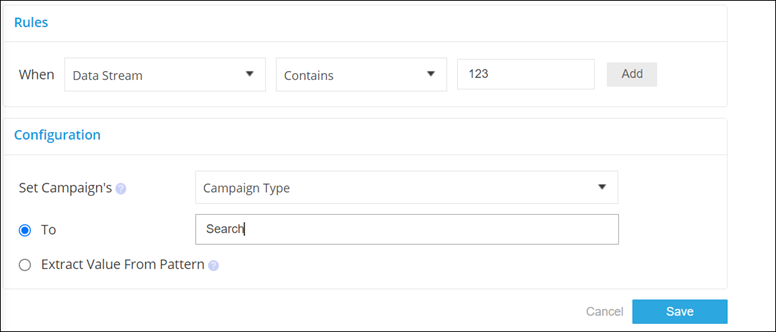
Set the value. There are two options.
To: Sets a static value. For example, when the data stream name contains 123, set the campaign name to search.
Extract Value From Pattern: Extracts the value from a specific position in a pattern. For example, when the campaign name equals 123, set the campaign name to the value that’s extracted from the second position of the data stream dimension.
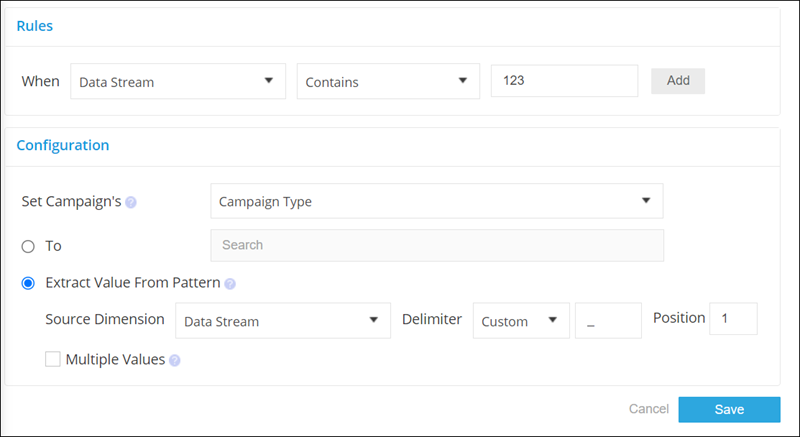
- Select the dimension the rule is extracting from.
- Enter the delimiter.
- Enter the position you’re extracting from.
- Save your work.