
Errors can occur that prevent data streams from being created or processed. You can view errors using the Log button. The log contains important technical information and can help you diagnose issues.
The log for TotalConnect data streams stores all files that entered the data stream, and each file has its own secondary log.
Here are some common errors that occur and possible solutions:
Error: MISSING_FIELD "A mandatory field is missing in the uploaded file"
A mandatory field is missing in your data stream. Two scenarios can cause the Missing Field error.
- A column is missing from the file.
- A column header has been renamed or misspelled.
Confirm the Error:
- Download the file causing an error from the data stream’s log and compare mapped fields in the data stream to the downloaded file fields. If fields are missing, contact an admin who is familiar with the files.
- Look for header names that are different from the previous files that were processed without the error.
Possible Solution:
- Apply a mapping formula using the COALESCE function to accommodate all header names—both past and current versions.
- Upload the file to a new data stream. Issues concerning the headers aren’t always visible in the original file—uploading the file to the platform in a separate data stream allows you to see how the platform processes the file.
Error: DATE_FORMAT_IS_INVALID "Invalid date format"
Dates are mandatory for uploading measurement data in Marketing Cloud Intelligence. An invalid date format causes the data stream to fail. Two scenarios can cause an Invalid Date Format error.
- The date field is being read as a Text and not as Date.
- Dates are formatted differently than in previous files.
Possible Solution:
- Apply a PARSEDATE function to the Day field in the mapping, including all possible variations of the date formats in an ‘if’ statement.
- Revert the file back to its original settings—the original file extension or original date format. If you can’t revert the file, contact your account executive for assistance.
Error: INVALID_DATE_RANGE "Invalid date range"
An invalid date range error occurs when the date range of a file includes a large number of years. The platform recognizes that the date range is unreasonable and doesn’t upload the file. In Marketing Cloud Intelligence you can only process data within a 15-year time period. Any data older than 15 years results in an invalid date range error.
Possible Solution:
- Reduce the date range to include data within the last 15 years only.
- A large date range error can also result from a date format error—it’s recommended to also check the date format in the failed streams.
Error: FORMULA_EVALUATION_FAILED "Formula evaluation failed"
A formula that doesn’t function as intended can cause a data stream to fail. The scenario that causes the Formula Evaluation Failed error:
- The formula that is applied to the data stream can’t run on all the data it’s applied to. For example, some of the data in the formula divides in a null value.
Confirm the Error:
- Check the failed jobs log and determine which formula is failing.
- Check the raw data files and see what data the failed formula is applied to.
Possible Solution:
- Edit the formula and reprocess the files.
Error: MAPPING_VALIDATION/Mapping Warnings
A mapping validation or mapping warning highlights specific issues with the relationships between the fields in the uploaded file. For example, there are multiple campaign name values associated with the same campaign key. Mapping validation and Mapping warning can cause aggregation issues.
Possible Solutions:
- Every mapped attribute field has to have its key field mapped as well. For example, if you map the Social Post Domain field, Social Post Key must be mapped as well. Check the failed jobs in the logs and determine which dimension is problematic.
- Confirm that entities that are mapped in a one-to-many relationship. For example,
Campaign and Media Buy— the 'one' field, in this case campaign, has only one value
corresponding to the 'many' field (Media Buy). You can check this using a pivot table:
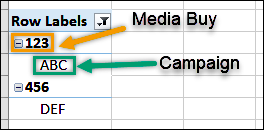
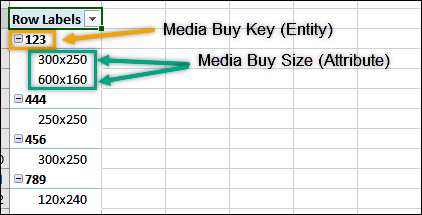
- Confirm that each entity, for example Media Buy Key, has only one value under each
attribute field—for example Media Buy Size. In the image you can see that there are two
attributes associated with the entity, causing a MAPPING_VALIDATION or Mapping Warnings
error.
- In datasets that only include Many to Many relationships, you can create a concatenation in the mapping to concatenate several fields to create a viable key.
Error: Security Error: invalid value "...path may contain malicious code"
The invalid value error occurs when a page path is identified as code—and for security reasons it’s blocked.
Possible solution:
- The path isn’t malicious code. You can prevent it from being blocked by using this formula: STRIP_HTML(csv['page_path']) in page path and its subcategories (Page Path Level 1 and 2).
- After applying the formula, reprocess the failed days.
Error: The formulas contain a cyclic reference of Marketing Cloud Intelligence fields: cyclic reference detected
A cyclic formula reference error commonly occurs when using VLOOKUP functions and the wrong type of field is used.
Marketing Cloud Intelligence references these field types in formulas:
- CSV—Fields in the uploaded file. Transformers affect these values, but formulas don’t.
- Dat—A data stream is manipulating a field in the "transformed" file. Formula manipulation affects these values.
- Data Model fields (appears as [Media_Buy_Name])—Fields in the Marketing Cloud Intelligence database that contain values loaded by existing data streams to the platform.
When using VLOOKUP it’s common to search and retrieve values from fields uploaded by other data streams in the workspace. Data Model fields with square brackets are used to retrieve the values allowing you to access values that exist in the Marketing Cloud Intelligence database.
Possible Solution:
- Make sure that the VLOOKUP formula uses the right type of fields in the second and third parameters, searchDimension, and returnDimension.
Error: The workspace exceeded total rows or The account exceeded total rows
When a workspace or account exceeds its total rows limit, data streams can’t process and fail. Every account has a limited number of rows. This number is divided between the account's workspaces. The error in question appears when either the account or one of its workspaces has reached their row limit.
When an account reaches its row limit, 'The account exceeded total rows' error appears.
When a workspace reaches its row limit, 'The workspace exceeded total rows' appears.
Confirm the Error:
- Admins can track the row usage from the account or workspace settings under Data Row Usage.
Possible Solution:
- Delete data from the workspace.
 Note Changes can take up to 30 minutes to apply. To increase the account or workspace row limit, contact your account executive.
Problem: Zero rows are uploaded when a new file is uploaded.
To see the number of rows added in the last update:
- On the Connect & Mix tab, expand Data Streams, and then click Data Stream List.
- In the Last # Of Rows Added column, you can see the number of rows that were added.
If 0 rows were added, check to see if a measurement header is missing, or if it appears under a different name in the recent file. These issues can result in rows not being uploaded.
Possible Solution:
- Apply a mapping formula using the COALESCE function to accommodate all header names for both past and current versions.
- Upload the file to a new data stream. Sometimes, issues related to headers aren’t visible in the original file. Uploading the file to the platform in a separate data stream allows you to see how the platform processes the file.
Problem: The log displays "NO FILE" under the 'File' column and "No files were retrieved" under 'Reason'
This situation occurs when the data stream's retrieval settings are enabled, but no new files are available during the retrieval. This message means that the data stream ran, but no new data was present.
Data upload limits apply to TotalConnect data streams. This table lists the limits.
| File Type | File Size | Row Limits |
|---|---|---|
| Direct Upload | 40 MB | 15 Million Rows |
| 30 MB | 15 Million Rows | |
| Retrieval | 500 GB | 15 Million Rows |
Additional Notes:
- Up to 15 jobs can be processed simultaneously in each workspace. All other jobs that start at the same time are added to a queue and given a Pending status until they’re processed.
- When creating a scheduled report in order to feed a data stream, the associated email address can be entered in the To, CC, or BCC fields.